

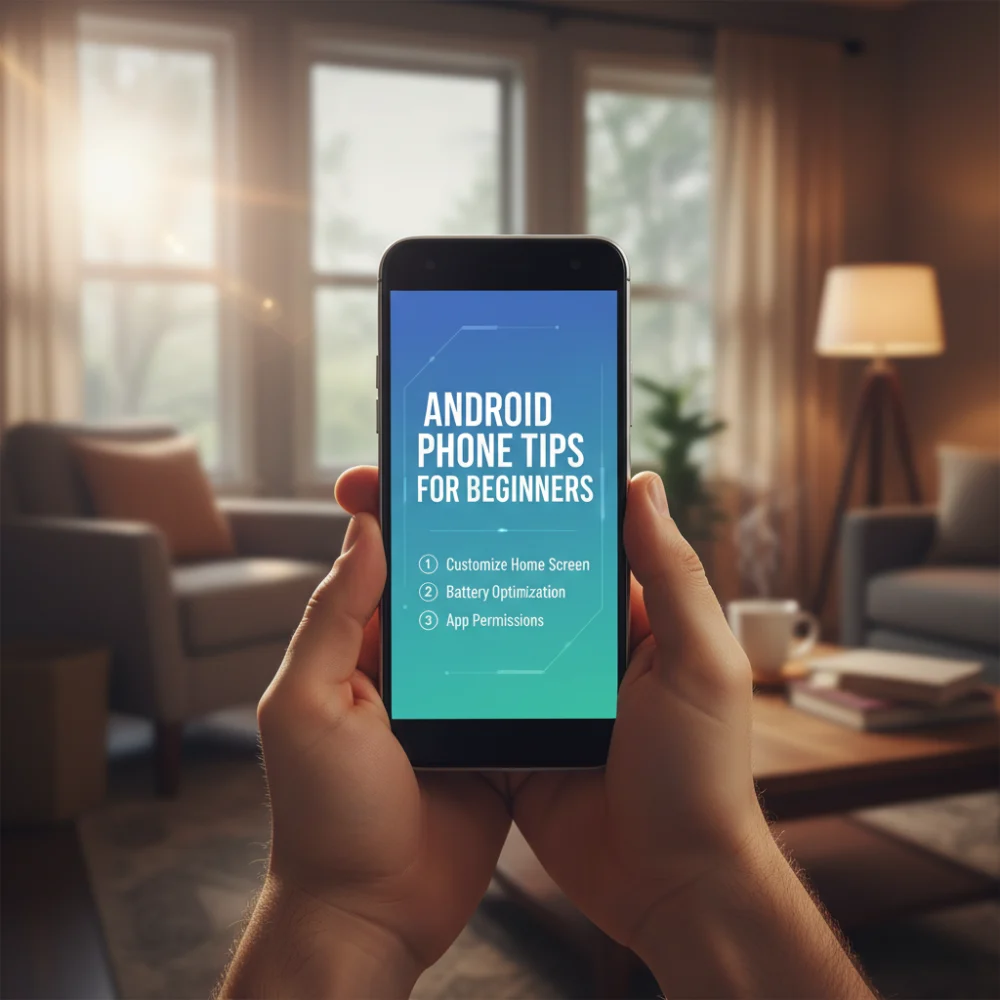
Welcome to the world of Android! If you have just unboxed your first Android smartphone, the sheer number of icons, settings, and gestures can seem overwhelming. Fear not. This guide is specifically designed to break down the essentials into manageable steps, transforming you from a novice user into a confident Android operator in no time.
Understanding the Basics: Navigation and Gestures
The foundation of using any Android phone lies in mastering navigation. Most modern Android devices rely heavily on gesture navigation, though the traditional three-button setup (Back, Home, Recents) is often still an option in settings. Learning the gestures is crucial: swiping up from the bottom edge typically takes you to the Home screen, while a short swipe up and pause opens the App Drawer or Recent Apps view. Practice these until they become second nature.
The Back button (whether a gesture or a static icon) is your safety net. It generally takes you back one step within an application or closes the current screen. Understanding its function prevents you from accidentally closing an entire app when you only meant to exit a menu.
Customizing Your Home Screen for Efficiency
Your home screen is your command center. Don’t just leave it cluttered with default icons. Android allows deep customization. You can create folders by dragging one app icon directly on top of another. This is the fastest way to group similar applications, such as grouping all banking apps or social media platforms.
Widgets are powerful tools that display live information directly on your home screen without needing to open the full application. Essential widgets for beginners include the clock/weather widget, battery monitor widgets, and quick-access music controls. Long-press an empty space on the home screen to access the options to add widgets and change wallpapers.
Mastering the Notification Shade and Quick Settings
The Notification Shade is arguably the most used feature after making calls. Swipe down once from the top of the screen to see pending notifications. Swipe down a second time (or use two fingers) to reveal the Quick Settings panel. This panel gives you instant toggles for Wi-Fi, Bluetooth, Flashlight, Screen Rotation, and Airplane Mode.
- Managing Notifications: Long-press any notification to access its settings, allowing you to silence alerts from that specific app if they become too frequent.
- Prioritizing Quick Settings: You can rearrange the icons in the Quick Settings panel to put your most frequently used toggles (like Mobile Data or Do Not Disturb) exactly where you want them for faster access.
Securing Your Device: Essential Steps
Security is paramount. If you haven’t already, immediately set up a strong screen lock. While patterns are common, PINs (6 digits or more) or passwords offer superior security. Furthermore, utilize biometric security like fingerprint scanning or facial recognition if your device supports it. These methods offer the best balance between speed and protection.
Regularly check for system updates. Android updates often contain critical security patches that protect your device from emerging threats. Navigate to Settings and look for the ‘System’ or ‘Software Update’ section.
Optimizing Battery Life
New users often drain their batteries quickly due to unknowingly running intensive background processes. Go to Settings and find the ‘Battery’ section. Here, you can see which apps are consuming the most power. Consider enabling Battery Saver Mode, which restricts background activity and visual effects when your charge gets low.
