

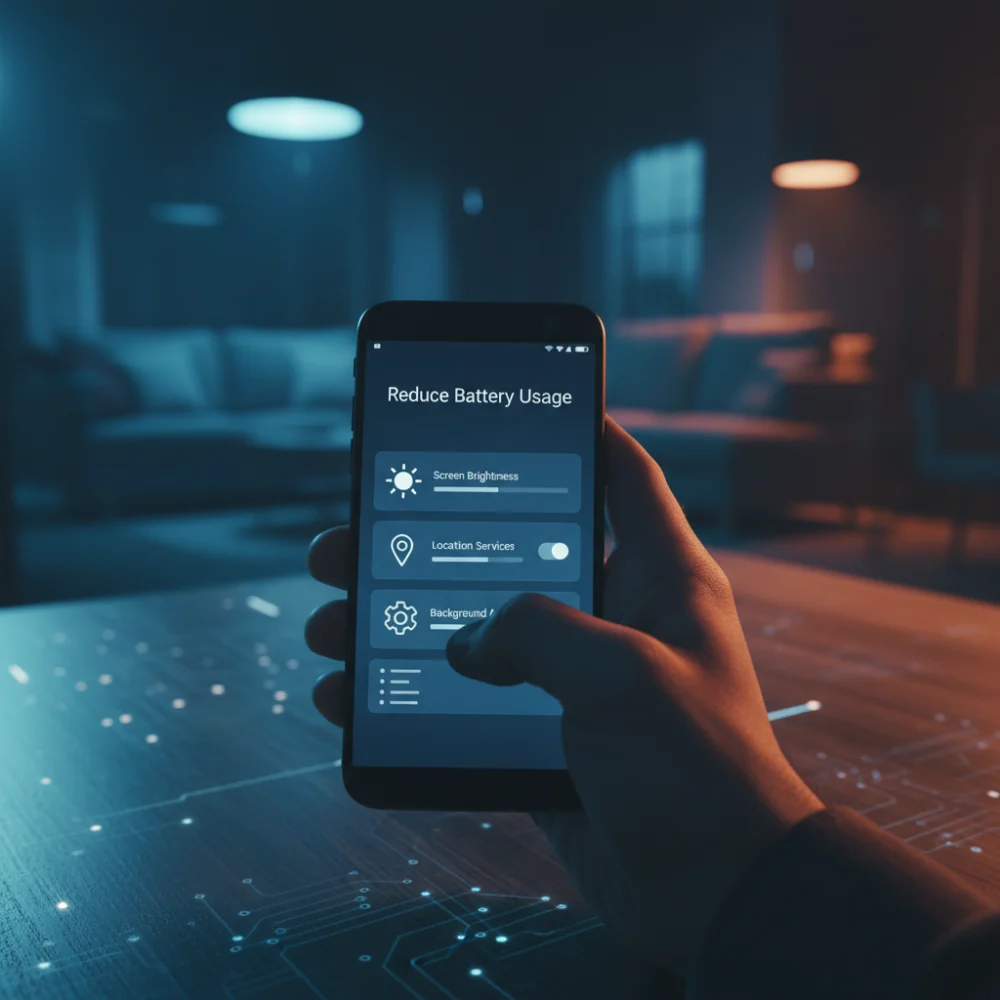
In the modern digital age, a dying smartphone battery is a source of significant anxiety. Android devices, known for their flexibility and powerful features, can sometimes be power-hungry if not managed correctly. Reducing battery usage is not about sacrificing functionality; it is about optimizing settings and understanding which applications are the primary culprits draining your power reserves. This comprehensive guide delves into practical, actionable steps to extend your Android phone’s longevity between charges.
Understanding Android’s Power Consumption Profile
Before optimizing, it is crucial to know where the energy is going. Android provides excellent built-in tools to track this. Navigate to Settings > Battery. Here, you will see a detailed breakdown of usage by application and system service. Often, the screen, background apps, and cellular/Wi-Fi radios are the top consumers. Identifying these leaders allows for targeted adjustments rather than blanket changes.
Screen Brightness: The Single Biggest Drain
The display is arguably the most power-intensive component. Keeping the brightness set to maximum, especially on high-resolution OLED or AMOLED screens, consumes significant energy. The best practice is to utilize Adaptive Brightness (or Auto-Brightness). This feature uses ambient light sensors to adjust the screen brightness dynamically, ensuring readability without excessive power draw when in darker environments.
Furthermore, reducing the Screen Timeout setting is essential. If your phone defaults to 5 minutes of inactivity before locking, that is five minutes of unnecessary screen illumination. Setting this to 30 seconds or even 15 seconds can yield noticeable daily savings.
Managing Background Application Activity
Many applications continue to run processes, sync data, and send notifications even when you are not actively using them. This background activity quietly depletes the battery. Modern Android versions offer granular control over this. For non-essential apps, restrict their background usage.
- Go to Settings > Apps > [Select App] > Battery.
- Choose options like Restricted or Optimized, depending on your device manufacturer (e.g., Samsung vs. Stock Android).
- Be cautious when restricting critical apps like messaging services, as this might delay important notifications.
The Power of Dark Mode and Display Technology
If your Android phone utilizes an AMOLED or OLED display, switching to Dark Mode is highly effective for battery saving. On these screens, true black pixels are completely turned off, consuming zero power. Conversely, white pixels require maximum illumination. Maximizing the use of system-wide Dark Mode significantly reduces the overall energy required to power the display.
Optimizing Connectivity: Wi-Fi, Bluetooth, and Location Services
Connectivity radios are constant power consumers, searching for signals even when idle. Bluetooth should be turned off when not actively connected to headphones or accessories. Similarly, while Wi-Fi is generally more power-efficient than cellular data when available, disabling it when you are away from known networks prevents constant scanning.
Location Services (GPS) are notorious battery hogs. Review which apps have access to your precise location. Many apps only need approximate location or access only while in use. Limiting GPS access to only necessary navigation or weather apps provides substantial savings.
