

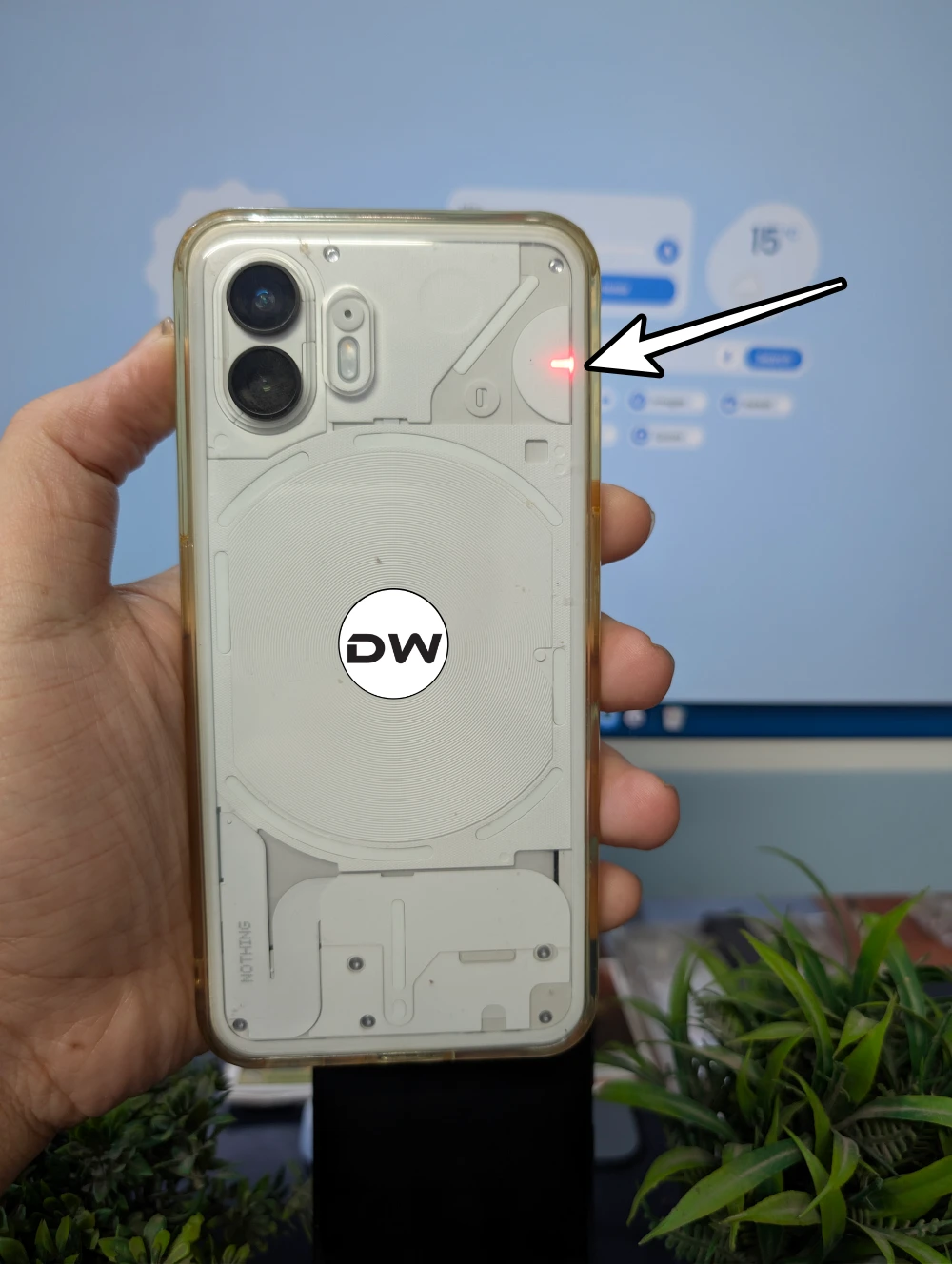
The emergence of Nothing as a formidable player in the global smartphone market has been driven largely by its commitment to a distinct aesthetic philosophy. Central to this identity is the Glyph Interface—a series of LED strips embedded within the transparent rear casing of the devices that serve as notification lights, charging indicators, and even a fill light for photography. Among these visual components is a specific, small red LED designed to function as a tally light, mimicking professional cinema cameras by blinking whenever the device is recording video. While this feature is intended to provide a retro charm and serve as a privacy indicator for those being filmed, a segment of the power-user community has expressed a desire for greater control over this light. Currently, Nothing OS does not provide a native toggle in the settings menu to disable or dim this red indicator, leading enthusiasts to develop sophisticated workarounds to bridge the gap between hardware design and user preference.
The red recording LED serves a dual purpose. On one hand, it is a nod to the analog era of broadcasting, where a "red light" signaled that a camera was live. On the other hand, it functions as a transparency tool, ensuring that people in the vicinity of the device are aware that a recording is in progress. However, for content creators filming through glass, in low-light environments where reflections are a concern, or in professional settings where a blinking red light might be distracting, the inability to toggle this feature has been a point of contention. Fortunately, the open-ended nature of the Android operating system, combined with the technical ingenuity of the Nothing community, has revealed methods to gain granular control over this specific LED strip.
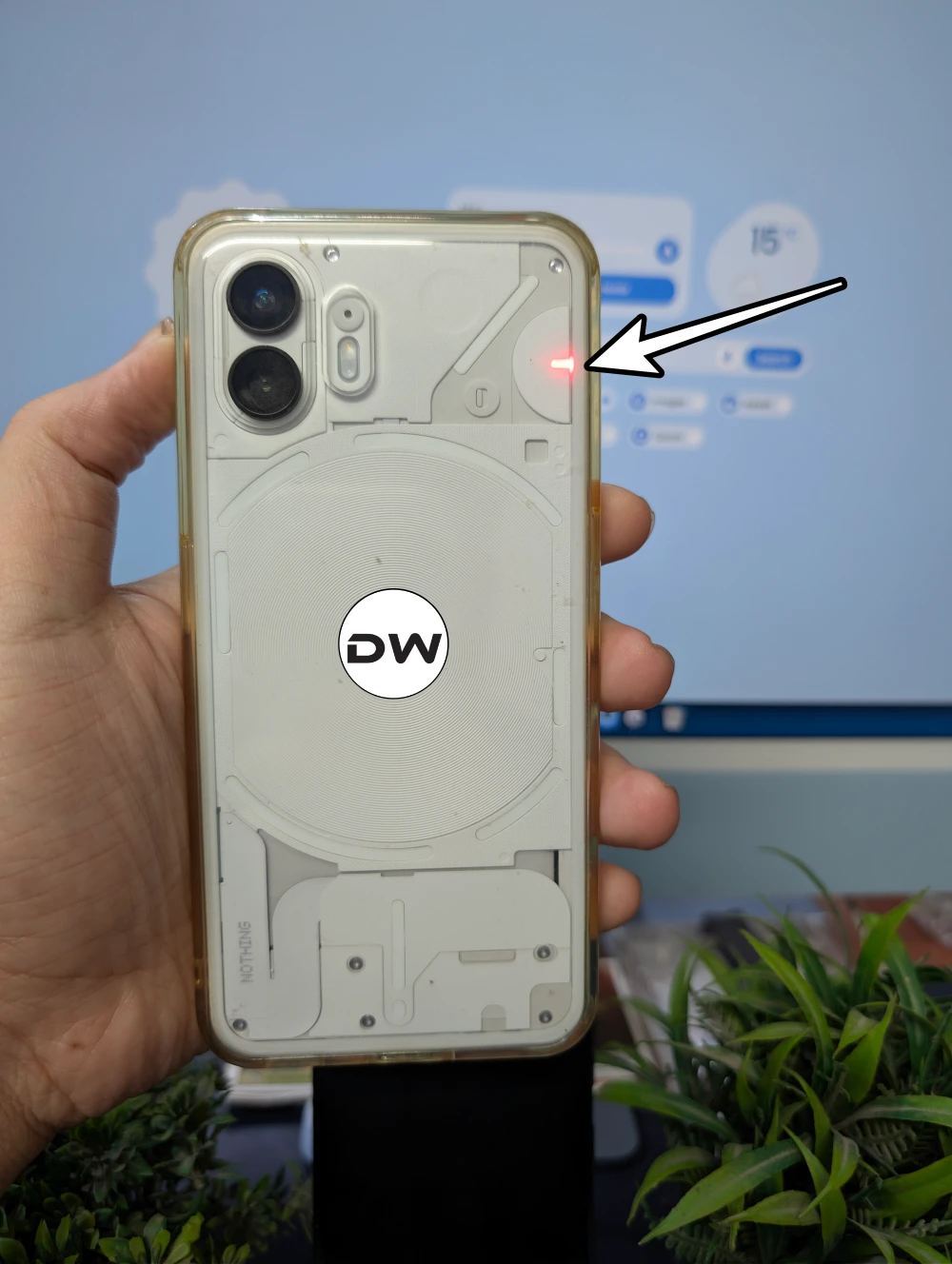
For users of the Nothing Phone (2), the path to customization involves interacting with the system at a root level. There are two primary avenues for achieving this: the use of specialized software modules or the execution of manual commands via the Android Debug Bridge (ADB). Both methods require the device to be rooted, a process that grants the user administrative access to the Android subsystem. While rooting carries inherent risks—such as the potential for voiding warranties or tripping security flags like Play Integrity—it remains the only way to bypass the restrictive factory settings of the Glyph Interface.
The first and most accessible method for Nothing Phone (2) users involves the installation of a custom module designed specifically for the Glyph hardware. This approach is favored by those who prefer a "set and forget" solution. These modules, often distributed through platforms like Magisk, KernelSU, or APatch, act as a software overlay that intercepts the system’s instructions to the LED hardware. The primary benefit of using a module is its simplicity; once installed, it automates the process of adjusting the LED’s behavior. However, this convenience comes with a trade-off in precision. Many of these community-developed modules are programmed to adjust brightness in fixed increments, typically in steps of ten. This means that while a user can easily dim the light, they may not be able to set it to an exact, non-standard brightness value. For most, this is a negligible drawback compared to the ease of installation.
For the more technically inclined, or those who demand absolute precision, the ADB command-line interface offers a more granular alternative. This method involves connecting the Nothing device to a computer and using a terminal to send direct instructions to the device’s kernel. By targeting the specific system files responsible for the Glyph’s operation, users can dictate the exact brightness level of the red LED on a scale typically ranging from 0 to 255. This process targets the "led_strips" directory within the device’s system class files.
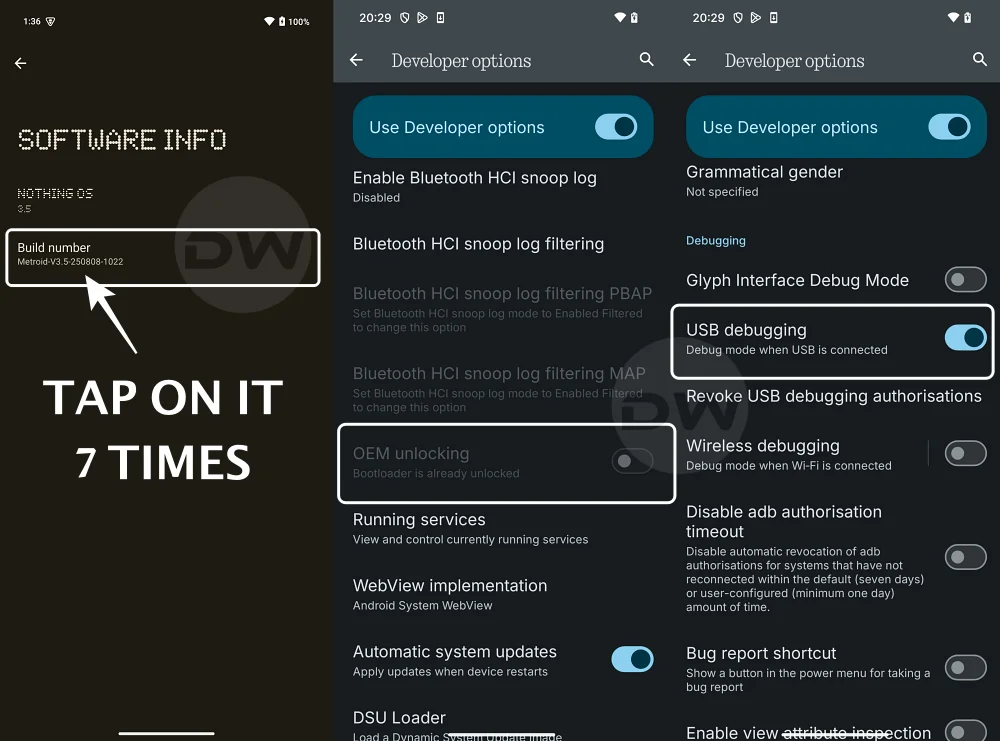
To execute this, the user must first ensure that their environment is properly configured. This includes enabling USB Debugging in the Developer Options of Nothing OS and ensuring that the root management app—whether it be Magisk, APatch, or KernelSU—is prepared to grant "Shell" access. The technical process involves two distinct commands. The first command sets the "operating mode" of the LED strips, effectively telling the hardware to prepare for a manual override. The second command targets the "single_brightness" file, where the user inputs a value corresponding to the specific LED index (often designated as index 13 for the red tally light) followed by the desired brightness level. For example, setting the value to zero effectively kills the light entirely, while a value like 128 provides a half-brightness glow that is less intrusive than the factory default.
The introduction of the Nothing Phone (3) has brought about refinements to the Glyph hardware, but the underlying software logic remains consistent with its predecessors. While the physical layout of the LEDs may shift between generations, the method of control via system file manipulation remains the most effective workaround. For Phone (3) users, the community has identified that the same logic applied to the Phone (2) holds true, though the specific index number for the red LED may occasionally vary depending on the specific revision of the hardware. The persistence of these methods across device generations highlights a common theme in the Nothing ecosystem: while the brand emphasizes "Digital Wellbeing" and a simplified user experience, its hardware remains a playground for those willing to dive into the code.
It is important to understand the technical architecture that makes these modifications possible. In Android, hardware components like LEDs are often represented as files in the /sys/class/ directory. This is part of the "sysfs" virtual file system, which allows the kernel to export information about devices and drivers to "user space." When a user executes a command like echo 1 > /sys/class/leds/led_strips/operating_mode, they are quite literally writing a piece of data into a virtual file that the hardware driver monitors. When the driver sees that the "operating mode" has changed, it alters how it delivers power to the LED strips. This level of control is typically reserved for the system itself, which is why "su" (superuser) permissions are required to perform these actions.

Despite the utility of these workarounds, users must proceed with a degree of caution. Modifying system files, even virtual ones, can lead to unexpected behavior if the wrong values are entered. Furthermore, because these changes are made at the system level, they may be reverted during an Over-the-Air (OTA) update. Nothing OS is known for frequent updates that optimize the Glyph Interface, and these updates often overwrite manual changes to the /sys directory. Consequently, users who rely on these modifications often find themselves needing to re-apply their custom settings or update their Magisk modules following a system refresh.
The demand for such granular control raises an interesting question regarding the future of Nothing OS. As the brand matures, there is a possibility that "Pro" settings could be introduced to the Glyph Interface menu, allowing users to toggle the recording LED without needing to root their devices. Such a move would align with Nothing’s goal of being a "community-first" company. Until then, the methods of ADB manipulation and root-level modules remain the primary tools for those who wish to tailor their device’s visual output to their specific needs.
In conclusion, while the blinking red LED of a Nothing device is a signature design element, it is not an unchangeable one. Through the use of ADB commands and root-level modifications, users can reclaim control over their hardware, adjusting the recording indicator to suit their environment—or silencing it altogether. Whether through the streamlined approach of a software module or the precise control of a terminal command, the ability to "Master the Glyph" remains a testament to the flexibility of the Android platform and the dedication of the Nothing user base to perfecting their mobile experience. As the ecosystem evolves with the Nothing Phone (3) and beyond, these technical workarounds continue to serve as essential knowledge for any power user looking to push their device beyond its factory-defined limits.
