

The landscape of mobile security has evolved significantly over the last decade, with Samsung’s One UI consistently ranked among the most robust operating systems in the Android ecosystem. However, despite the plethora of high-end features and the integration of the military-grade Knox security suite, a specific segment of the user base remains vocal about a perceived oversight: the absence of a native, lightweight App Lock feature. While Samsung provides the powerful "Secure Folder" utility, a growing consensus among power users on platforms such as Reddit and the official Samsung Community forums suggests that this solution is often an over-engineered answer to a simple requirement. The demand is not for a secondary encrypted environment, but for a straightforward digital deadbolt that can be applied to existing applications on the home screen.
To understand the necessity of a dedicated App Lock, one must first distinguish it from the Secure Folder. The Secure Folder functions as a sandboxed instance of the Android OS, essentially creating a "phone within a phone." While this is ideal for storing sensitive documents or maintaining a secondary, private social media account, it is fundamentally cumbersome for those who simply want to prevent a friend or family member from browsing their primary gallery or messaging app. When an app is moved to the Secure Folder, it often exists as a separate installation, requiring independent data management and notification settings. For many, this creates a fragmented user experience that lacks the seamlessness expected of modern mobile software.
Recognizing this gap, users have turned to third-party developers to find a more surgical solution. While the Google Play Store is saturated with "App Lock" utilities, many of these are plagued by intrusive advertisements, heavy background battery drain, and questionable data-sharing practices. Consequently, the most sophisticated users are gravitating toward open-source alternatives found on repositories like GitHub. These applications offer a level of transparency and efficiency that commercial software often lacks. By utilizing an open-source App Lock, users can benefit from a tool that is devoid of tracking scripts, focuses entirely on the task at hand, and leverages the device’s existing biometric hardware without requiring unnecessary permissions.
The preference for GitHub-sourced security tools stems from the "clean" nature of the code. Unlike mainstream applications that prioritize monetization through "cleaner" or "RAM booster" add-ons, open-source projects are typically maintained by developers focused on utility and privacy. These apps utilize the Android "Usage Access" and "Display Over Other Apps" permissions to detect when a specific package is launched and immediately trigger a biometric or PIN overlay. This method ensures that the original application data remains in its primary location while adding a mandatory verification layer that must be cleared before the app’s interface becomes accessible.
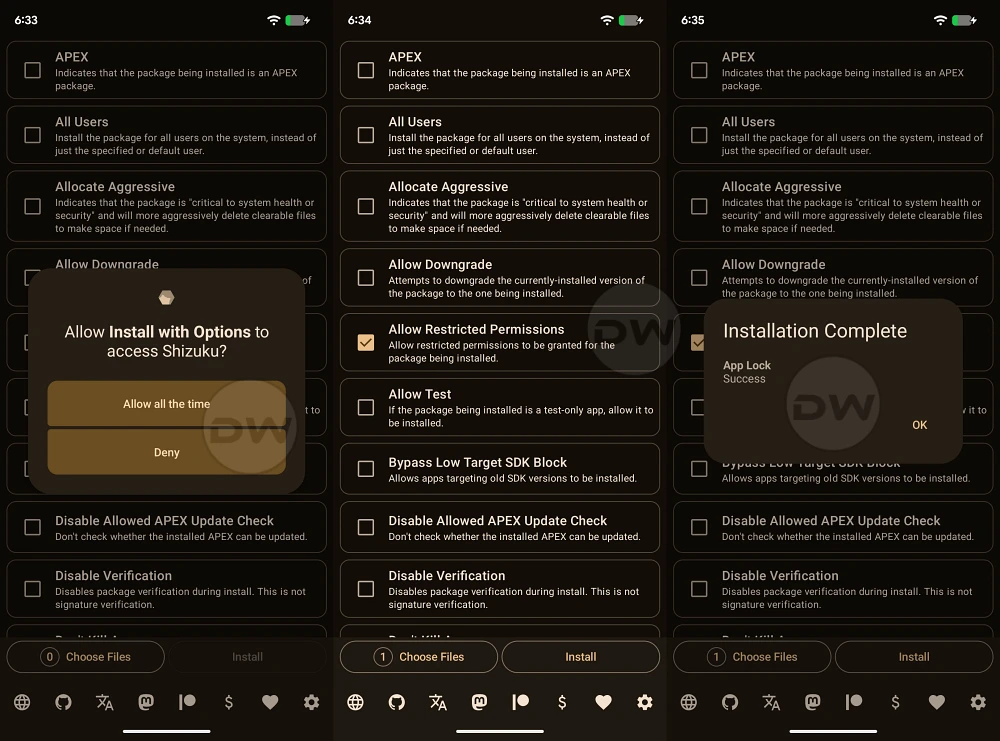
For those ready to implement this enhanced security layer on their Samsung Galaxy device, the process begins with sourcing a reputable APK from a trusted developer on GitHub. Before proceeding, it is essential to ensure that the device is configured to allow installations from external sources. This can be found under the "Install Unknown Apps" section within the Biometrics and Security menu of the system settings. Once the appropriate APK is downloaded and installed, the configuration phase begins. This is a critical stage where the user defines the parameters of their privacy shield.
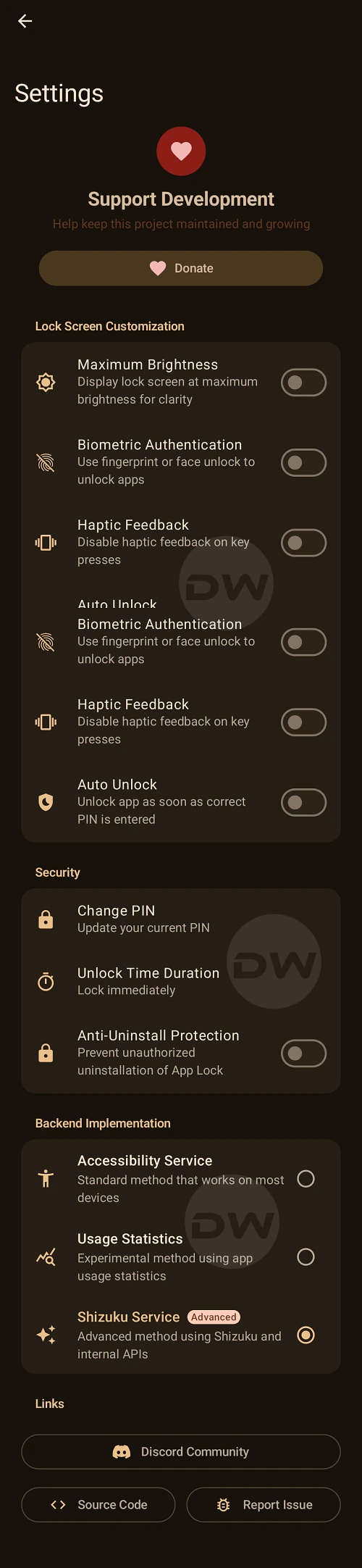
The initial setup of a high-quality App Lock usually requires the creation of a Master PIN. This PIN serves as the primary fail-safe should biometric sensors fail or if the device is rebooted. Following the PIN setup, the application will request two pivotal permissions: Usage Access and Overlay Permission. The Usage Access permission is the "brain" of the App Lock; it allows the utility to monitor which application is currently in the foreground. Without this, the locker cannot know when to activate. The Overlay Permission, or "Appear on Top," is the "muscle" of the operation. It allows the security screen to draw itself over the target application, effectively blocking any interaction until the user is authenticated.
Once the permissions are granted, the user is presented with a list of all installed applications. This is where the granular control of an App Lock outshines the Secure Folder. Users can selectively lock banking apps, social media, or even the system settings themselves to prevent unauthorized changes. Most modern open-source lockers also support Samsung’s native biometric authentication, including the ultrasonic fingerprint scanner and facial recognition. This integration ensures that the act of unlocking an app is nearly instantaneous, maintaining a high level of convenience without sacrificing the integrity of the lock.
Beyond the basic locking mechanism, advanced open-source utilities offer a suite of enrichment features that further bolster privacy. One such feature is the "Intruder Selfie" mode. If an unauthorized individual attempts to bypass the lock and enters an incorrect PIN, the device’s front-facing camera silently captures a photograph of the person, providing the owner with a timestamped log of the attempted breach. Additionally, some apps offer a "Fake Crash" screen. Instead of showing a lock pattern, the app displays a simulated system error message when opened. Only the owner knows the specific gesture or long-press required to bypass the fake error and reach the actual authentication screen, adding a layer of security through obscurity.

Another significant advantage of using a dedicated App Lock is the ability to hide notification content. While Samsung’s One UI allows for global notification masking on the lock screen, it is less flexible once the phone is unlocked. A robust third-party App Lock can intercept notifications from protected apps, ensuring that even if the phone is handed to someone else while unlocked, sensitive message previews remain hidden from view. This creates a multi-tiered defense strategy that protects both the application interface and the data it broadcasts through the notification shade.
Maintenance of such a system is relatively low-impact. Because open-source apps are designed to be lightweight, they typically have a negligible effect on the Galaxy device’s battery life. However, it is important to navigate to the "Battery and Device Care" settings and mark the App Lock as a "Never Sleeping App." This prevents the system’s aggressive power management from killing the process in the background, which would inadvertently leave the protected apps vulnerable.
While the debate continues as to why Samsung has not integrated a native App Lock into the "Advanced Features" menu of One UI—similar to the implementations seen in competing Chinese ROMs—the current workaround using open-source software remains the most effective path for the enthusiast. It offers the precision of a scalpel in a world where the Secure Folder acts like a sledgehammer. By following these steps and utilizing transparent, community-vetted code, Samsung users can achieve a level of privacy that is both highly personalized and exceptionally secure.

As we look toward future iterations of One UI, there is always the possibility that Samsung will heed the feedback from the community and introduce a native solution. Until then, the versatility of the Android platform allows users to take matters into their own hands. The combination of Samsung’s hardware excellence and the transparency of open-source security software provides a formidable barrier against unauthorized access. If you have discovered an alternative application or a unique configuration that further enhances this workflow, the ongoing dialogue within the community remains the best resource for staying ahead of potential privacy threats. The goal remains clear: total control over one’s digital footprint, one app at a time.
