

The evolution of smartphone interfaces has always been a delicate balancing act between providing immediate information and maintaining a clean, functional workspace. For OnePlus enthusiasts, this balance has shifted significantly over the past several years, particularly following the deeper integration of OxygenOS with Oppo’s ColorOS codebase. One of the most visible changes in this software metamorphosis is the default behavior of the "minus-one" screen—the panel accessed by performing a right-sided swipe from the primary home screen. While newer iterations of the software have defaulted to Google Discover, a segment of the user base remains vocal about their preference for the classic OnePlus Shelf. This shift from a utility-focused dashboard to a content-focused news aggregator represents a fundamental change in how users interact with their devices, prompting many to seek a way to reclaim their preferred workflow.
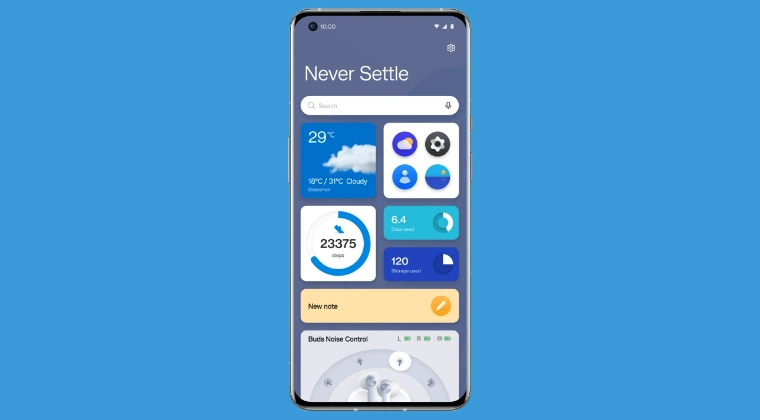
Google Discover, the current default for most global OnePlus units, serves as a curated repository of news snippets, weather updates, and personalized content recommendations. Driven by Google’s sophisticated algorithms, it aims to keep users informed about their specific interests. However, for many productivity-minded users, Discover can feel like an unwanted distraction—a stream of "clickbait" or news that clutters the interface without offering functional tools. In contrast, the OnePlus Shelf is designed as a digital Swiss Army knife. It offers a centralized location for widgets, a real-time step counter, data and storage consumption metrics, quick-access notes, and a toolbox for frequently used applications. For those who prioritize utility over consumption, the Shelf is the superior interface, turning a simple swipe into a gateway for system management and rapid task execution.
The transition between these two features is not always a simple toggle hidden in the standard settings menu, especially on devices where the manufacturer has prioritized the Google-centric ecosystem. Fortunately, the Android architecture allows for deeper customization through the Android Debug Bridge (ADB), a versatile command-line tool that enables communication between a computer and an Android device. Historically, such deep-level modifications often required "rooting" the device—a process that grants administrative privileges but can void warranties and complicate security. However, modern techniques have opened a pathway for non-rooted users to modify system flags, allowing them to swap Discover for Shelf without compromising the integrity of their device’s security model.
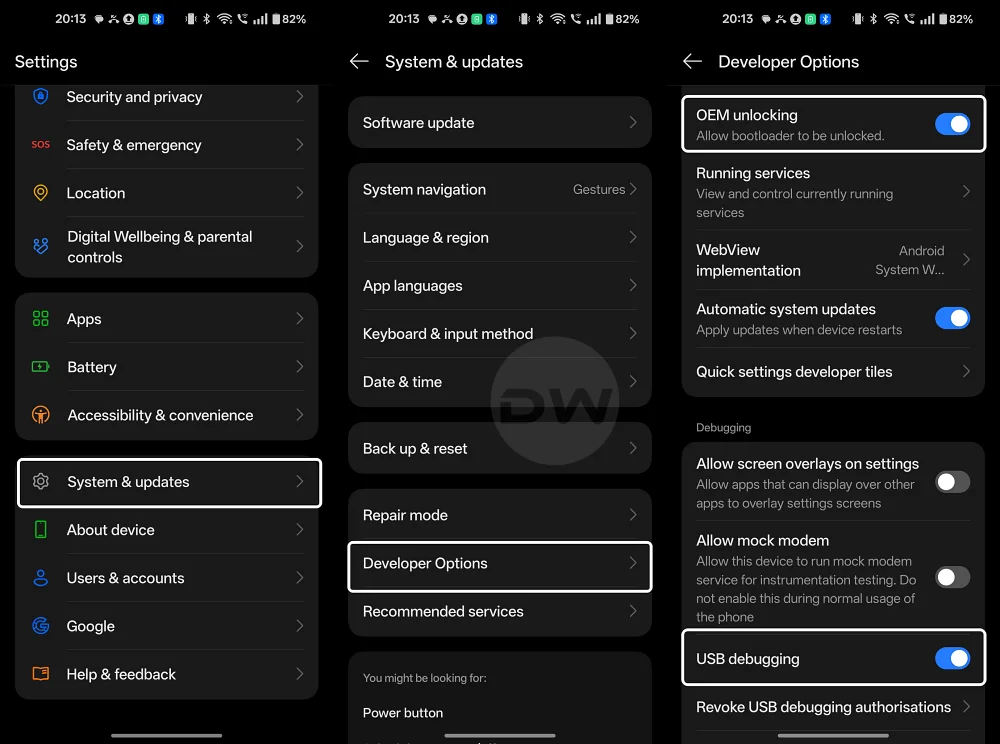
Before embarking on this technical transition, users must ensure their environment is properly configured. The prerequisite for both root and non-root methods involves the installation of ADB drivers on a personal computer and the activation of Developer Options on the OnePlus handset. To do this, one must navigate to the "About Device" section in the system settings and tap the "Build Number" seven times until a notification confirms that developer status has been granted. Once inside the newly unlocked Developer Options menu, "USB Debugging" must be enabled. This allows the computer to send the necessary instructions to the phone’s internal settings database. With the device connected via a high-quality USB cable and the ADB environment verified, the user is ready to execute the transition.
For the vast majority of users who prefer to keep their devices in a non-rooted state, the process involves two primary commands. These commands interact with the "secure" settings table of the Android OS, which houses configurations that are generally off-limits to standard applications. To disable the Google Discover feed, the user must input a command that sets the "assistant screen type" to a null value (0) and disables the left-hand assistant screen toggle. Specifically, the command adb shell settings put secure assistant_screen_type 0 followed by adb shell settings put secure assistant_screen_type_left_enable 0 effectively clears the minus-one slot.
To replace that empty space with the OnePlus Shelf, the parameters are adjusted to reflect the Shelf’s internal identifier. By entering adb shell settings put secure assistant_screen_type 1 and adb shell settings put secure assistant_screen_type_left_enable 1, the system is instructed to bypass the Google feed and instead initialize the Shelf overlay when the user swipes right. This change is often instantaneous, though a quick restart of the system launcher or the device itself may be required to ensure the UI elements render correctly. The beauty of this method lies in its cleanliness; it does not delete system files but rather reconfigures the UI logic to favor the proprietary OnePlus toolset over the third-party Google service.
Power users who have already rooted their devices using tools like Magisk can achieve the same result through a slightly different terminal workflow. While the commands remain largely the same, the user must first invoke superuser privileges within the shell. By typing adb shell followed by su, the terminal gains the highest level of authority over the system. From there, the same "settings put secure" commands are utilized to toggle between the Discover ID (which is typically 2) and the Shelf ID (1). The root method is often preferred by those who use automated scripts to maintain their device configurations across different ROM flashes or major system updates.

The functionality of the Shelf, once restored, offers a significant upgrade in daily efficiency. Users can customize the layout to show the "Data Usage" widget, which is invaluable for those on limited data plans, or the "Storage" widget to monitor internal capacity. The "Life" section of the Shelf, which includes the step counter, provides a quick health snapshot without needing to open a dedicated fitness app. Furthermore, the "Notes" widget allows for the immediate jotting down of ideas, which are then synced with the OnePlus Notes app. This level of integration creates a cohesive ecosystem that feels more "OnePlus" than the generic Google feed.
However, the world of mobile software is rarely static, and there may come a time when a user wishes to return to the Google Discover experience. Perhaps a system update has improved the Discover algorithm, or the user simply misses the convenience of an automated news feed. Reverting the changes is just as straightforward as the initial modification. By utilizing the ADB command adb shell settings put secure assistant_screen_type 2 and ensuring the assistant_screen_type_left_enable is set to 1, the system will re-associate the swipe-right gesture with Google’s services. This flexibility is a hallmark of the Android platform, allowing the hardware to adapt to the user’s changing needs rather than forcing the user to adapt to the hardware’s defaults.
It is worth noting that while these ADB commands are highly effective, they interact with the device’s software at a level that bypasses standard user interface protections. Users should always exercise caution, ensuring that commands are typed accurately, as a typo in the settings table can occasionally lead to unexpected UI behavior. It is also advisable to back up important data before performing any system-level modifications, even those that do not involve a factory reset.
The desire to replace Google Discover with the OnePlus Shelf is more than just a preference for a different set of icons; it is an assertion of digital sovereignty. In an era where operating systems are increasingly designed to funnel users toward ad-supported content and data-harvesting feeds, the ability to pivot back to a utility-centric dashboard is a win for the consumer. Whether through the non-root method, which preserves the device’s out-of-the-box security state, or the root method for the ultimate power user, reclaiming the "minus-one" screen ensures that a OnePlus device remains a tool for productivity rather than just another screen for consumption. By following these steps, users can ensure their OxygenOS experience is tailored to their specific lifestyle, bringing the "Never Settle" mantra into the modern software landscape.
