

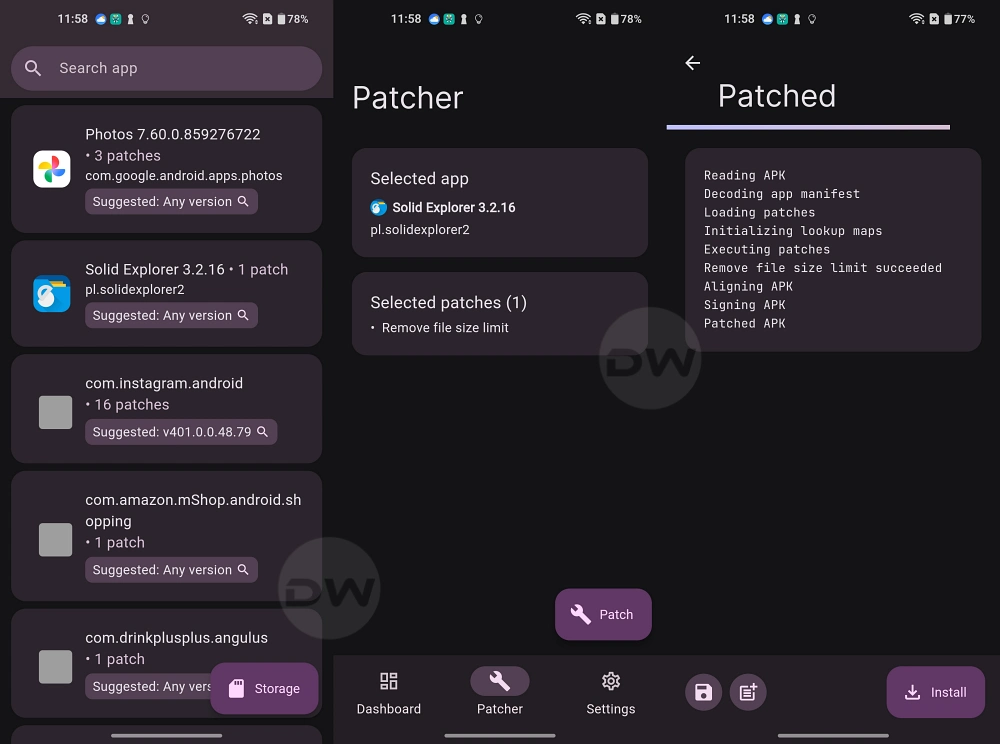
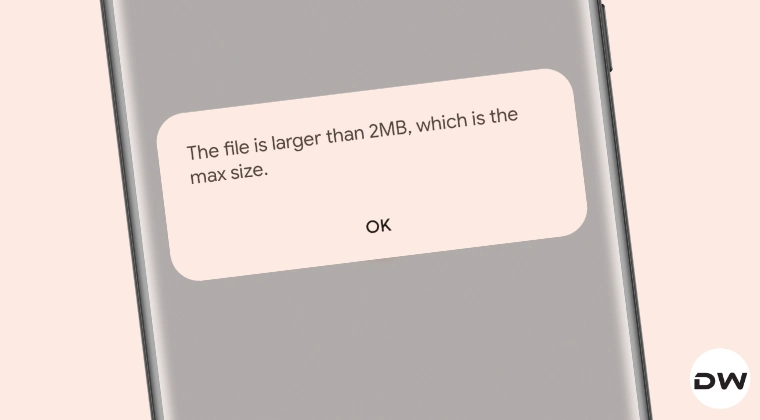
The landscape of Android file management has evolved significantly over the last decade, transitioning from basic directory browsers to sophisticated suites capable of handling encrypted archives, cloud synchronization, and complex media streaming. Among the elite tier of these utilities stands Solid Explorer, a favored choice for power users due to its dual-pane interface and robust feature set. However, even the most refined tools are occasionally tethered to legacy constraints that clash with the capabilities of modern hardware. A primary point of contention for developers and data analysts alike is the arbitrary 2MB file size limitation imposed by Solid Explorer’s internal text editor. When attempting to access logs, extensive code scripts, or massive JSON exports that exceed this threshold, users are met with a restrictive dialogue box stating that the file exceeds the maximum permissible size. While this safeguard was originally designed to prevent application instability on low-end hardware, the current generation of mobile devices, often boasting upwards of 12GB of RAM, renders such a hard cap increasingly obsolete.
The frustration stems not merely from the limitation itself, but from the lack of flexibility in the application’s logic. In an ideal software environment, a file manager would dynamically assess the host device’s hardware profile—specifically the available RAM and processor clock speed—before denying access to a resource. For a device equipped with less than 1GB of RAM, a 2MB limit might be a necessary preventative measure against "Application Not Responding" (ANR) errors. Conversely, for a modern flagship, a 10MB or 20MB text file is a trivial load. A more user-centric approach would involve a warning system rather than a total lockout, allowing the user to acknowledge the potential for performance degradation in exchange for the ability to view their data. As the developer has yet to implement this adaptive behavior, the community has stepped forward with several sophisticated workarounds to bypass the 2MB restriction, ranging from simple external integrations to deep-system modifications requiring root access.
Understanding the Non-Root Workarounds
For the vast majority of users, modifying the core operating system is not a viable or desired option. Fortunately, the Android architecture allows for several "Without Root" methods that leverage the interoperability of the OS to bypass Solid Explorer’s internal editor constraints.
The most effective strategy involves re-routing the file-opening intent to a specialized third-party text editor. Solid Explorer’s 2MB limit is specific to its built-in viewing component; it does not restrict the file manager’s ability to "hand off" the file to another application. To implement this, users should long-press the target text file and select the "Open With" option from the context menu. By choosing a dedicated code editor such as QuickEdit, Jota+, or Turbo Editor, users can easily manipulate files reaching 50MB or more. These specialized apps utilize different memory buffering techniques, such as loading only the visible portion of the text into the active cache, which prevents the device from slowing down even when handling massive datasets.
Another nuanced approach involves the use of the "Stream to PC" or FTP server functionality built directly into Solid Explorer. By turning the Android device into a temporary file server, the user can access the large text file via a desktop browser or a professional-grade text editor like Notepad++ or VS Code on a computer. This method bypasses the mobile hardware limitations entirely, utilizing the desktop’s superior processing power to parse and edit the file, with changes saved back to the mobile device in real-time over the local network.

Furthermore, a "Rename and Preview" trick can sometimes circumvent the initial check. By changing the file extension from .txt to a less common format like .log or even a generic .bin, the internal editor’s specific trigger for the 2MB limit can occasionally be bypassed, though this is less consistent than using an external application. If the file is renamed to a format that Solid Explorer doesn’t recognize as a "simple text" file, it may prompt the user to select an application, thereby leading back to the "Open With" solution which is the most reliable path for non-rooted devices.
Advanced Interventions for Rooted Environments
For power users who have unlocked the full potential of their devices through rooting, the 2MB restriction can be addressed at a more fundamental level. Root access allows for the modification of application preference files and internal databases where these hard-coded limits are often stored.
One primary method involves navigating the root directory to locate the XML preference files associated with Solid Explorer. Typically found in the path /data/data/pl.solidexplorer2/shared_prefs/, these files contain the configuration constants that dictate the app’s behavior. By utilizing a root-enabled text editor to search for strings such as max_file_size or editor_limit, users can manually increment the integer value. Changing a value from 2048 (representing 2MB in kilobytes) to 20480 can theoretically expand the limit to 20MB. After saving the XML file and force-stopping the application to clear the cached settings, the new limit should take effect.

Alternatively, users can utilize a SQLite database editor to inspect the internal databases maintained by the file manager. Many modern Android applications store user preferences and environmental constraints within .db files. By locating the settings.db or a similarly named file within the app’s internal data folder, a user can execute a SQL command to update the specific record governing the text editor’s buffer size. This requires a higher degree of technical proficiency, as improper modification of a database can lead to application crashes or data corruption, necessitating a full reinstallation of the app.
A third root-based solution involves the use of Magisk modules or Xposed framework hooks. These tools allow for "on-the-fly" modification of application code without permanently altering the original APK files. Developers within the Android community often create modules designed specifically to remove arbitrary limits in popular apps. By searching the Magisk repository for Solid Explorer tweaks, users may find pre-configured scripts that automate the process of lifting the 2MB cap, ensuring a seamless experience that persists even after application updates.
The Technical Reality of Large Text Files on Mobile
To appreciate why these workarounds are necessary, one must understand the technical burden that large text files place on mobile software. A 2MB plain text file contains approximately two million characters. In a standard UTF-8 encoding, this is roughly 2,000 kilobytes of data. While this sounds small compared to a 4K video file, the way a text editor renders this data is vastly different. A video player streams data in chunks, but a traditional text editor often attempts to load the entire string into a TextView or EditText buffer to allow for smooth scrolling and word-wrapping.

When a text editor calculates line breaks for two million characters, it performs thousands of layout calculations per second. On older hardware, this can lead to the "jank" or lag that Solid Explorer’s developers sought to avoid. However, modern rendering engines use a technique called "Virtualization," where only the text currently visible on the screen is rendered. By refusing to open files over 2MB, Solid Explorer is essentially using an outdated safety model that does not account for these modern rendering efficiencies.
Conclusion and Best Practices
While the 2MB limit in Solid Explorer remains a hurdle for those dealing with large-scale data, the solutions provided above offer a comprehensive roadmap for bypassing this bottleneck. Whether through the pragmatic use of external editors on non-rooted devices or the surgical precision of database editing on rooted handsets, users are no longer forced to abandon their workflow due to a legacy software constraint.
It is always recommended that users maintain a rigorous backup regimen before attempting the root-level modifications described. The flexibility of the Android platform is its greatest strength, allowing the community to bridge the gap between developer-imposed limitations and the actual capabilities of the hardware. As mobile devices continue to rival desktop computers in raw power, the expectation for software to adapt dynamically to its environment will only grow. Until then, these tweaks remain essential tools in the arsenal of the modern Android power user, ensuring that productivity is never hampered by a simple dialogue box. Still have any queries? Let us know in the comments below and we will get back to you with a solution at the earliest.