

Updated on September 13, 2025, this detailed technical bulletin outlines the requisite procedures for successfully disabling Factory Reset Protection (FRP) on the Infinix Smart 10 model bearing the hardware designation X6725D, particularly when operating the contemporary Android 15 operating system. This process is crucial for users who have legitimately forgotten their Google credentials following a device reset or for technicians performing authorized service operations.
Understanding the Imperative of Factory Reset Protection (FRP)
Factory Reset Protection (FRP), introduced to the Android ecosystem with the release of Android 5.1 (Lollipop), serves as a critical, hardware-integrated security mechanism designed to deter unauthorized use of a device after it has undergone a hard reset via the recovery menu. The fundamental principle underpinning FRP is simple yet highly effective: unless the user can authenticate with the last associated Google account credentials following a factory reset, the device remains effectively locked and unusable. This feature drastically diminishes the resale value and utility of stolen smartphones, thereby acting as a powerful deterrent against device theft. For legitimate owners who lose access to their primary Google account credentials after an involuntary or necessary reset, bypassing this lock becomes a necessary technical undertaking to regain full access to their hardware. Given the advanced security architecture inherent in Android 15, specific, tool-assisted methods are required for the Infinix Smart 10 X6725D.

Prerequisites for FRP Removal on the Infinix Smart 10 X6725D
The procedure detailed herein requires specialized software and a specific configuration to communicate effectively with the device’s Service Mode protocols. Users must procure two essential components before commencing the procedure: the dedicated FRP reset file tailored for the Infinix Smart 10 X6725D chipset architecture, and the specialized SPD Research Tool. The SPD Research Tool is specifically engineered to interact with Spreadtrum (now Unisoc) chipsets, which power the X6725D variant of the Infinix Smart 10.
Prior to initiating any flashing or unlocking sequence, adherence to critical preliminary checks is mandatory to prevent data corruption or device bricking:
- Battery Level: Ensure the Infinix Smart 10 X6725D possesses a minimum battery charge of 60% to sustain the operation without interruption.
- Driver Installation: Verified and up-to-date SPD USB drivers must be correctly installed on the host computer to ensure stable communication between the PC and the device when it is in its diagnostic mode.
- Tool Integrity: The downloaded SPD Research Tool and the associated FRP reset package must be verified for file integrity to avoid using corrupted or incomplete files.
Note on Liability: The execution of this technical guide involves manipulating low-level device software. The source of this information assumes no liability for any adverse outcomes, including but not limited to hardware malfunction or permanent software incapacitation, resulting from the user’s implementation of these instructions. Proceeding with the subsequent steps implies the user’s acceptance of full responsibility for the actions taken on their hardware.
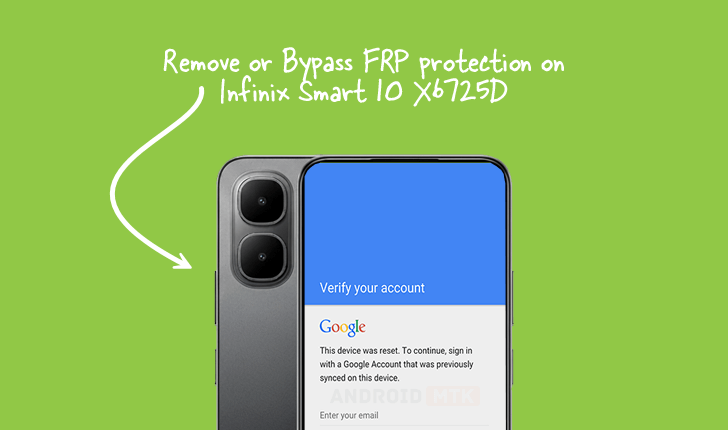
Step-by-Step Protocol for FRP Elimination
The removal process leverages the SPD Research Tool’s capability to communicate with the chipset and overwrite the specific memory sectors responsible for enforcing the Google Account lock.
Phase 1: Preparation and Tool Initialization
- Launch the SPD Research Tool: Execute the SPD Research Tool application on the host computer. This application often requires elevated administrative privileges to interact correctly with the system’s USB port configuration.
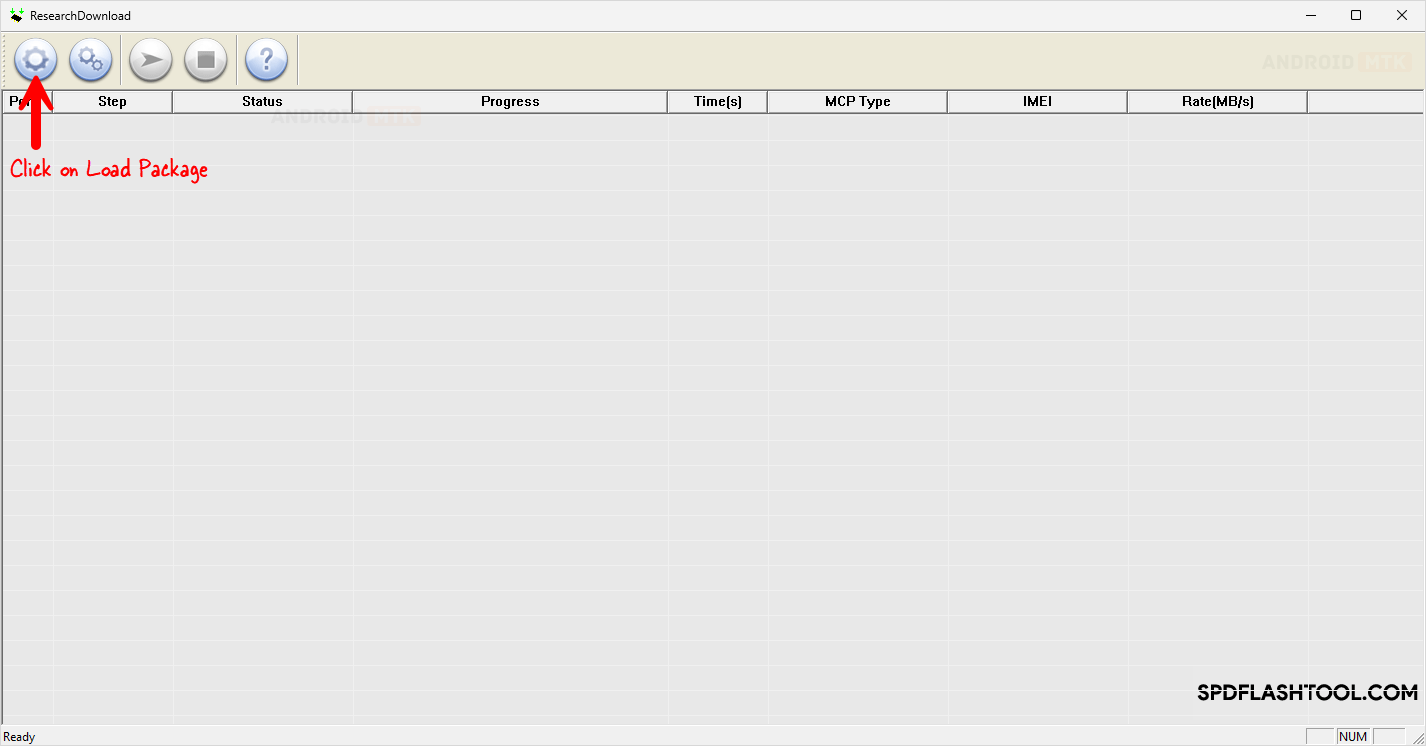
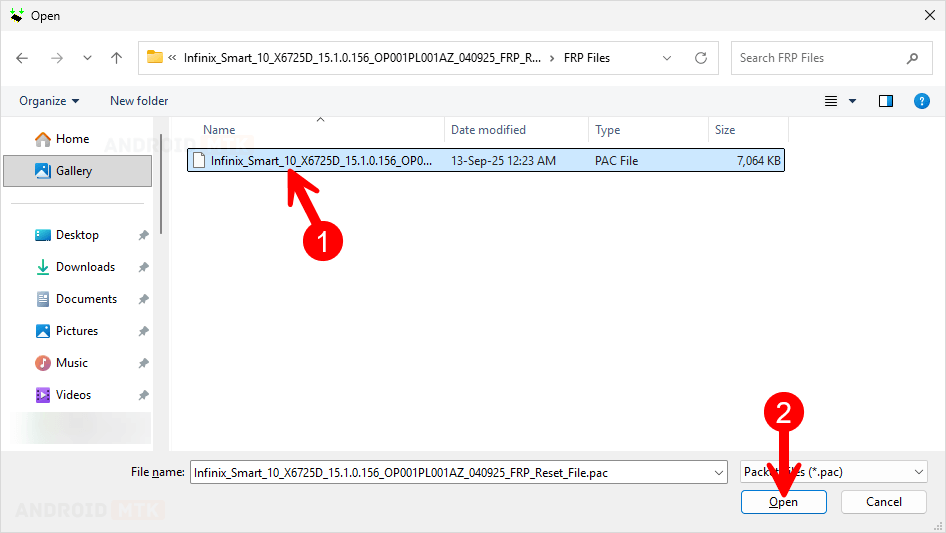
- Loading the Firmware Package: Navigate within the SPD Research Tool interface to the section designated for loading the necessary files. Select the option to "Load Packaged" or "Load Settings File." The user must browse to and select the pre-acquired FRP reset file specifically compiled for the Infinix Smart 10 X6725D. This file contains the necessary instructions to nullify the FRP flag.
- Selecting the FRP Function: Once the package is loaded, the tool’s interface will present various operational modes. Locate and explicitly select the "FRP" option from the list of available functions. This action configures the tool for the specific task of security lock removal, bypassing standard flashing routines.
Phase 2: Establishing Diagnostic Connection (Download Mode)
The subsequent critical step involves placing the Infinix Smart 10 X6725D into the Spreadtrum Download Mode, often referred to as Diagnostic Mode, which allows the Research Tool direct, low-level access to the device’s memory controllers.
Entering Download Mode Procedure:
- Device Power Down: Ensure the Infinix Smart 10 X6725D is completely powered off.
- Simultaneous Key Press: Instruct the user to simultaneously depress and hold both the Volume Up (+) and Volume Down (-) rocker buttons.
- USB Connection: While maintaining constant pressure on both volume buttons, carefully connect the device to the computer using a high-quality USB data cable.
- Monitoring Connection: The device should not display any startup screen; instead, the SPD Research Tool interface should register a connection, often indicated by a change in status display (e.g., showing the COM port initialization). Release the volume keys only once the tool confirms a successful device detection, indicating the phone is ready to receive commands in Download Mode.
Phase 3: Execution of the FRP Removal Command
With the device correctly connected in Download Mode and the tool configured for FRP removal:
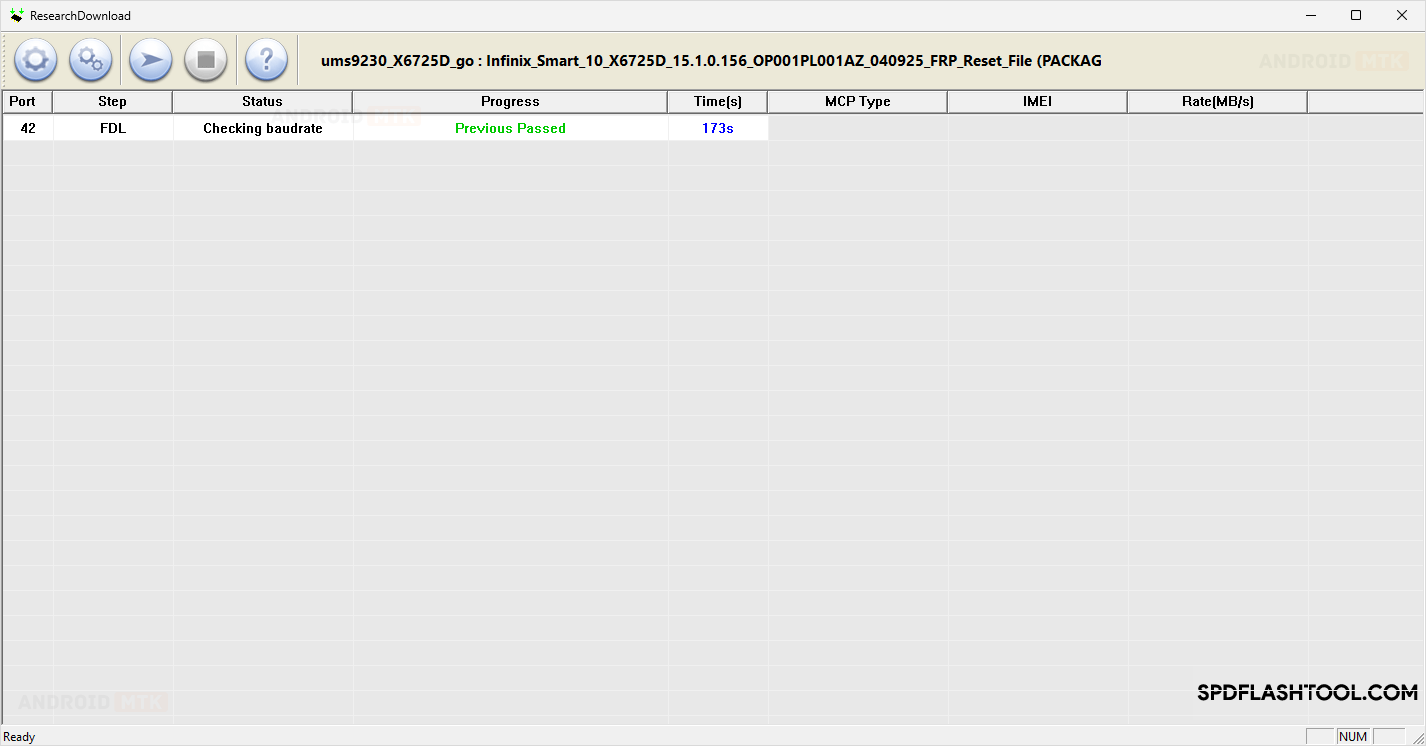
- Initiate the Process: Locate and click the primary execution button within the SPD Research Tool, typically labeled "Start" or "Play." This action transmits the pre-loaded FRP bypass command to the device chipset.
- Monitoring Progress: Observe the progress bar or status window within the Research Tool. The process is generally swift, involving the targeted modification of the protection partition data.
- Confirmation of Success: The operation is deemed successful when the SPD Research Tool displays a distinct confirmation message, such as "FRP Bypass Done," "Operation Successful," or similar affirmative text, often accompanied by a green status indicator. This signifies that the memory sector holding the Google lock status has been effectively cleared or reset.
Phase 4: Finalization and Device Reboot
Upon successful execution of the FRP bypass command:
- Tool Closure: Safely close the SPD Research Tool application.
- Disconnection: Gently disconnect the Infinix Smart 10 X6725D from the computer’s USB port.
- Device Restart: Power on the Infinix Smart 10 X6725D by pressing and holding the Power button. The device will initiate its standard boot sequence.
Post-Removal Verification
Upon the initial startup following the FRP removal, the device will proceed directly to the welcome screen or initial setup wizard, completely bypassing the requirement to enter any prior Google account credentials. This confirms the successful nullification of the Factory Reset Protection mechanism. The user can now set up the device as new, linking it with a new or existing Google account as required.
Technical Considerations and Notes
While the SPD Research Tool method is highly effective for Spreadtrum-based devices like the X6725D, users should remain aware of peripheral factors influencing success:
- Operating System Integrity: This method targets the security layer of Android 15. Any substantial modification to the underlying firmware prior to this attempt could necessitate a full stock firmware flash before FRP removal can proceed effectively.
- Driver Conflicts: Persistent connection failures during the Download Mode phase are almost invariably linked to driver conflicts. Thorough uninstallation and reinstallation of the SPD drivers, potentially requiring a system reboot, are often necessary troubleshooting steps.
- Cable Quality: Using a low-quality or damaged USB cable can lead to intermittent connection drops during the critical transfer phase, resulting in an incomplete operation and potential software instability. Only use verified, high-speed data cables.
The successful application of this detailed, tool-based methodology ensures that legitimate owners of the Infinix Smart 10 X6725D can rapidly restore full functionality to their devices after an unintended or forgotten credential lockout.