

Updated on September 13, 2025.
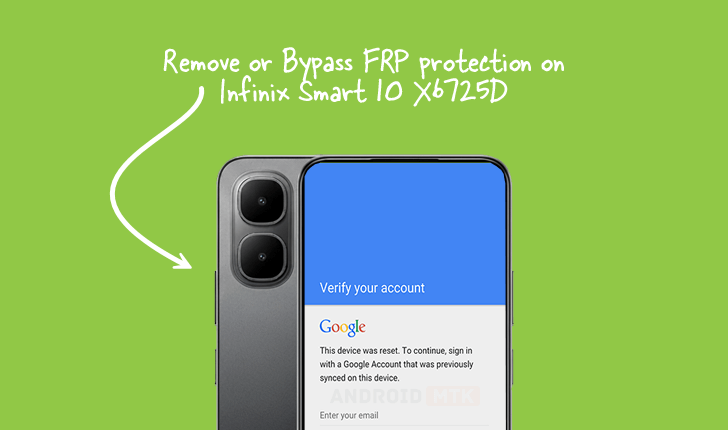
This detailed technical guide outlines the precise methodology required to liberate the Infinix Smart 10 X6725D smartphone, specifically units operating on the Android 15 operating system, from the constraints of Factory Reset Protection (FRP). The procedure necessitates specialized software and a specific preparatory file tailored for this chipset architecture.

Understanding the Necessity of Factory Reset Protection (FRP)
Factory Reset Protection, universally abbreviated as FRP, represents a pivotal security layer integrated into the Android ecosystem, first introduced with the deployment of Android 5.1 (Lollipop). The fundamental objective of this security measure is the robust safeguarding of user data and device integrity in the event of unauthorized access following a hard reset. When a device is wiped back to its original factory state without proper authentication—typically via the hardware recovery menu rather than through the standard settings interface—FRP activates. This activation mandates that the user must input the credentials (Google account email and password) previously synchronized with the device before it can be configured for new use. This mechanism serves as a significant deterrent against theft, rendering stolen devices functionally unusable to unauthorized parties, thereby enhancing overall device security and discouraging the illicit resale of lost hardware. For legitimate owners who have forgotten their credentials or acquired a device secondhand without the seller properly removing the previous account, bypassing this lock becomes a necessary technical endeavor.
Prerequisites for FRP Removal on the Infinix Smart 10 X6725D
Successful execution of the FRP removal process hinges upon the availability and correct configuration of several critical components. Users must first secure the specific FRP reset file designated for the Infinix Smart 10 X6725D model. This file contains the necessary instructions or patches to neutralize the FRP lock mechanism on the device’s firmware. Concurrently, the utilization of the SPD Research Tool is mandatory. This specialized utility is designed to communicate with System-on-a-Chip (SoC) components manufactured by Spreadtrum (SPD), which power the Infinix Smart 10 X6725D. Furthermore, stable, high-quality USB drivers for the SPD chipset must be installed on the host computer to ensure seamless communication between the PC and the mobile device. The device itself must possess a sufficient charge, although a complete power cycle is required for initiating the process.
The subsequent instructions detail the step-by-step technical engagement required to apply the FRP bypass using the aforementioned tools.
Methodology for Disabling FRP on the Infinix Smart 10 X6725D
The procedure leverages the low-level access capabilities of the SPD Research Tool to directly manipulate the device’s security partition responsible for holding the FRP flag.
Step 1: Preparation and Tool Initialization
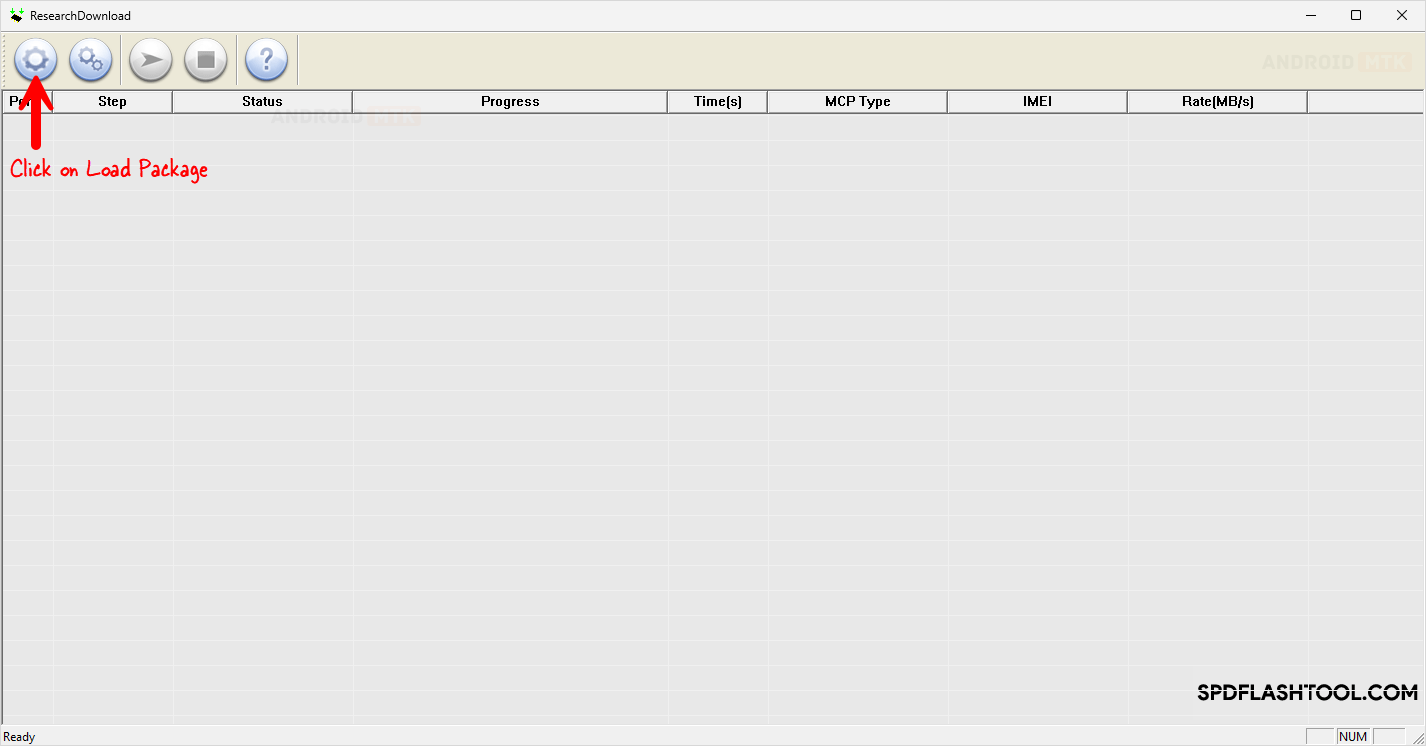
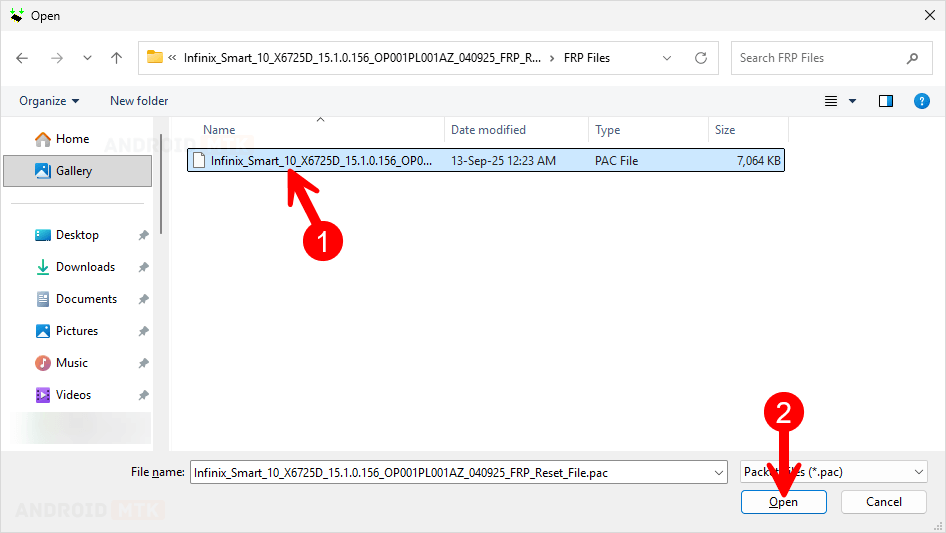
Ensure the SPD Research Tool is downloaded, extracted, and ready for execution on the computer. Similarly, verify the integrity of the dedicated FRP reset file. Launch the SPD Research Tool application. The initial interface of the tool requires the loading of the correct package file that corresponds to the device’s underlying chipset architecture. Navigate within the tool’s interface to the function designated for loading the necessary package file, often labeled as ‘Load Package’ or similar, and select the downloaded FRP file.
Step 2: Selecting the FRP Functionality
Upon successful loading of the package, the tool’s interface will present various operational modes. For this specific task, the user must precisely locate and select the option explicitly dedicated to FRP operations. On the SPD Research Tool interface, this selection typically involves navigating to a tab or dropdown menu related to ‘Security’ or ‘FRP Reset’ and confirming the selection, ensuring the tool is primed for security partition modification rather than standard flashing or erasing procedures.
Step 3: Preparing the Infinix Smart 10 X6725D for Connection
The device must be transitioned from its normal operating state into a specialized diagnostic or download mode recognized by the SPD Research Tool.
- Power Down: Completely switch off the Infinix Smart 10 X6725D. Ensure no residual power remains by holding the power button down until the screen is definitively black.
- Entering Download Mode (SPD Specific): This step is critical for establishing the necessary connection. Simultaneously press and hold both the Volume Up and Volume Down physical buttons located on the side of the smartphone. While maintaining constant pressure on both volume keys, carefully connect the device to the host computer using a functional USB cable. The combination of pressing both volume keys while plugging in signals the device’s bootloader to enter the Spreadtrum Download Mode, allowing the PC software to gain the required low-level access. Observe the computer; successful entry into this mode will typically trigger a driver installation sound or a change in the status indicator within the SPD Research Tool, confirming that the device is recognized.
Step 4: Initiating the FRP Removal Process
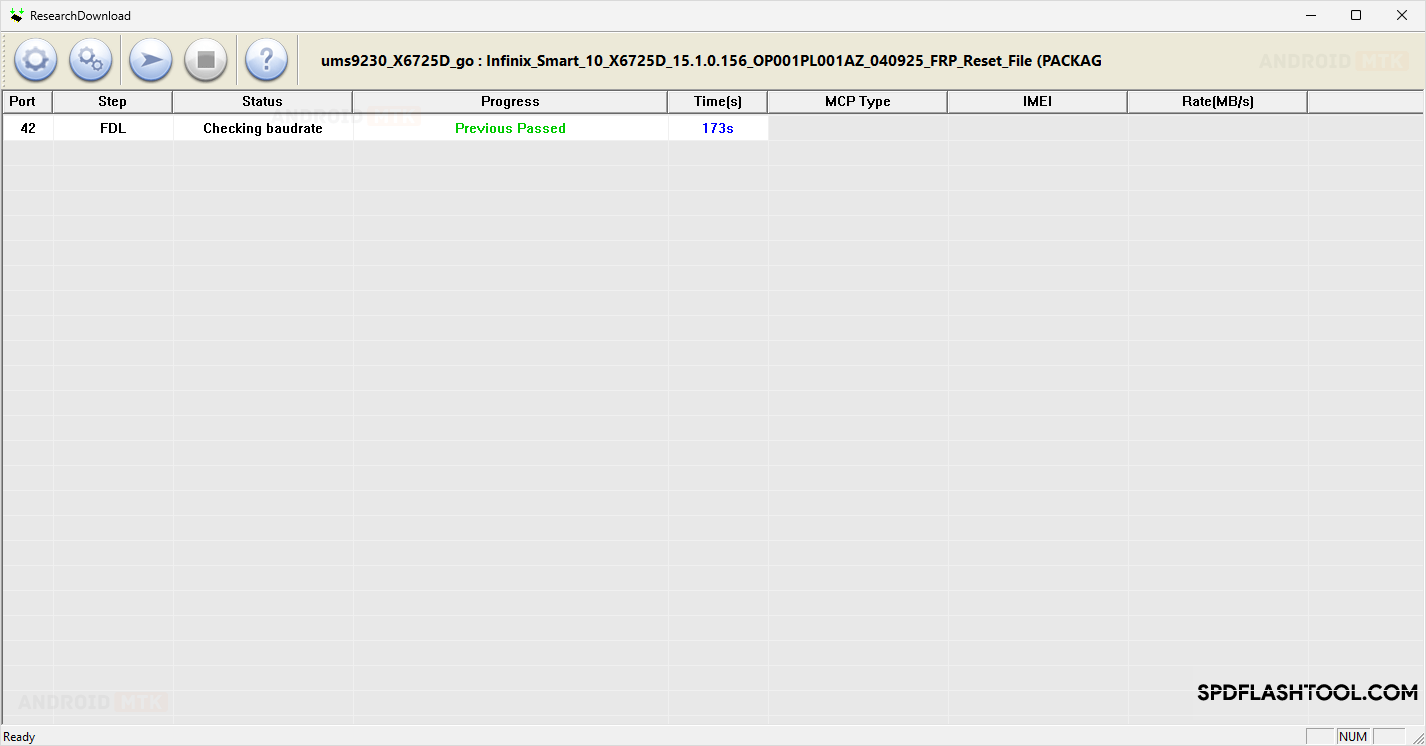
With the device correctly connected in Download Mode and the tool configured for FRP removal, the final action is to commence the operation. Locate the ‘Start’ or ‘Start Operation’ button within the SPD Research Tool interface. Clicking this initiates the communication sequence where the tool sends the command and the necessary bypass data to the phone’s firmware. The software will begin processing, and progress will be visually indicated within the tool’s console window. This phase requires patience, as the tool scans the device partitions and executes the security override command.
Step 5: Confirmation of Successful Operation
The process concludes when the SPD Research Tool displays a clear confirmation message. This message usually reads something akin to "FRP Lock Removed Successfully" or similar positive affirmation, often accompanied by a change in color or a distinct notification within the application window. This signal confirms that the security flag preventing setup has been neutralized.
Step 6: Post-Operation Procedures
Upon receiving the success notification, the user must safely conclude the session.
- Close the SPD Research Tool application on the computer.
- Gently disconnect the USB cable linking the Infinix Smart 10 X6725D to the computer.
- Power on the smartphone.
The device should now boot up past the initial setup screens that previously demanded Google account verification. The user will be guided directly to the standard Android setup wizard, allowing them to configure the device with a new Google account or proceed without one, effectively completing the FRP removal.
Further Considerations and Technical Notes

The effectiveness of this method is highly dependent on the precise hardware revision and firmware version of the Infinix Smart 10 X6725D. While the guide targets Android 15, slight variations in firmware updates released by Infinix may necessitate minor adjustments in the loading process or the specific FRP file utilized. Always ensure that the downloaded reset file explicitly matches the device model number (X6725D) to prevent potential data corruption or bricking. The use of generic SPD tools or files intended for different chip families carries a substantial risk of rendering the device inoperable, as the memory mapping and security protocols can differ significantly between device variants. Users proceeding with this procedure acknowledge that they are engaging in an advanced technical modification that alters core security settings of their hardware.