

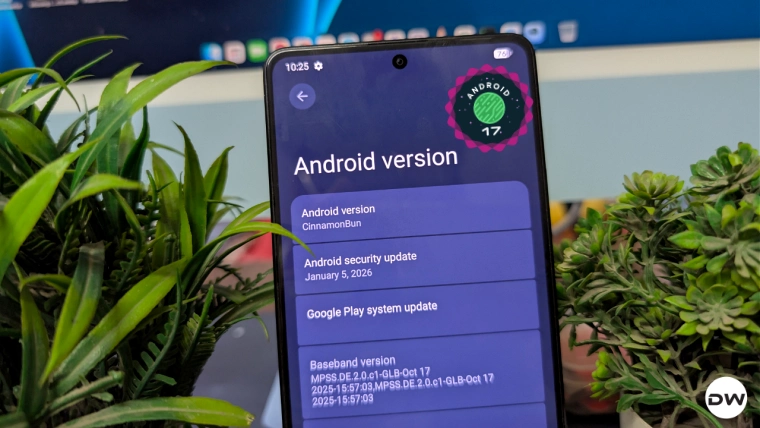
The Xiaomi Poco F5, known in various markets as the Redmi Note 12 Turbo, has solidified its reputation as a powerhouse within the mid-range smartphone segment. Driven by the robust Snapdragon 7+ Gen 2 chipset, the device has become a primary focal point for the independent developer community. As Google pushes the boundaries of its mobile operating system, the transition toward Android 17 has begun in earnest. For enthusiasts seeking to bypass the constraints of proprietary skins and experience the cutting edge of mobile software, the ability to flash custom ROMs based on Android 17 represents the pinnacle of device ownership. This transition, however, requires a sophisticated understanding of the Android ecosystem, moving beyond simple app installations into the realm of system-level modifications and partition management.
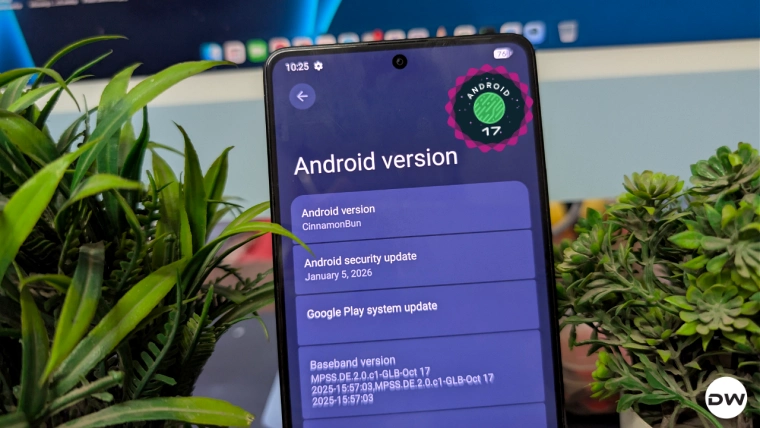
The journey toward a customized Android 17 experience begins with the preparation of a stable development environment on a workstation. The cornerstone of this process is the installation of the Android SDK Platform Tools. Provided directly by Google, these binaries—specifically the Android Debug Bridge (ADB) and Fastboot—serve as the vital communication link between a computer and a mobile device in a low-level state. Unlike standard file transfer protocols, ADB allows for direct command-line interaction with the Android subsystem, while Fastboot operates when the device is in a pre-boot environment, allowing for the rewriting of core partitions. It is imperative that users utilize the official Google binaries rather than third-party installers, as the latter often lack the updated libraries required to interface with the modern dynamic partition structures found in the Poco F5.
Once the computational environment is established, the mobile hardware must be prepared to accept unauthorized software. By default, Android devices are locked to prevent the execution of non-verified code, a security measure intended to protect the integrity of the user’s data. To circumvent this for the purpose of customization, two specific settings must be toggled within the hidden Developer Options menu. The first, USB Debugging, grants the PC the authority to send commands to the device. The second, OEM Unlocking, is a prerequisite for the more intensive process of bootloader unlocking. Accessing these features requires a deliberate sequence of actions: navigating through the system settings to the build number and engaging in a repetitive tapping gesture until the administrative privileges are granted.

The most significant hurdle in the modification process is the unlocking of the bootloader. For Xiaomi and Poco devices, this is not a mere toggle but a formal request to the manufacturer. Unlocking the bootloader effectively removes the hardware-level "chain of trust," allowing the device to boot images that have not been digitally signed by Xiaomi. This step is inherently destructive; it triggers a mandatory factory reset that wipes all encrypted user data to prevent unauthorized access to personal information during the transition. Furthermore, users must be aware that this action often modifies the device’s security attestation status, which can impact the functionality of high-security applications such as banking tools and digital wallets.
With the hardware unlocked, the focus shifts to the acquisition of the Android 17 firmware and its associated dependencies. The current landscape of Android 17 for the Poco F5 is characterized by early-stage builds, such as the Beta 1 release credited to developers like GustyxPower. These ROMs are often based on the Android Open Source Project (AOSP), offering a clean, "stock" experience that contrasts sharply with the feature-heavy HyperOS. However, a ROM file alone is rarely sufficient. Because the Poco F5 utilizes a Virtual A/B partition scheme, successful installation often requires specific firmware versions that match the underlying hardware requirements of the new OS. Additionally, users must decide on their preferred Google Mobile Services (GMS) implementation. Since many custom ROMs are "vanilla"—meaning they lack Google apps to respect open-source licenses—users must manually flash GApps packages to regain access to the Play Store and sync services.

Advanced users may also look toward integrating KernelSU or KernelSU Next. These represent a paradigm shift in the world of Android rooting. Unlike traditional methods that modify the boot image or system partitions, KernelSU operates directly within the Linux kernel of the device. This provides a more "invisible" root solution that is significantly harder for anti-tamper mechanisms to detect. When paired with modules like SUSFS (Systemless User-Space File System), users can maintain a rooted state while still passing the rigorous Integrity API checks required by modern applications.
The technical execution of flashing Android 17 involves transitioning the Poco F5 into Fastboot Mode. This is achieved by a specific physical button combination during the power-up sequence or via an ADB command from the PC. Once the device is in this state, the standard operating system is no longer active; instead, the device waits for low-level partition instructions. One of the most critical files in this modern flashing workflow is "super_empty.img." On devices with dynamic partitions, the "super" partition acts as a container for system, vendor, and product data. Flashing a "super_empty" image effectively resets the mapping table of these dynamic partitions, ensuring that the incoming Android 17 ROM can allocate the necessary space without encountering "insufficient storage" errors or partition overlap conflicts.

The actual installation of the ROM often utilizes the "sideload" feature of a custom recovery like TWRP (Team Win Recovery Project). TWRP acts as a mini-operating system that runs entirely in the device’s RAM, providing a graphical interface for managing files and flashing ZIP archives. By using the command "adb sideload rom.zip," the user streams the firmware from the PC directly into the device’s system partitions. This method is generally considered safer than internal storage flashing, as it reduces the risk of file corruption during the transfer process.
Following the flashing of the ROM and any supplemental packages—such as GApps or root solutions—a final "Format Data" operation is usually required. This is distinct from a standard factory reset; it involves wiping the encryption keys and the metadata of the data partition. Because Android 17 may use different encryption standards than the previous version of Android or HyperOS, failing to format data often results in a "boot loop," where the device is unable to decrypt the storage and continuously restarts.

Upon the first successful boot into Android 17, users are greeted with the latest design language and functional improvements developed by Google. This includes enhanced privacy controls, refined notification management, and potential performance optimizations inherent to the new API levels. For the Poco F5, this breathes new life into the hardware, often resulting in a more responsive user interface and improved battery longevity compared to the stock software.
However, the pursuit of early-access software is not without its pitfalls. Early builds of Android 17 may harbor bugs ranging from minor graphical glitches to critical failures in hardware abstraction layers, such as broken Wi-Fi, Bluetooth, or camera functionality. The community-driven nature of these ROMs means that updates and bug fixes are dependent on the altruism and expertise of independent developers. Users are encouraged to participate in community forums and Telegram groups to stay informed about the latest patches and to share logs that can help developers refine the software.

In conclusion, flashing Android 17 onto the Poco F5 is a comprehensive technical endeavor that rewards the user with an unparalleled level of control over their mobile hardware. It is a process that demands precision, a respect for the underlying architecture of the Android OS, and an acceptance of the risks involved in modifying system-level firmware. By following the established protocols for SDK installation, bootloader unlocking, and partition management, enthusiasts can transform their Poco F5 into a cutting-edge vessel for the future of the Android ecosystem.