

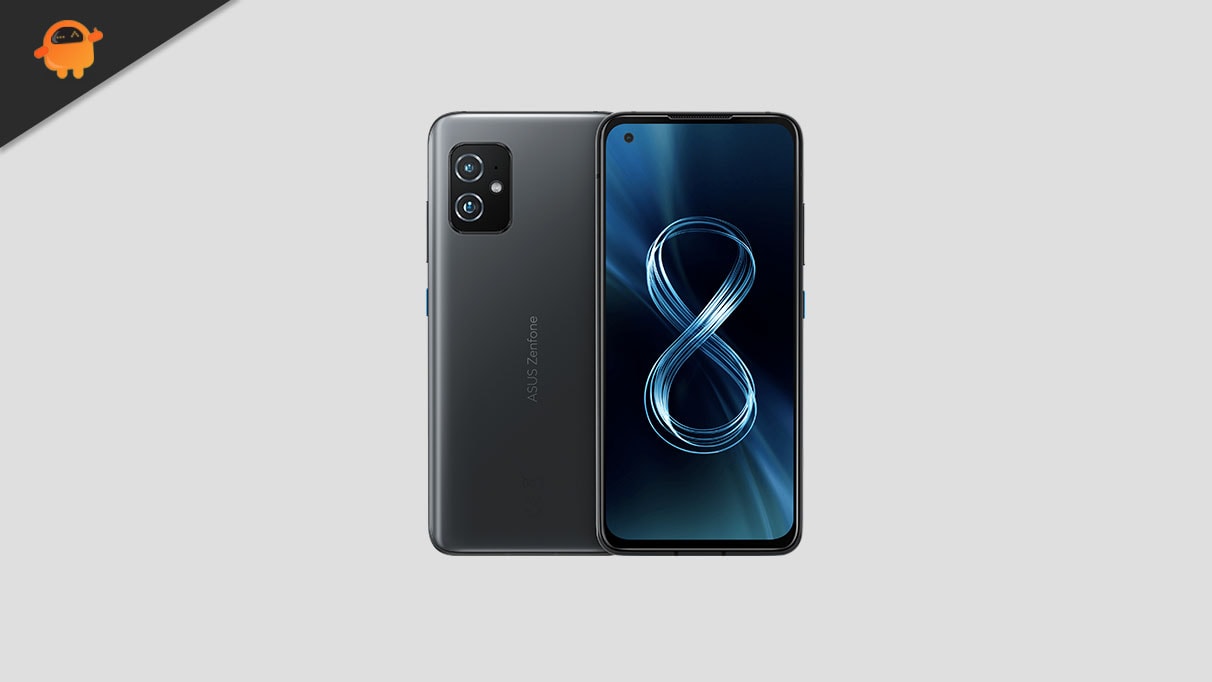
The Asus ZenFone 8 remains a landmark device in the history of Android hardware, celebrated primarily for being one of the few truly compact flagships released in the last several years. While the official software support cycle from Asus has reached its natural conclusion, the enthusiast developer community has stepped in to ensure this diminutive powerhouse remains relevant in the modern era. With Google’s recent release of Android 16 to the Pixel lineup, developers have successfully ported unofficial Android Open Source Project (AOSP) builds to the ZenFone 8, allowing users to experience the cutting edge of mobile operating systems long before most modern flagships. This guide explores the transition to Android 16, the hardware that makes the ZenFone 8 a perfect candidate for this upgrade, and the technical steps required to modernize the device.
The ZenFone 8 was originally launched as a defiance of the industry trend toward massive screens. Powered by the Qualcomm Snapdragon 888 chipset, the device features a 5.9-inch Super AMOLED display with a 120Hz refresh rate, offering a premium viewing experience in a form factor that is easily manageable with one hand. Unlike its sibling, the ZenFone 8 Flip, which utilized a motorized camera mechanism, the standard ZenFone 8 focused on durability and utility, boasting an IP68 dust and water resistance rating. Internally, the device was offered in various configurations, ranging from 6GB to a massive 16GB of LPDDR5 RAM, paired with up to 256GB of UFS 3.1 storage. Its camera system, featuring a 64MP Sony IMX686 main sensor and a 12MP ultrawide lens, continues to hold its own for daily photography. However, as the official ZenUI updates slowed down, the hardware began to outpace the software—a gap that Android 16 now aims to bridge.
![How to Install Android 16 on Asus ZenFone 8 [Download Link]](https://www.getdroidtips.com/wp-content/uploads/2021/05/Asus-Zenfone-8.jpg)
Android 16 introduces a significant aesthetic and functional evolution known as Material 3 Expressive. This is not a complete departure from the Material You design language introduced in previous versions, but rather a sophisticated refinement. Material 3 Expressive focuses on the "polish" of the user interface, introducing smoother, more organic animations that respond dynamically to user touch. One of the most significant changes for a compact device like the ZenFone 8 is the introduction of larger, more defined touch targets and bolder typography. On a 5.9-inch screen, these enhancements improve accessibility and reduce accidental inputs, making the interface feel more intentional and modern. The update also breathes new life into system-level fluidity, utilizing the Snapdragon 888’s processing power to deliver a UI experience that feels faster and more responsive than the original ZenUI 8.
Beyond the visual changes, Android 16 brings deep system optimizations designed to improve battery efficiency and privacy. For a device like the ZenFone 8, which houses a 4000mAh battery—modest by today’s standards—the under-the-hood improvements in background task management are vital. These optimizations help extend the longevity of the device throughout the day, ensuring that the high-refresh-rate display doesn’t drain the battery prematurely. Furthermore, the move to an AOSP-based ROM removes much of the "bloatware" often found in manufacturer skins, providing a clean, "Pixel-like" experience that many enthusiasts prefer.
Before embarking on the installation of a custom ROM, users must understand the technical requirements and risks involved. Installing an unofficial build of Android 16 requires an unlocked bootloader and a custom recovery environment. It is a process that necessitates a complete wipe of the device’s internal storage, meaning a comprehensive backup of photos, contacts, and app data is the first and most crucial step. Furthermore, the device should be charged to at least 50% to prevent an unexpected shutdown during the critical flashing phase, which could lead to a "bricked" or unusable phone.
![How to Install Android 16 on Asus ZenFone 8 [Download Link]](https://www.getdroidtips.com/wp-content/uploads/2021/05/Asus-Zenfone-8-300x169.jpg)
The foundation of any custom ROM installation is the Android Debug Bridge (ADB) and Fastboot. These command-line tools allow a computer to communicate directly with the ZenFone 8’s hardware at a low level. ADB facilitates the transfer of files and commands while the phone is powered on or in recovery mode, while Fastboot is used to flash partitions when the device is in bootloader mode. For Asus users, ensuring the latest Asus USB drivers are installed on the PC is essential to maintain a stable connection during the flashing process.
The journey to Android 16 begins with unlocking the bootloader. Asus provides an official bootloader unlock tool, though users should be aware that this action typically voids the manufacturer’s warranty and resets the device to factory settings. Once the bootloader is unlocked, the next step is the installation of the Team Win Recovery Project (TWRP). TWRP is a custom recovery image that replaces the stock recovery, providing a touch-based interface for wiping partitions and installing new software ZIP files. For the ZenFone 8, having a stable version of TWRP is the gateway to all custom software modifications.
The installation of the Android 16 ROM itself is a multi-step process. Once the ROM file and the corresponding GApps (Google Apps) package are downloaded and moved to the device’s storage, the user must boot into TWRP. The process begins with a "Clean Wipe," which involves clearing the Data, Cache, and Dalvik partitions to ensure no remnants of the old operating system interfere with the new one. After the wipe, the Android 16 ROM is flashed. It is a common mistake among beginners to reboot immediately after flashing the ROM; however, most AOSP builds do not include Google services by default. To have access to the Play Store, Gmail, and Google Maps, the GApps package must be flashed immediately after the ROM, before the first system boot.
![How to Install Android 16 on Asus ZenFone 8 [Download Link]](https://www.getdroidtips.com/wp-content/uploads/2020/06/cmd-platform-tools.jpg)
Upon the first boot into Android 16, users will notice that the startup process takes longer than usual. This is normal, as the system is configuring the new ART (Android Runtime) cache and setting up the encrypted data partition. Once the setup wizard appears, the ZenFone 8 will feel like a brand-new device. Users can then explore the new Material 3 Expressive features, such as the refined notification shade, the enhanced privacy dashboard, and the updated widgets that characterize the Android 16 experience.
While the current unofficial builds of Android 16 for the ZenFone 8 are remarkably stable, they are still considered "experimental" by the developer community. Most core functions, including Wi-Fi, Bluetooth, the camera, and cellular data, are reported to be working seamlessly. However, users may occasionally encounter minor bugs or "edge-case" issues, such as specific app incompatibilities or glitches in the new animation engine. The beauty of the custom ROM ecosystem is its iterative nature; developers frequently release updates to address these bugs, often providing security patches faster than the original equipment manufacturers (OEMs).
Choosing to install Android 16 on an older device like the Asus ZenFone 8 is more than just a software update; it is a statement on device longevity and the power of open-source development. In an era where electronic waste is a growing concern, the ability to extend the life of a high-quality piece of hardware through community-driven software is invaluable. The ZenFone 8, with its high-end Snapdragon 888 and compact ergonomics, remains a joy to use in 2025, especially when paired with the modern, fluid, and expressive interface of Android 16. By following the proper procedures and respecting the technical nuances of the installation process, users can enjoy a flagship experience that continues to defy the limitations of official support cycles.