

The Android operating system has long been celebrated for its versatility and user-centric customization options, yet the very mechanisms designed to keep the platform secure and up-to-date can occasionally become sources of significant frustration. At the heart of this ecosystem lies the Google Play Store, a foundational system component that serves as the primary gateway for software distribution and digital rights management. While Google frequently pushes background updates to the Play Store to introduce new features or security patches, these iterations are not always universally compatible with every device configuration or user requirement. Consequently, a growing segment of the Android community finds it necessary to perform a version rollback—a process commonly referred to as downgrading. Understanding how to achieve this without the complexities of rooting a device is essential for maintaining a seamless digital experience.
The motivation behind downgrading the Google Play Store often stems from critical functional failures that disrupt the daily utility of a smartphone. One of the most prevalent issues involves the License Check Verification (LCV) system. This background process is responsible for validating that premium applications installed on a device were legitimately purchased through the official marketplace. When a specific version of the Play Store encounters a localized bug or a synchronization error with Google’s servers, the LCV may fail intermittently or entirely. For the end-user, this manifests as a "license not found" error, effectively locking them out of apps they have legally acquired. In such scenarios, the software incorrectly flags these applications as being sourced from unauthorized third-party repositories, rendering them non-functional. Reverting to a previous, stable iteration of the Play Store often serves as the most immediate and effective remedy for restoring these digital entitlements.
Beyond license verification, the need to downgrade is frequently driven by the intricate requirements of the Play Integrity API, the successor to the legacy SafetyNet attestation. Developers and advanced users who manage "keybox" files to ensure their devices pass "Strong Integrity" checks often find that certain Play Store updates interfere with these delicate configurations. For those who rely on high-level device certification to access banking apps, high-definition streaming services, or corporate security tools, maintaining a specific version of the Play Store is often a prerequisite for system harmony. Furthermore, newer versions of the Play Store may introduce UI changes that are deemed less intuitive or consume excessive system resources, particularly on older hardware where the overhead of the latest Google Play Services can lead to noticeable latency and decreased battery life.
![How to Downgrade Google Play Store [Without Root]](https://droidwin.com/wp-content/uploads/2026/01/downgrade-play-store.webp)
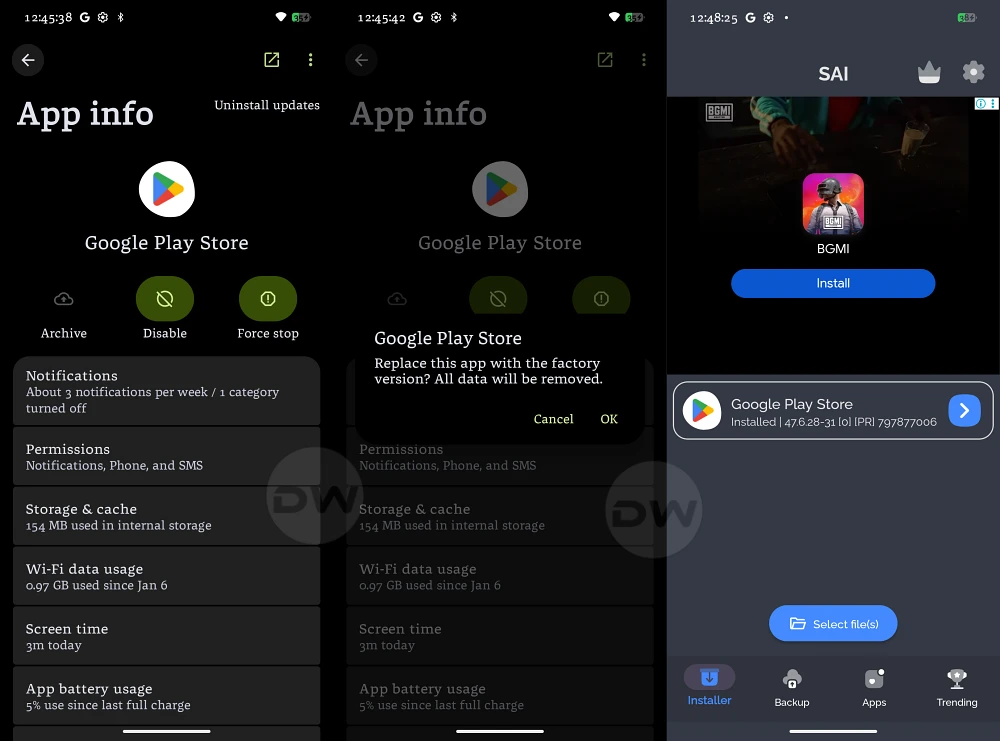
To initiate a downgrade without root access, one must first understand the architectural nature of the Google Play Store. Unlike standard user-installed applications, the Play Store is classified as a "system app." This means it cannot be fully uninstalled from the device through conventional means. Instead, Android allows users to "uninstall updates," which essentially strips away all the layers of updates applied since the device was last factory reset or since the last major OS upgrade, returning the app to its "factory version." This factory version is the baseline code integrated into the device’s firmware by the manufacturer.
The process begins within the system settings of the Android device. A user must navigate to the "Apps" or "Application Manager" section, which houses the comprehensive list of all installed software. Because the Play Store is a core component, it may sometimes be hidden under a "System Processes" toggle. Once located, selecting the Google Play Store opens the App Info page. From here, the path to downgrading is found within the overflow menu—usually represented by three vertical dots in the top-right corner of the screen. Selecting "Uninstall updates" triggers a system warning, informing the user that the app will be replaced with the factory version and all data associated with the updates will be removed. Confirming this action effectively rolls the application back to its most primitive state available on that specific firmware.
However, reverting to the factory version is often only the first half of the solution. In many instances, the factory version is too old to support modern application requirements, or the user may wish to target a specific "sweet spot" version of the Play Store that predates the introduction of a particular bug but is newer than the factory baseline. This requires the manual installation of an Android Package Kit (APK) file. Before proceeding with a manual installation, the user must enable "Unknown Sources" or "Install Unknown Apps" within the security settings for their mobile browser or file manager. This permission is a critical security gate that prevents unauthorized software from installing itself, but it is necessary for manual version management.
When sourcing an older version of the Play Store, it is imperative to use reputable third-party repositories such as APKMirror or similar platforms that verify the cryptographic signatures of the files. These signatures ensure that the APK has not been tampered with and is an authentic file signed by Google. If a user attempts to install a version of the Play Store that has a different signature than the one currently on the device, the Android Package Installer will reject the update as a security precaution. Once the desired version is downloaded, the user can simply open the file and follow the prompts to "update" the existing factory version to the specific older version they have selected.
![How to Downgrade Google Play Store [Without Root]](https://droidwin.com/wp-content/uploads/2026/01/how-to-downgrade-google-play-store.webp)
A significant challenge in maintaining a downgraded state is the Play Store’s inherent "self-healing" mechanism. Google Play Services is designed to automatically update the Play Store in the background without user intervention. To prevent the system from immediately re-installing the problematic version, users must take proactive measures. Within the Play Store’s own settings menu, under the "Network Preferences" tab, the "Auto-update apps" feature should be set to "Don’t auto-update apps." While this prevents user-installed apps from updating, the Play Store itself may still attempt a background refresh. In more persistent cases, users may need to temporarily restrict background data for Google Play Services or use specialized "package disabler" tools that can block specific update broadcasters, though the latter often requires more advanced technical knowledge.
The implications of running an older version of the Play Store should also be carefully weighed. While a downgrade can resolve immediate functional bugs or integrity issues, it may also leave the device vulnerable to security flaws that have been patched in more recent releases. Furthermore, as Google evolves its backend APIs, very old versions of the Play Store may eventually lose the ability to communicate with the servers, leading to "Server Error" messages or the inability to browse the catalog. Therefore, the decision to downgrade should be viewed as a tactical troubleshooting step rather than a permanent lifestyle change for the device.
In the broader context of Android maintenance, the ability to manipulate system app versions without root access represents a vital "power user" skill. It empowers the individual to reclaim control over their hardware when automated updates go awry. Whether the goal is to fix a broken license verification system, maintain device integrity for professional use, or simply return to a more stable user interface, the rollback process provides a necessary safety valve in an increasingly automated software environment. As Android continues to mature, the balance between mandatory updates and user autonomy remains a focal point for the community. By mastering the art of the manual downgrade, users ensure that their technology serves their needs, rather than the other way around. If technical hurdles arise during these steps—such as persistent installation errors or conflicts with Google Play Services—the solution typically lies in clearing the cache and data of both the Play Store and the Download Manager, providing a clean slate for the version transition. Such interventions, while technical, are the hallmark of a well-maintained and personalized Android experience.