

The Android Debug Bridge (ADB) has long served as the primary gateway for enthusiasts, developers, and power users to interact with the Android subsystem. It allows for the execution of complex commands that can bypass standard user interface limitations, enabling deeper customization and system-level modifications. However, as Google and various Original Equipment Manufacturers (OEMs) have prioritized device security in recent iterations of the Android operating system, the barrier to executing these commands has risen significantly. Among the most frequent hurdles encountered by users today are the "Exception Occurred While Executing Put" and "Exception Occurred While Executing Grant" errors. These messages represent a fundamental conflict between the user’s intent to modify the system and the device’s internal security protocols designed to prevent unauthorized access to sensitive settings.
![Exception Occurred While Executing Put [Fixed]](https://droidwin.com/wp-content/uploads/2026/01/Exception-Occurred-While-Executing-Grant-Put.webp)
To understand why these errors occur, one must first examine the architecture of the Android Settings provider. The Android system organizes its configuration data into several tables, most notably System, Global, and Secure. The "Secure" table contains settings that the system considers sensitive because they can affect the privacy or security of the device. When a user attempts to execute an ADB command such as "settings put secure," they are essentially asking the system to write a new value into this protected database. For example, a OnePlus user might attempt to replace the default Google Discover feed with the OnePlus Shelf, a modification that requires shifting system-level flags. If the system detects that the shell—identified in the logs as "user 2000"—does not have the requisite authorization, it throws a java.lang.SecurityException.
The specific error message, Permission denial, must have one of: [android.permission.WRITE_SECURE_SETTINGS], indicates that the command line interface lacks the specific privilege required to mutate the secure settings table. This is a failsafe mechanism. If any application or external command could freely modify these settings, it would be trivial for malicious software to disable lock screens, redirect network traffic, or monitor user activity without consent. The stack trace often points toward SettingsProvider.java, specifically the enforceHasAtLeastOnePermission and mutateSecureSetting methods. These are the "gatekeeper" functions within the Android source code that verify whether the entity calling the command has the legal right to do so.
![Exception Occurred While Executing Put [Fixed]](https://droidwin.com/wp-content/uploads/2026/01/Exception-Occurred-While-Executing-Put.webp)
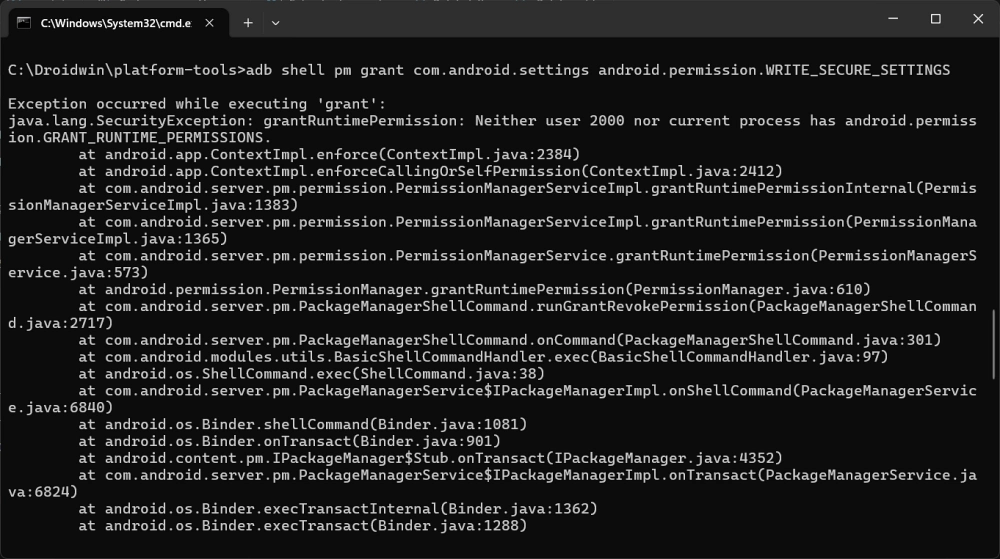
Similarly, the "Exception occurred while executing ‘grant’" error arises when a user attempts to manually bestow runtime permissions upon an application via the ADB shell. This is common when using third-party customization tools that require the WRITE_SECURE_SETTINGS permission to function. The error log typically states that neither the shell user nor the current process possesses android.permission.GRANT_RUNTIME_PERMISSIONS. In the eyes of the Android security model, granting permissions is a high-level administrative task. Even though the user has connected the phone to a computer and authorized USB debugging, the system remains skeptical of commands that could fundamentally alter the app-level security sandbox.
This heightened security environment is particularly prevalent in heavily customized Android skins such as Xiaomi’s MIUI (and the newer HyperOS), OnePlus’s OxygenOS, Oppo’s ColorOS, and Realme UI. These manufacturers have implemented additional layers of "Permission Monitoring" or "Security Settings" toggles that sit on top of the standard Android Developer Options. These layers are designed to prevent "one-click" exploits where a malicious computer could potentially hijack a device simply because USB debugging was enabled. Consequently, even if a user is following a legitimate tutorial to enhance their device’s functionality, they will be blocked until these specific OEM-level protections are manually deactivated.
![Exception Occurred While Executing Put [Fixed]](https://droidwin.com/wp-content/uploads/2026/01/Exception-Occurred-While-Executing-Grant.webp)
For users operating OnePlus, Realme, or Oppo devices, the solution lies within a specific setting titled "Disable Permission Monitoring." In recent versions of these operating systems, the security framework actively intercepts shell commands that attempt to modify system properties. By navigating to the Developer Options—a hidden menu unlocked by tapping the "Build Number" seven times in the system information section—users can locate this toggle. When "Disable Permission Monitoring" is enabled, the system ceases its real-time scrutiny of ADB-initiated permission changes, allowing the "put" and "grant" commands to execute successfully. It is important to note that after toggling this setting, a device restart is often required to ensure that the new security policy is fully integrated into the kernel’s active permission set.
The situation for Xiaomi, Poco, and Redmi users is slightly more complex due to the stringent nature of the MIUI and HyperOS security frameworks. Xiaomi requires users to enable a specific sub-setting called "USB Debugging (Security Settings)." Unlike the standard USB debugging toggle, which allows for basic app installation and log reading, the Security Settings toggle specifically authorizes the modification of critical system parameters and the granting of permissions via ADB. Enabling this often requires a Mi Account login and a series of "warning" prompts where the user must wait for a timer to expire before clicking "Next." This is a deliberate friction point introduced by Xiaomi to ensure the user is fully aware of the risks. Without this toggle, any attempt to use the pm grant or settings put commands will result in an immediate security exception.
![Exception Occurred While Executing Put [Fixed]](https://i.ytimg.com/vi/TkiqRMri2to/hqdefault.jpg)
Once these manufacturer-specific hurdles are cleared, the workflow for fixing the exception follows a logical progression. First, the user must ensure that the Android Platform Tools on their computer are up to date, as older versions of ADB can sometimes struggle with the protocol changes in newer Android versions. Second, the appropriate toggle (either Permission Monitoring or Security Settings) must be activated within the Developer Options. Third, the device should be rebooted. Upon restarting, the user should re-establish the ADB connection. When the command is re-entered, the SettingsProvider will no longer find a reason to deny the request, and the mutateSecureSetting function will complete its task without triggering a stack trace.
While the technical fix is straightforward, it is worth exploring the broader context of why these errors have become so common. The Android ecosystem is currently in a state of transition. Google is moving toward a "least privilege" model, where even the system user is restricted from certain actions unless explicitly authorized through multiple layers of verification. This is a response to the sophisticated nature of modern mobile threats. By requiring users to dive deep into Developer Options to enable these features, manufacturers are creating a "buffer zone" that protects the average consumer while still leaving the door open for advanced users.
![Exception Occurred While Executing Put [Fixed]](https://droidwin.com/wp-content/uploads/2026/01/Disable-Permission-Monitoring-oneplus.webp)
Enriching the user experience through ADB commands—such as adjusting the window animation scale to 0.5x for a snappier feel, changing the status bar icons, or remapping hardware buttons—remains one of the core joys of the Android platform. The "Exception Occurred While Executing Put" error is not a sign of a broken device, but rather a sign of a device that is working exactly as intended to protect its data. By understanding the underlying mechanics of the WRITE_SECURE_SETTINGS permission and the specific requirements of OEM skins, users can safely navigate these obstacles.
In conclusion, the resolution of ADB shell exceptions is a two-fold process involving the synchronization of software permissions and the manual override of hardware-level security monitors. Whether you are a developer testing a new application or a hobbyist trying to reclaim the OnePlus Shelf, the path forward is defined by a clear understanding of the Developer Options menu. As Android continues to evolve, it is likely that even more granular controls will be introduced. Staying informed about these changes ensures that the power of the Android Debug Bridge remains accessible, allowing for a personalized and optimized mobile experience without compromising the fundamental integrity of the operating system. If challenges persist after following these steps, it is often helpful to check for system updates or consult community forums, as the specific location and naming of these security toggles can vary slightly with each incremental OS update.