

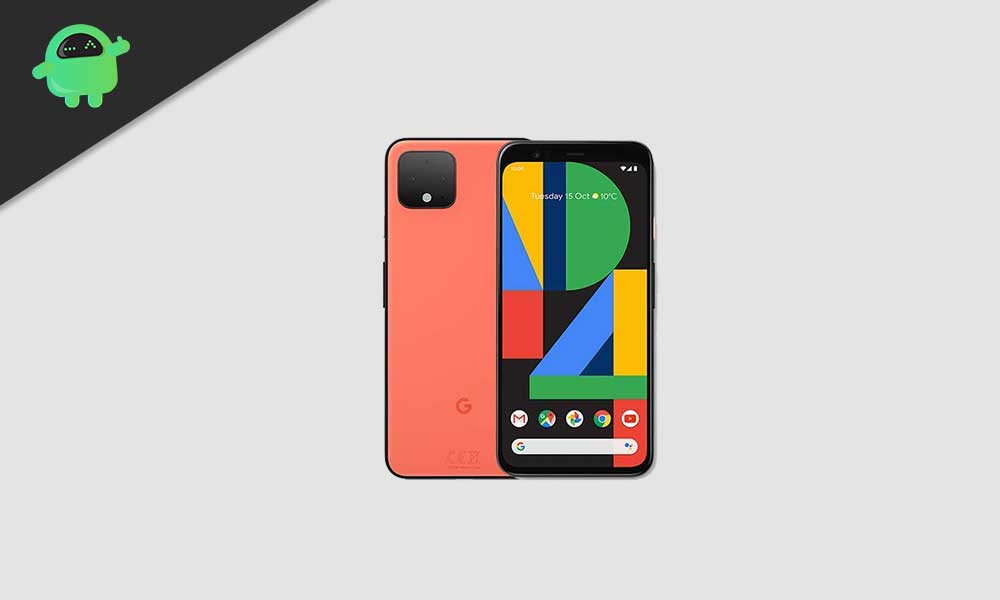
The Google Pixel 4 and 4 XL, devices officially retired from software support by Google, are receiving a significant performance and feature lifeline through the dedicated efforts of the Android custom ROM community. While Google concluded major platform updates for the Pixel 4 series after Android 13, independent developers have successfully ported unofficial Android 16-based AOSP (Android Open Source Project) builds, allowing owners to experience the operating system’s latest refinements, notably the introduction of Material 3 Expressive. This resurgence extends the functional lifespan of the 2019 flagships, providing access to contemporary security enhancements and user interface improvements that were previously inaccessible.
The Enduring Appeal of the Google Pixel 4 XL
Launched in late 2019, the Google Pixel 4 XL distinguished itself not through cutting-edge raw specifications but through highly optimized software integration and industry-leading computational photography. The device features a premium glass and aluminum chassis with an IP68 rating for dust and water resistance. Central to its hardware appeal is the 6.3-inch P-OLED display, which boasts a QHD+ resolution and a crucial 90Hz refresh rate. This high refresh rate, while common in modern devices, was a significant feature at the time and ensures that the device still offers remarkably smooth scrolling and visual fluidity years later.
Internally, the Pixel 4 XL relies on the Snapdragon 855 processor. While this chipset is now generations old, its pairing with Google’s clean, unencumbered Android build guarantees robust day-to-day performance. However, the true legacy of the Pixel 4 series lies in its imaging capabilities. The 12.2MP main camera, coupled with a 2x telephoto lens, utilized proprietary algorithms like Night Sight and Auto HDR+ to deliver results often superior to competitors with more complex hardware. This focus on software intelligence means that the camera remains highly competitive even today, justifying the effort to update the underlying operating system. The Pixel 4 also pioneered advanced 3D face recognition technology for biometric security, replacing the traditional rear-mounted fingerprint sensor.
![How to Install Android 16 on Google Pixel 4 and 4 XL [Download Link]](https://www.getdroidtips.com/wp-content/uploads/2021/04/Detailed-Guide-to-Unlock-Bootloader-on-Google-Pixel-4-and-4-XL.jpg)
Deep Dive into Android 16 and Material 3 Expressive
The primary draw for updating these older devices is access to the latest platform advancements encapsulated within Android 16. The most visible change is the implementation of Material 3 Expressive, a major refinement of Google’s design language. This update is more than a simple cosmetic change; it represents an evolution aimed at increasing fluidity, intuitiveness, and accessibility across diverse form factors.
Material 3 Expressive builds upon the foundation of Material Design 3, moving the interface toward a more dynamic and visually responsive aesthetic. While it avoids a radical visual overhaul, it significantly enhances user interaction through smoother, more intentional animations and bolder, more readable typography. Crucially, the design language focuses on improved ergonomics, incorporating larger touch targets that streamline navigation and interaction, particularly benefiting users on larger screens or those requiring greater accessibility.
Beyond the UI, Android 16 introduces systemic optimizations designed to improve resource management, battery efficiency, and privacy controls. These updates are particularly beneficial for devices like the Pixel 4, ensuring the aging Snapdragon 855 can manage modern applications and background processes with greater efficiency. System updates also typically include critical security patches and refinements to the core Android framework, reinforcing the overall stability and defense mechanisms of the operating system. Although these features are initially rolling out to current-generation Pixel devices, the custom ROM community ensures that older hardware is not left behind.
The Custom ROM Methodology: Choosing Your Android 16 Experience
To bypass Google’s official support cutoff, users must rely on custom AOSP ports. These ROMs are compiled from the publicly released Android source code, modified by developers to function correctly on devices that are no longer officially supported. For the Pixel 4 and 4 XL, two prominent custom distributions have emerged offering Android 16:
![How to Install Android 16 on Google Pixel 4 and 4 XL [Download Link]](https://www.getdroidtips.com/wp-content/uploads/2021/04/Detailed-Guide-to-Unlock-Bootloader-on-Google-Pixel-4-and-4-XL-300x180.jpg)
- Evolution X: This distribution is often favored for its deep customization options and adherence to the native Pixel aesthetic, frequently incorporating proprietary Google features not typically found in standard AOSP builds.
- LineageOS 23: Known for its commitment to stability, security, and a near-pure AOSP experience, LineageOS provides a highly optimized, lean operating environment, minimizing unnecessary bloatware.
The current status of these early Android 16 ports is highly positive, with developers reporting near-complete functionality across essential features. Early testing suggests that critical components, including cellular connectivity, Wi-Fi, Bluetooth, and the camera system, are operational. As is typical with early unofficial builds, users are encouraged to remain vigilant for minor, non-critical bugs and actively report issues with detailed logs to the development teams to accelerate stability improvements.
Preparation: The Technical Prerequisites for Installation
Installing a custom ROM is an advanced procedure that requires specific preparatory steps. Failure to follow these requirements precisely can result in data loss or device malfunction (bricking).
Data Integrity and Power Management
Before initiating any flashing process, a comprehensive backup of all personal data is non-negotiable. Unlocking the bootloader and subsequent flashing operations inevitably wipe the device’s internal storage. Furthermore, the device must be charged to a minimum of 50 percent to prevent unexpected power interruptions during the critical flashing sequences, which can corrupt the system firmware.
Essential Command-Line Tools
The installation process mandates the use of specific PC-based tools to communicate with the phone’s bootloader:
![How to Install Android 16 on Google Pixel 4 and 4 XL [Download Link]](https://www.getdroidtips.com/wp-content/uploads/2020/06/cmd-platform-tools.jpg)
- ADB (Android Debug Bridge) and Fastboot: These command-line utilities are foundational for advanced Android modification. ADB facilitates communication with the running Android operating system, while Fastboot is the protocol used when the device is in bootloader mode, allowing for the flashing of firmware partitions, including custom recovery images. Users must download the latest platform-tools package containing these binaries and ensure the appropriate Google USB drivers are installed on their computer to guarantee a stable connection.
System Modification Prerequisites
The core technical barriers that must be overcome are the device’s security features:
- Bootloader Unlocking: The bootloader, a low-level program that loads the operating system, is locked by default on all Google devices for security purposes. Unlocking the bootloader is the first critical step, as it enables the flashing of unsigned, non-official firmware. This process is inherently destructive and will factory reset the device.
- Installing TWRP Recovery: Once the bootloader is unlocked, a custom recovery environment, such as Team Win Recovery Project (TWRP), must be installed. The stock recovery environment lacks the functionality required to flash complex custom ROM files, especially those not digitally signed by Google. TWRP provides a user-friendly, touch-based interface necessary for navigating the device’s partitions, creating backups (Nandroid backups), and executing the custom ROM installation scripts.
The Installation Sequence
After downloading the chosen Android 16 custom ROM (Evolution X or LineageOS 23) and the corresponding Android 16 GApps package (Google Mobile Services), the installation proceeds via the custom recovery environment:
- Transfer Files: Copy the ROM zip file and the GApps zip file to the device’s internal storage.
- Boot into TWRP: Reboot the Pixel 4 or 4 XL into the newly installed TWRP recovery environment.
- Wipe Partitions: Perform a full data wipe (Wipe > Advanced Wipe > Dalvik/ART Cache, System, Data, and Cache) to ensure a clean installation environment, preventing conflicts with the previous operating system.
- Flash the ROM: Navigate to the main menu, select "Install," and locate the downloaded Android 16 ROM zip file. Swipe to confirm the flash.
- Flash GApps: Crucially, immediately after the ROM has finished flashing and before rebooting the system, flash the GApps package using the same "Install" procedure. Most AOSP-based ROMs do not include Google Play Store, services, or frameworks, necessitating this separate step.
- Reboot System: Once both the ROM and GApps are successfully flashed, reboot the system.
The initial boot cycle following a custom ROM installation will be significantly longer than a standard reboot, often taking upwards of ten to fifteen minutes as the new operating system initializes and optimizes its files. Users should allow this process to complete without interruption. Following the setup wizard, the Pixel 4 or 4 XL will be running the latest Android 16 platform, complete with modern features and the Material 3 Expressive interface.
By undertaking this process, Pixel 4 and 4 XL owners are not just installing a new operating system; they are significantly extending the operational longevity and relevance of their hardware, proving the enduring value of robust community development in the Android ecosystem.