

Updated on April 14, 2026

The integrity of a mobile device’s operating system is paramount to its performance, security, and longevity. When a smartphone encounters critical software failure, boot loops, or persistent system errors, reverting to the original factory state—often referred to as flashing stock firmware—is the most effective remedial measure. For users of specific hardware platforms, the 360OS MDT ASE Tool serves as a specialized, official utility developed by Qiku Internet Network Scientific Co., Ltd. This software is engineered to facilitate the installation of .cpb firmware files across diverse hardware architectures, including MediaTek, Spreadtrum (UniSoc), and Qualcomm chipsets. Understanding the functionality and deployment of this tool is essential for technicians and power users seeking to maintain or restore the operational health of their devices.
Stock firmware represents the manufacturer’s baseline software environment. Unlike custom ROMs or third-party modifications, the stock build is the exact software configuration intended by the engineers at the factory. It includes the original user interface, optimized drivers, proprietary system applications, and the specific security patches validated by the manufacturer. By utilizing the 360OS MDT ASE Tool, users can effectively overwrite corrupted system partitions, remove unauthorized modifications, or reset the device to its pristine, out-of-the-box state, ensuring that all hardware-software synergies are functioning according to factory specifications.
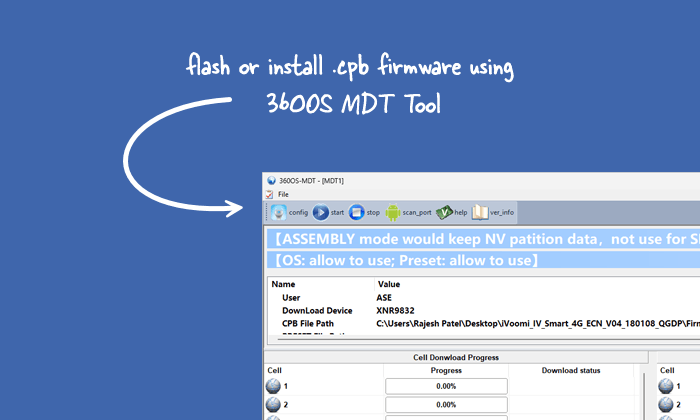
Before initiating the flashing process, meticulous preparation is mandatory to prevent permanent device damage or data loss. The environment for firmware deployment requires several critical components. First, ensure the host computer is equipped with the latest USB drivers specific to your device’s chipset manufacturer—MediaTek (MTK), Spreadtrum, or Qualcomm. These drivers act as the bridge that allows the MDT ASE software to communicate with the device’s bootloader. Second, maintain a stable, high-speed data connection via a high-quality USB cable, as interruptions during the write process can lead to "bricking" the device, rendering it unresponsive. It is also strongly advised to ensure the device battery is charged to at least 60% capacity to prevent power failure during the critical writing stages. Finally, perform a comprehensive backup of all personal data, as the flashing process will irrevocably erase all internal storage.
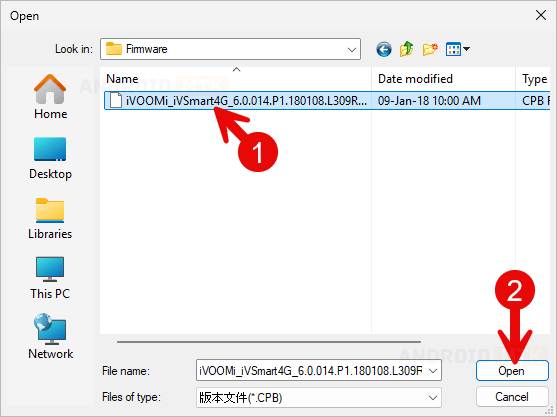
The procedural workflow within the 360OS MDT ASE Tool is designed for precision. To begin, launch the application on your Windows-based workstation. Upon opening the interface, the user is presented with a clean, functional dashboard. The initial requirement is to load the firmware package. By navigating to the designated selection menu, you must import the official .cpb file sourced directly from the manufacturer’s verified repositories. Ensure the checksum of the file matches the documentation provided by the manufacturer to avoid corruption.
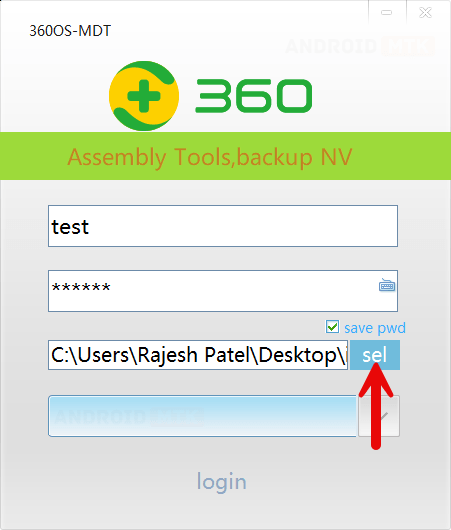
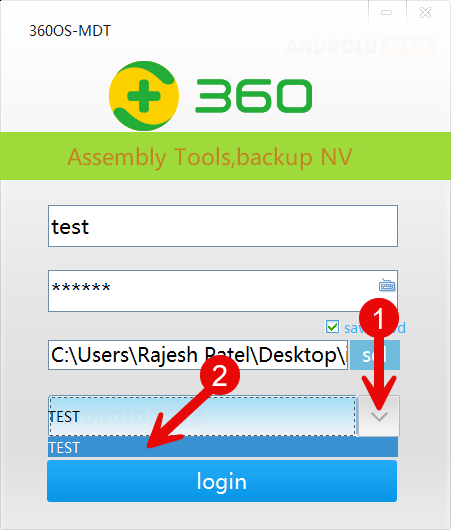
Once the firmware is loaded, the tool typically requires authentication or specific user profile verification, a feature inherent to Qiku’s internal development tools. This security layer ensures that only authorized firmware packages are deployed to the hardware. With the firmware loaded and the software ready, connect the smartphone to the computer. It is crucial that the device is placed into the appropriate mode—often Download Mode or Fastboot mode—depending on the chipset architecture. The tool will automatically detect the device through the pre-installed drivers, indicated by an active status indicator in the connection console.
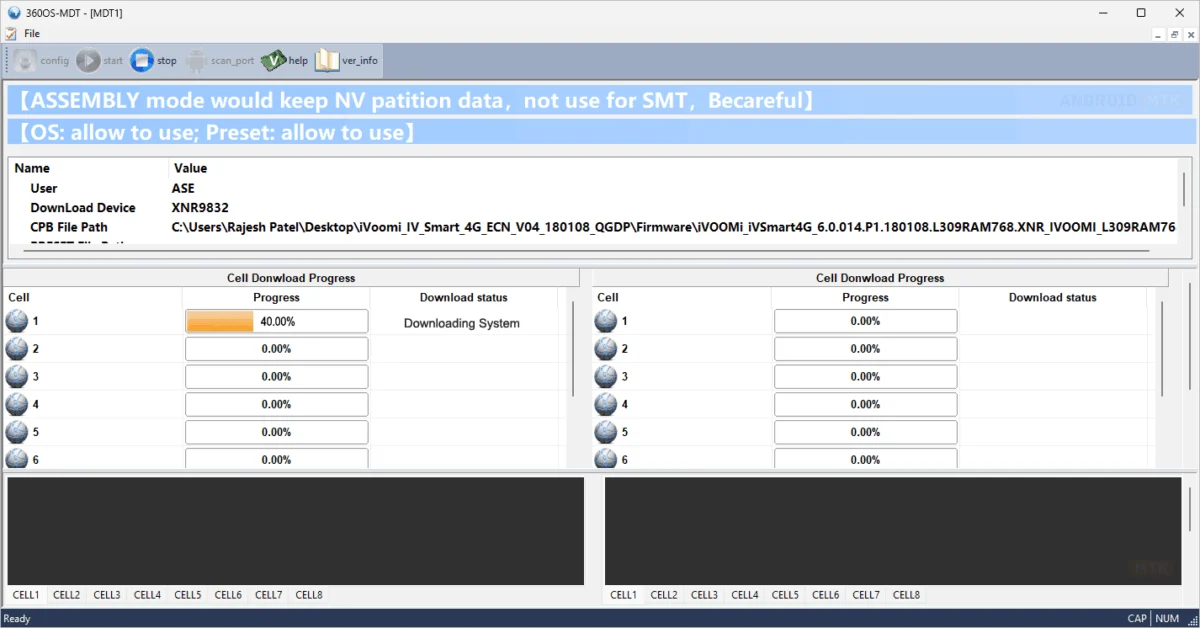
With the device recognized, initiate the flashing sequence by selecting the "Start" or "Flash" command. The MDT ASE Tool will begin the process of partitioning the flash memory and systematically writing the system, recovery, boot, and radio images. During this phase, it is imperative that the connection remains undisturbed. The software provides a real-time progress indicator, allowing the user to monitor the health of the transfer. Should any errors arise during the writing of specific partitions, the tool will halt the process, preventing further damage to the firmware structure.
Upon the successful completion of the installation, the software will display a "Success" or "Finished" notification. At this juncture, users must exercise caution: close the MDT ASE Tool, safely disconnect the USB cable, and perform a manual reboot of the device. The initial startup following a factory flash may take significantly longer than a standard reboot, as the operating system is decompressing system files and initializing the Dalvik cache. Once the device reaches the initial setup screen, the process is confirmed as complete.
Beyond the basic installation, there are critical considerations for users working with this utility. If the tool fails to recognize the device, the primary culprit is almost universally a driver conflict. In such scenarios, navigating to the Windows Device Manager is recommended to check for unknown devices or driver errors. If a driver is listed with a yellow warning icon, uninstall it, restart the computer, and perform a clean installation of the latest chipset-specific drivers.
Furthermore, the .cpb firmware format is unique to the 360OS environment. Users should never attempt to modify or unpack these files unless they possess advanced knowledge of Android partitions, as improper manipulation of the bootloader or partition table files can lead to irreparable hardware damage. The MDT ASE Tool is specifically designed to handle the encryption and headers associated with these files, providing a safe abstraction layer for the user.
In the event that a flash operation is interrupted, the device may enter a state where it is no longer recognized by the operating system. In most instances, the MDT ASE Tool is robust enough to resume the flash once the device is placed back into the appropriate boot mode. However, if the device remains completely unresponsive, users may need to resort to hardware-level recovery methods or professional service intervention.
Ultimately, the 360OS MDT ASE Tool is an indispensable asset for the maintenance of Qiku-manufactured hardware. By adhering to the official guidelines, ensuring the integrity of the firmware files, and maintaining a stable environment, users can resolve complex software issues, recover from critical update failures, and restore the high-performance standards established by the original device manufacturer. This tool encapsulates the intersection of industrial engineering and consumer accessibility, providing a structured pathway to system recovery in an increasingly complex digital landscape. By respecting the technical requirements of the tool and the sensitivity of the underlying hardware, users can effectively manage their mobile devices with confidence and precision.
