

In the contemporary landscape of mobile technology, the push for perpetual connectivity and immediate software delivery has made automatic updates a standard feature across the Android ecosystem. OnePlus, a brand that has historically catered to enthusiasts and power users, is no exception to this trend. While manufacturers frame these Over-the-Air (OTA) updates as essential conduits for security patches and feature enhancements, a growing segment of the user base views them with skepticism, if not outright caution. The decision to halt automatic updates on a OnePlus device is rarely born of technophobia; rather, it is often a calculated move to preserve system stability, maintain administrative control, or protect the physical integrity of the hardware.
The motivations for suppressing automatic updates are multifaceted. For many, the primary concern is the qualitative variability of modern software. In an era where "beta testing in production" has become an industry critique, many OnePlus users prefer to adopt a "wait and see" approach. By delaying an update, users can monitor community forums, such as XDA Developers or the official OnePlus community, to gauge the impact of a new build on battery life, thermal management, and cellular connectivity. It is not uncommon for a major OxygenOS transition to introduce regressive bugs that disrupt the user experience, making the ability to remain on a stable, proven firmware version a valuable commodity.
![How to Disable Automatic Updates on OnePlus [5 Methods]](https://droidwin.com/wp-content/uploads/2026/01/Disable-Automatic-Updates-on-OnePlus.webp)
Beyond general stability, the enthusiast community faces more technical hurdles. For users who have modified their devices through rooting—typically by patching the boot or init_boot images via Magisk or KernelSU—an automatic update is a destructive event. When an OTA update is applied, the system replaces the modified partitions with stock firmware, effectively stripping the device of its root access and disabling all installed modules. While root can often be restored, the process is tedious and can occasionally lead to boot loops if the new firmware version introduces significant structural changes to the kernel or system partitions.
However, the most pressing reason to exercise caution with OnePlus updates is the recent implementation of Anti-Rollback (ARB) mechanisms, particularly as the brand aligns more closely with the technical architecture of its parent company, Oppo. Anti-Rollback is a security feature designed to prevent attackers from downgrading a device to an older, more vulnerable version of the operating system. While beneficial for security, it creates a "point of no return" for the user. Once a firmware update containing a higher ARB index is installed, the device’s hardware-level eFuse is "blown" or tripped. If a user subsequently attempts to manually flash an older version of OxygenOS, the ARB check will fail, and the device will enter a state of "hardbrick." In this catastrophic scenario, traditional recovery methods like Emergency Download (EDL) mode often prove useless, as the hardware itself rejects the older code. The only remedy is a physical replacement of the motherboard, an expensive and time-consuming endeavor.
To mitigate these risks, users must take proactive steps to disable the update engine. The following five methods provide a spectrum of solutions ranging from simple settings adjustments to advanced root-level interventions.
![How to Disable Automatic Updates on OnePlus [5 Methods]](https://droidwin.com/wp-content/uploads/2026/01/disable-automatic-updates-oneplus-developer-options.webp)
The Essential Prerequisite: Developer-Level Intervention
Before employing more aggressive methods, every user should begin by toggling the native software controls hidden within the Android Developer Options. This does not fully disable the update service, but it prevents the device from automatically applying a downloaded update during a reboot.
To access these settings, navigate to ‘Settings,’ then ‘About Device,’ and tap on ‘Version.’ Locate the ‘Build Number’ and tap it seven times in rapid succession until a toast notification confirms that Developer Options have been enabled. Return to the main ‘Settings’ menu, go to ‘Additional Settings,’ and enter ‘Developer Options.’ Here, locate the toggle labeled "Automatic system updates" and ensure it is turned off. This acts as a primary safety net, ensuring that even if an update is downloaded in the background, the system will not finalize the installation without explicit user consent.
Method 1: Disabling the Software Update Package via ADB (Non-Root)
For users who do not wish to root their devices but require a more robust solution than a simple toggle, the Android Debug Bridge (ADB) offers a way to "debloat" or disable system packages. The target for this operation is the software update system application, identified by the package name com.oplus.ota.
![How to Disable Automatic Updates on OnePlus [5 Methods]](https://droidwin.com/wp-content/uploads/2026/01/canta-Disable-Automatic-Updates-on-OnePlus.webp)
By connecting the OnePlus device to a computer with ADB tools installed, users can issue a command to disable the update service for the current user. After enabling ‘USB Debugging’ in Developer Options and establishing a successful handshake between the PC and the phone, the command adb shell pm disable-user --user 0 com.oplus.ota can be executed. This command instructs the Android Package Manager to put the update service into a dormant state. Because the app is disabled rather than deleted, it remains on the system partition but cannot execute, effectively orphaning the update check process.
Method 2: Universal Uninstallation via ADB (Non-Root)
In instances where the system manages to re-enable a disabled package, a more permanent non-root solution is to uninstall the package for the primary user. Using the command adb shell pm uninstall -k --user 0 com.oplus.ota, the update application is removed from the active user’s environment. It is important to note that the -k flag instructs the system to keep the data and cache directories, while --user 0 specifies that the app is only being removed for the main user profile. The underlying APK remains in the read-only system partition, meaning the change can be reverted with a factory reset or a specific ADB "install-existing" command, but the update service will no longer appear or function in daily use.
Method 3: Utilizing the Canta and Shizuku Ecosystem (Non-Root)
For those seeking a PC-free experience, the combination of Shizuku and Canta provides a powerful interface for managing system packages. Shizuku is an app that allows other applications to access system-level APIs by exploiting the ADB protocol locally on the device. Once Shizuku is configured via Wireless Debugging, the user can install Canta, an open-source uninstaller.
![How to Disable Automatic Updates on OnePlus [5 Methods]](https://droidwin.com/wp-content/uploads/2026/01/app-manager-Disable-Automatic-Updates-on-OnePlus.webp)
Within the Canta interface, the user can search for com.oplus.ota and remove it with a single tap. This method is particularly popular because it provides a graphical user interface for the ADB commands mentioned previously, making it accessible to users who may be uncomfortable with a command-line interface. It offers the same benefits as the ADB method—disabling the update engine without requiring a full system root.
Method 4: Freezing the Update Service (Root)
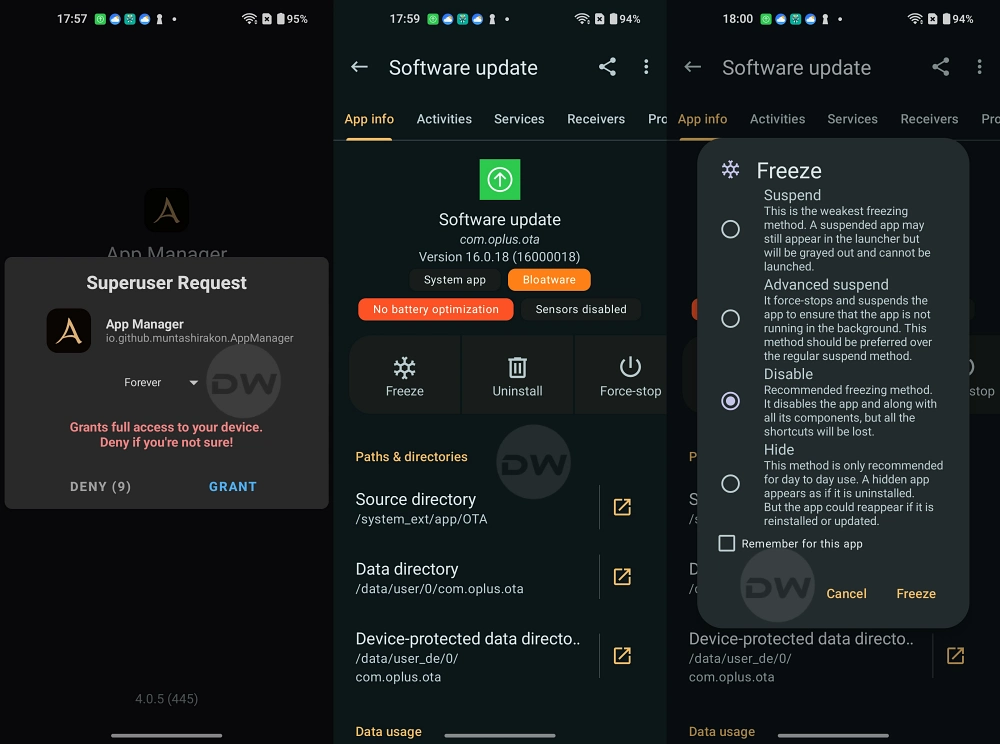
For users who have already rooted their OnePlus devices, the most efficient method is to "freeze" the update application. Freezing is a state where the application remains installed but is completely hidden from the OS and prevented from running any background processes. Unlike uninstallation, freezing is instantaneous and easily reversible through a variety of root-enabled apps such as Swift Backup, Titanium Backup, or specialized "Ice Box" style utilities.
By granting these apps Superuser permissions, the user can locate "Software Update" (com.oplus.ota) and select the ‘Freeze’ or ‘Disable’ option. This is the preferred method for power users because it allows them to temporarily "unfreeze" the app if they ever decide to manually check for an update or if they need to verify the current version status before performing a manual local upgrade.
![How to Disable Automatic Updates on OnePlus [5 Methods]](https://droidwin.com/wp-content/uploads/2026/01/hma-oss-lsposed.webp)
Method 5: Network Isolation via Firewall (Root)
The final and perhaps most clinical method involves cutting off the update service’s access to the internet. This is achieved using a root-level firewall such as AFWall+ (Android Firewall+). AFWall+ acts as a frontend for the Linux iptables, allowing the user to define granular rules for which applications can access Wi-Fi, cellular data, or roaming networks.
By locating the com.oplus.ota package (often listed under "Software Update" or "System Update") within the firewall’s list, the user can uncheck all connectivity boxes. Once the rules are applied and the firewall is enabled, the update service will still function internally, but every attempt it makes to ping the OnePlus or Oppo servers to check for new firmware will be silently dropped by the kernel. This method is particularly elegant as it leaves the system’s package structure entirely intact while achieving the goal of total update suppression.
Conclusion and Final Considerations
While the methods outlined above offer varying degrees of permanence and technical difficulty, they all serve the same ultimate goal: returning control of the device’s lifecycle to the owner. However, disabling updates is not a decision to be taken lightly. By opting out of the OTA cycle, users also opt out of critical security patches that protect against emerging vulnerabilities. It is incumbent upon the user to stay informed about security threats and to occasionally perform manual updates when a specific firmware version has been vetted by the community as safe and stable.
![How to Disable Automatic Updates on OnePlus [5 Methods]](https://droidwin.com/wp-content/uploads/2026/01/restrict-zygote-permission.webp)
Furthermore, before performing any of these operations—especially those involving ADB or Root—it is vital to maintain a current backup of all essential data. While these methods are designed to be non-destructive, the nature of system-level modification always carries a marginal risk. By understanding the underlying mechanics of OxygenOS and the implications of hardware security like Anti-Rollback, OnePlus users can navigate the complexities of modern firmware management with confidence and precision.
