

The landscape of Android customization offers enthusiasts a gateway to extended device longevity, enhanced privacy, and a plethora of features not found in stock manufacturer skins. However, the path to installing a custom ROM is often fraught with technical hurdles that require a nuanced understanding of the Android subsystem. One of the most disconcerting obstacles encountered by power users is the "This package will downgrade your system" warning triggered during an ADB Sideload session. While such a message might appear as a mere suggestion in some contexts, in the world of custom firmware, it serves as a critical sentinel guarding against system instability, permanent bricking, or the activation of hardware-level security triggers known as Anti-Rollback (ARB) mechanisms. Understanding the mechanics of this error, particularly when it is followed by the dreaded "PayloadTimestampError," is essential for any user looking to navigate the complexities of modern Android partitioning.
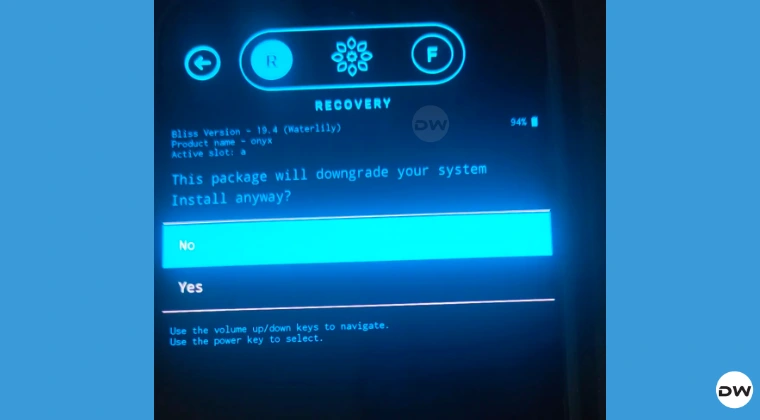
To comprehend why this error occurs, one must first examine the fundamental architecture of the Android update process. Most contemporary Android devices utilize an A/B partition system, designed to ensure seamless updates and provide a fallback if a boot attempt fails. When a user initiates an ADB Sideload command via recovery mode, the system’s update engine performs a series of pre-flight checks. These checks compare the metadata of the incoming firmware package against the metadata currently stored on the device’s active partitions. If the build date or the security patch level of the new package is older than what is currently installed, the recovery environment issues a warning. In a stock environment, downgrading is usually blocked to prevent "downgrade attacks," where a malicious actor installs an older, vulnerable version of the OS to exploit a patched security hole. In the custom ROM community, this warning often signals a mismatch between the firmware base of the device and the intended ROM, or a discrepancy in the temporary partition files used to facilitate the installation.
A common scenario leading to this warning involves a simple oversight in version control. Android development moves at a rapid pace, with monthly security patches and frequent incremental updates. If a user is running a device on the latest official Android 15 build and attempts to flash a custom ROM that has not yet been updated to the latest security string—or worse, a ROM based on Android 14—the recovery will immediately flag the attempt as a downgrade. While the user might assume that the "custom" nature of the ROM overrides these versioning concerns, the underlying recovery environment—especially if it is an AOSP-based recovery provided by the ROM developer—still adheres to strict versioning logic. Proceeding past this warning without verifying the versions can lead to a state where the device’s data encryption becomes incompatible with the older OS, resulting in a "bootloop" or a forced factory reset that wipes all user data.

Beyond the broad version of the operating system, a more granular and technical cause for this error lies in the partition image files. Before the primary ROM package is sideloaded, users are typically required to flash several essential images via Fastboot, including the recovery.img, boot.img, vendor_boot.img, and dtbo.img. These files are the foundational components that initialize the hardware and the recovery environment. A critical failure point occurs when a user flashes these partition files from one build date but attempts to sideload a ROM package from another. For instance, if a user utilizes the vendor_boot and recovery images from a March release but attempts to sideload a ROM package compiled in April, the recovery environment will detect a timestamp mismatch. This is because the recovery itself is running on older code than the package it is attempting to ingest.
When a user ignores the "downgrade" warning and selects "Yes" to proceed, they are often met with a secondary, more specific failure: "Error applying update: 51 (ErrorCode: PayloadTimestampError)." This error is the update engine’s definitive refusal to move forward. The PayloadTimestampError indicates that the build.prop or the metadata inside the ZIP package contains a timestamp that is numerically lower than the timestamp of the system currently residing on the partition. This is not merely a cosmetic warning; it is a hard-coded safety check within the Android update_engine. For many modern devices, particularly those with locked-down bootloaders or those from manufacturers with aggressive Anti-Rollback policies, forcing a package with an older timestamp can lead to a "hard brick," a state where the device cannot be powered on or recovered without specialized hardware tools.

To resolve these issues, the first line of defense is a rigorous verification of the ROM version and the device’s current firmware state. Users must ensure that the custom ROM they intend to install is at least on the same security patch level as their current stock OS. If the device has recently received an Over-The-Air (OTA) update from the manufacturer, it may be necessary to wait for the custom ROM maintainer to update their builds to match the new firmware base. This "firmware requirement" is a staple of devices like those from OnePlus, Xiaomi, and Google, where the custom ROM acts as an overlay on top of specific low-level proprietary firmware. If the ROM is indeed older, the user must first manually downgrade their device’s firmware to a compatible version using official manufacturer tools before attempting the custom ROM installation.
If the versions appear to be correct, the user must then turn their attention to the partition files. It is a common mistake to reuse a recovery.img or boot.img from a previous installation attempt. To ensure compatibility, every image file used in the Fastboot stage must be extracted from the exact same build or "nightly" as the ROM ZIP file being sideloaded. Most ROM developers provide these images alongside the main package. By ensuring that the vendor_boot and recovery are identical in age to the ROM package, the user eliminates the timestamp discrepancy that triggers the "downgrade" prompt. This synchronization ensures that the recovery environment and the update package are speaking the same "version language," allowing the sideload process to complete without manual intervention or error codes.

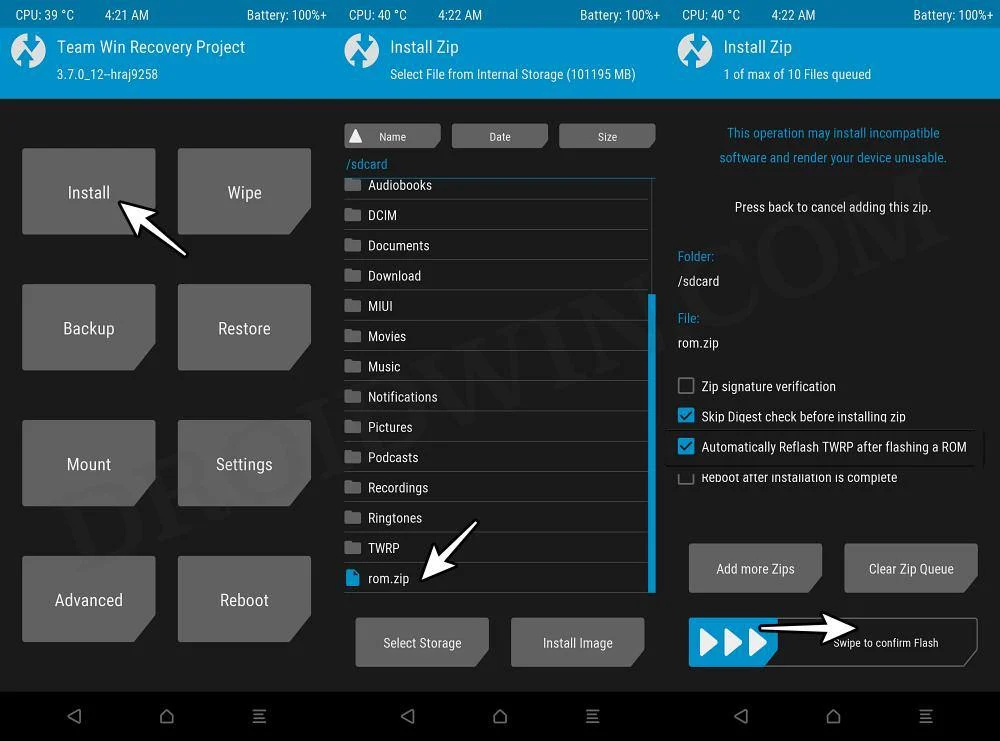
In cases where the user is certain that the versions and timestamps are correct, yet the AOSP recovery continues to obstruct the installation, the final solution often involves transitioning to a more robust custom recovery environment. Tools such as Team Win Recovery Project (TWRP) or OrangeFox Recovery Project offer a significantly higher degree of flexibility compared to the bare-bones AOSP recoveries often bundled with custom ROMs. These advanced recoveries provide options to ignore certain script checks or to manually format partitions in a way that bypasses the metadata conflicts. If a user chooses this route, they must still proceed with caution. Utilizing the "Format Data" option (which removes the encryption headers) is often a necessary step when moving between different ROM bases or when resolving downgrade conflicts, as it provides a "clean slate" for the new system’s metadata.
Ultimately, the "This package will downgrade your system" warning is a manifestation of the tension between Android’s increasing security posture and the user’s desire for administrative control. While the warning can be a nuisance, it serves as a vital reminder of the risks inherent in firmware manipulation. By methodically verifying ROM versions, ensuring partition file synergy, and utilizing the appropriate recovery tools, users can successfully navigate these errors. The process underscores a fundamental rule of Android modding: preparation and data redundancy are paramount. Before engaging in any sideloading activity, a comprehensive backup of all personal data is non-negotiable. As the Android ecosystem continues to evolve with more complex partition schemes and tighter security integrations, the ability to decode and resolve these specific technical errors will remain a hallmark of the successful power user. Proper attention to detail during the initial stages of flashing not only prevents the "PayloadTimestampError" but ensures a stable, functional, and secure custom OS experience.
