

Unboxing and Initial Inspection
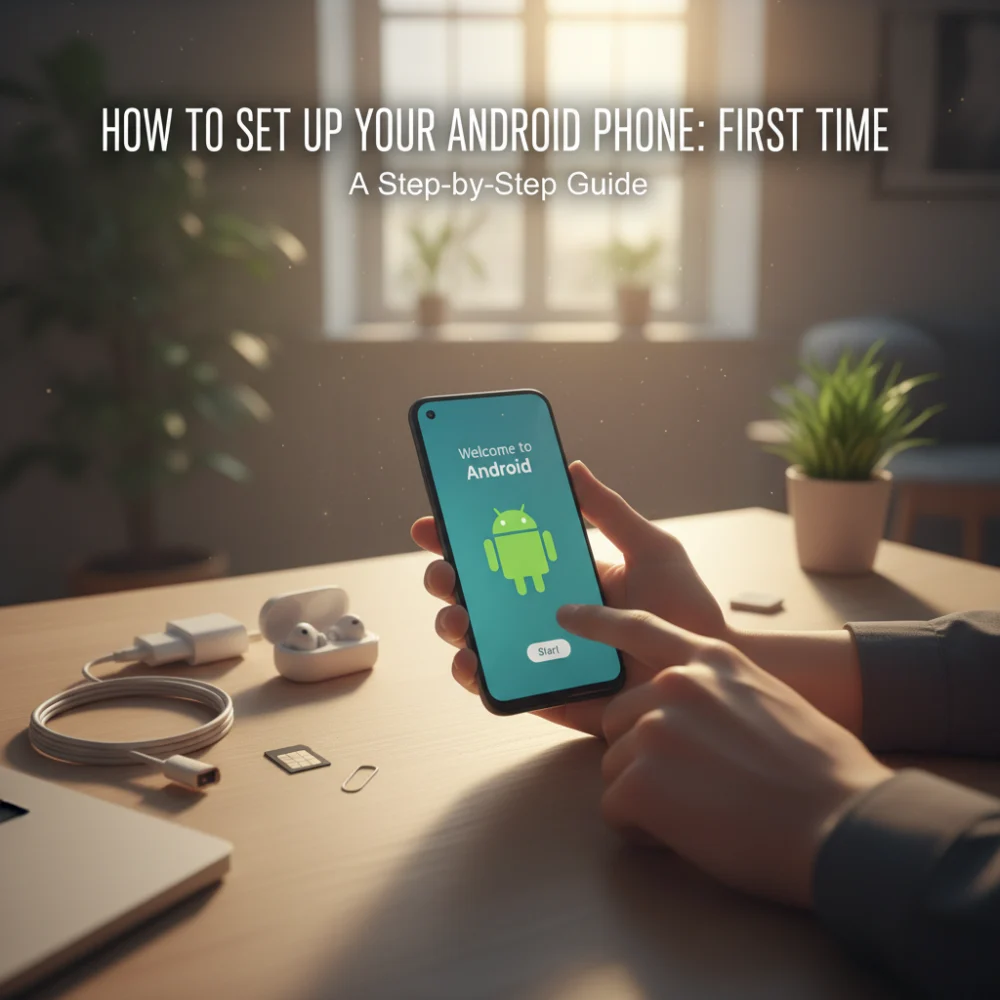
Congratulations on your new Android phone! The first step is unboxing it carefully. Ensure you have all the expected contents: the phone itself, a charging cable, a wall adapter (sometimes sold separately), and possibly headphones or a SIM ejector tool. Inspect the phone for any physical damage before proceeding. Power it on by pressing and holding the power button, usually located on the side of the device.
The Welcome Screen and Language Selection
Upon powering on, you’ll be greeted by a welcome screen. This screen usually displays the Android logo or the manufacturer’s logo. The first prompt will ask you to select your preferred language. Scroll through the list and choose the language you’re most comfortable with. This selection will determine the language used throughout the phone’s interface.
Connecting to Wi-Fi
Next, you’ll be asked to connect to a Wi-Fi network. This is crucial for downloading updates and setting up your accounts. Select your Wi-Fi network from the list of available networks and enter the password if required. A stable Wi-Fi connection is recommended to avoid data charges and ensure a smooth setup process. If you don’t have Wi-Fi access, you can usually skip this step and use mobile data, but be mindful of potential data usage.
Transferring Data from Your Old Phone
Android offers several ways to transfer data from your old phone, whether it’s an Android or iOS device. You can choose to copy apps, contacts, photos, videos, and other data. The most common method is using Google’s backup service if you previously backed up your old Android phone to your Google account. Alternatively, you can use a cable to directly connect your old phone to your new one and transfer data that way. Some manufacturers also offer their own data transfer apps.
Signing in to Your Google Account
Signing in to your Google account is essential for accessing Google services like Gmail, Google Play Store, Google Drive, and more. If you already have a Google account, enter your email address and password. If you don’t have one, you can create a new account directly from the setup screen. A Google account provides seamless integration with the Android ecosystem.
Setting Up Screen Lock and Security
Securing your phone is paramount. Android offers various screen lock options, including PIN, password, pattern, fingerprint, and face unlock (if supported by your device). Choose the method that best suits your security needs and convenience. A strong password or a complex pattern is recommended for optimal security. Remember your chosen method, as you’ll need it to unlock your phone.
Google Services: Backup & Restore, Location Services, and More
During setup, you’ll be prompted to configure various Google services. These include backup and restore, which automatically backs up your phone’s data to Google Drive; location services, which allows apps to access your location; and other optional services like personalized ads. Review each option carefully and choose the settings that align with your privacy preferences.
Installing Updates
After signing in to your Google account, your phone will likely check for and install system updates. These updates often include bug fixes, security patches, and performance improvements. It’s crucial to install these updates to ensure your phone is running smoothly and securely. The update process may take some time, so be patient and ensure your phone is connected to a power source.
Reviewing Additional Apps
Some Android phones come pre-installed with additional apps from the manufacturer or carrier. Review these apps and decide whether you want to keep them. You can usually uninstall or disable unwanted apps to free up storage space and reduce clutter. Be cautious when uninstalling system apps, as some may be essential for the phone’s functionality.
Setting Up Payment Methods
If you plan to make purchases from the Google Play Store or use Google Pay, you’ll need to set up a payment method. You can add a credit card, debit card, or PayPal account. Ensure your payment information is accurate and secure. You can also set up fingerprint authentication or facial recognition for added security when making payments.
Customizing Your Home Screen
Once the initial setup is complete, you can start customizing your home screen. Add widgets, change the wallpaper, and organize your apps into folders. Experiment with different launchers to personalize the look and feel of your phone. Many launchers offer additional customization options, such as icon packs and gesture controls.
Configuring Notifications
Manage your notifications to avoid being overwhelmed by constant alerts. Go to the settings menu and adjust the notification settings for each app. You can choose to disable notifications altogether, customize the notification sound, or prioritize certain notifications over others. Effective notification management can significantly improve your phone’s usability.
Exploring Accessibility Features
Android offers a range of accessibility features to assist users with disabilities. These features include screen readers, magnification tools, and customizable font sizes. Explore the accessibility settings to discover features that can enhance your phone’s usability. These features can be invaluable for users with visual, auditory, or motor impairments.
Understanding Battery Optimization
To maximize your phone’s battery life, familiarize yourself with Android’s battery optimization features. You can restrict background activity for certain apps, enable battery saver mode, and adjust screen brightness. Understanding how your apps consume battery power can help you optimize your phone’s performance and extend its battery life. Regularly check the battery usage statistics to identify power-hungry apps.
Final Touches and Exploring Your New Phone
With the initial setup complete, take some time to explore your new Android phone. Familiarize yourself with the settings menu, experiment with different apps, and customize your phone to your liking. Read the user manual or search online for tips and tricks to get the most out of your device. Enjoy your new Android experience!
