

Updated on September 13, 2025
The proliferation of sophisticated mobile security features necessitates detailed technical guides for legitimate device owners who encounter access restrictions following an unauthorized factory reset. This comprehensive document outlines the precise methodology for disabling the Factory Reset Protection (FRP) lock specifically on the Infinix Smart 10 model bearing the hardware designation X6725D, operating under the Android 15 framework.
Understanding the Imperative of Factory Reset Protection (FRP)
Factory Reset Protection, a security layer integrated into the Android operating system beginning with version 5.1 (Lollipop), serves as a critical deterrent against theft and unauthorized access to personal data. Its core function is to mandate authentication using the previous Google account credentials associated with the device immediately following a hard reset performed outside of the standard settings menu. This mechanism significantly diminishes the resale value of stolen devices and acts as a powerful disincentive for opportunistic theft. For legitimate users, however, encountering an FRP lock—often due to forgotten passwords or complex firmware reflashing procedures—can render the device temporarily inaccessible, necessitating specialized intervention to restore full functionality. The continued evolution of Android security, evidenced by its presence on the current Android 15 iteration, demands equally robust and updated removal tools.
Prerequisites for FRP Bypass Procedure

Successful execution of this specialized procedure hinges upon the preparation and verification of several critical components. Users must ensure they possess the necessary software assets and maintain a stable connection between the mobile device and a host computer.
-
Infinix Smart 10 X6725D FRP Reset File: This specific file contains the necessary binary data or instructions tailored to override the security handshake protocol implemented on the X6725D chipset configuration running Android 15. The integrity and correct versioning of this file are paramount; using an incompatible file can lead to device bricking or further software instability.
-
SPD Research Tool: Given that the Infinix Smart 10 series often utilizes chipsets manufactured by Spreadtrum Communications (now Unisoc), the specialized SPD Research Tool is the requisite software platform for communicating with the device at a low-level diagnostic port. This tool allows for direct manipulation of system partitions, bypassing the standard Android bootloader checks.
-
Operational Computer System: A functional Windows-based computer is required, equipped with sufficient processing power and stable USB ports to manage the data transfer without interruption.
-
Stable USB Connectivity: High-quality USB data cables are mandatory. Flaky connections during the flashing or unlocking phase are a primary source of procedural failure.
Step-by-Step Technical Implementation
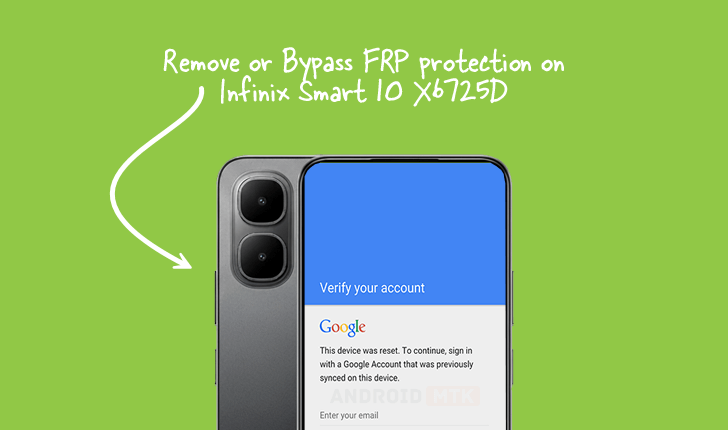
The following sequence must be followed with meticulous attention to detail to ensure the secure removal of the FRP lock:
Phase 1: Preparation and Tool Initialization
The initial phase involves setting up the operating environment and loading the specific parameters into the removal utility.
-
Software Deployment: Install the necessary Spreadtrum (SPD) USB drivers on the host computer. These drivers allow the operating system to recognize the device when it enters the low-level diagnostic mode required for the procedure. Subsequently, launch the SPD Research Tool executable.
-
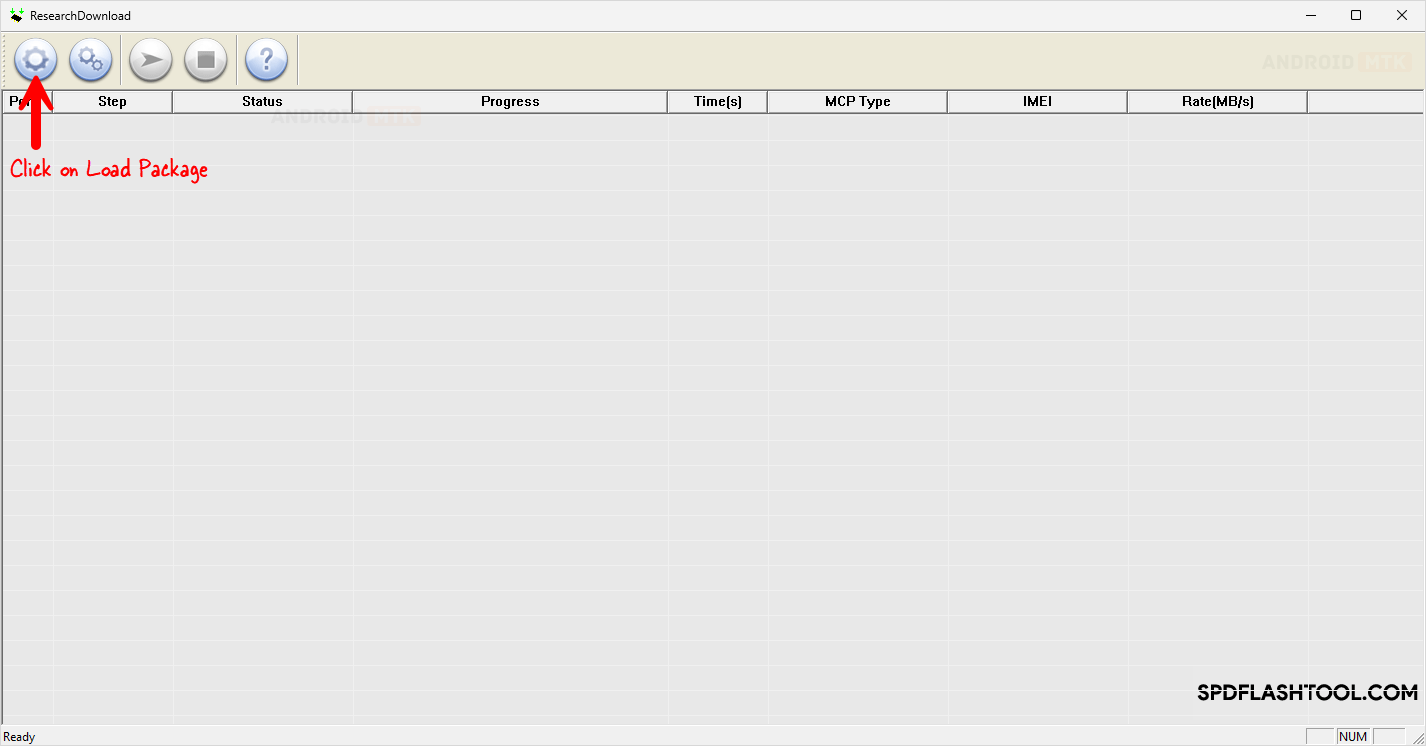
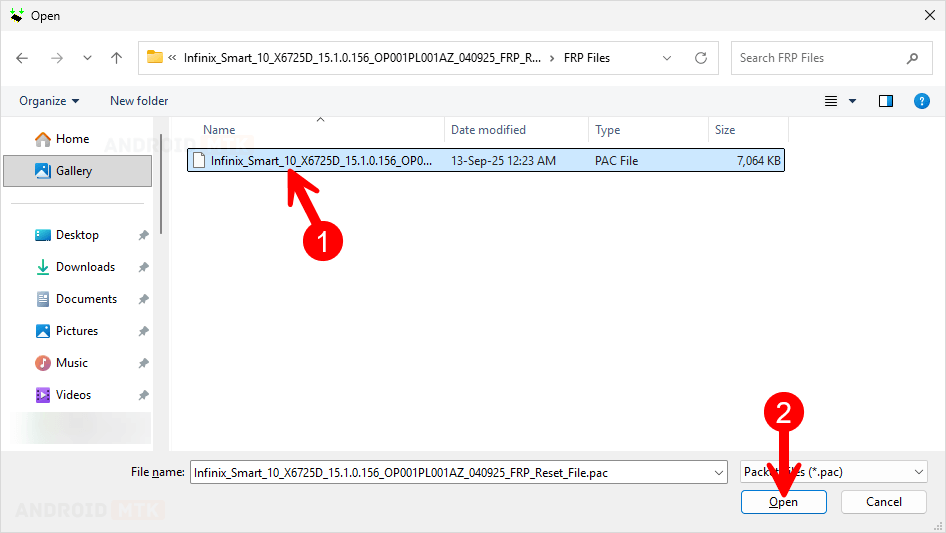
Loading the FRP Package: Within the SPD Research Tool interface, navigate to the function responsible for loading device-specific packages or firmware components. The dedicated FRP reset file obtained for the Infinix Smart 10 X6725D must be loaded into the tool’s designated package slot. This action primes the tool to execute the unlock command targeting the FRP partition.
-
Selecting the Correct Operation Mode: Access the settings or configuration tab within the Research Tool that pertains to security operations. Crucially, locate and select the explicit option labeled for FRP Removal or Bypass Security. Care must be taken not to select options related to full firmware flashing or NVRAM editing unless explicitly required, as these carry a higher risk profile.
Phase 2: Entering Diagnostic Mode (Download Mode)
The host computer must communicate with the phone’s chipset via a specialized protocol, typically initiated when the device is powered off and specific key combinations are held down during USB connection. This is often referred to as Download Mode or SPD Flash Mode.
-
Device Power Cycle: Ensure the Infinix Smart 10 X6725D is completely powered down. No residual power state should remain active.
-
Key Combination Activation: Simultaneously depress and hold both the Volume Up and Volume Down physical buttons located on the side of the handset.
-
Establishing Connection: While maintaining continuous pressure on both volume keys, carefully connect the USB cable from the mobile device to an active USB port on the computer.
-
Verification of Entry: Observe the SPD Research Tool interface. Upon successful detection of the device in Download Mode, the tool should display a status message indicating a successful connection, often showing the device’s chipset information or a confirmation that the handset is recognized in the correct communication protocol. Release the volume buttons only after the tool confirms detection.
Phase 3: Execution of the FRP Bypass Command
With the device properly linked and the tool configured, the final execution step is initiated.
-
Initiating the Process: Locate and click the primary execution button within the SPD Research Tool, typically labeled Start, Start Download, or similar command that triggers the loaded package action.
-
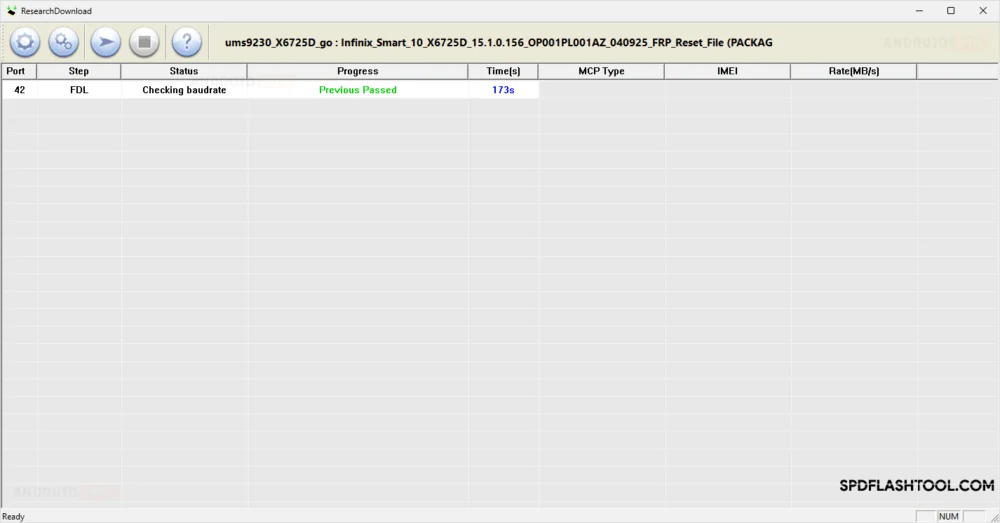
Data Transfer and Overwrite: The Research Tool will now commence sending the specialized FRP bypass command sequence to the device’s storage controllers. During this phase, a progress bar within the tool will indicate the operation’s advancement. It is vital to maintain the physical connection and ensure no external factors interrupt the data flow.
-
Confirmation of Success: The procedure concludes when the SPD Research Tool displays a definitive success notification. This confirmation message explicitly states that the FRP lock has been successfully removed or bypassed for the Infinix Smart 10 X6725D. Visually, this success message often contrasts sharply with the tool’s background or status indicators.
Post-Procedure Initialization
Upon receiving the success confirmation:
-
Tool Closure: Safely close the SPD Research Tool application on the host computer.
-
Disconnection: Gently disconnect the USB cable from the Infinix Smart 10 X6725D.
-
Device Reboot: Manually power on the smartphone. The initial boot sequence may take slightly longer than usual as the system recalibrates after the security partition modification.
-
Final Setup: Upon reaching the initial setup screen, the device should proceed directly to the standard welcome screen, bypassing the mandatory Google account verification prompt that previously appeared. The user can then proceed to set up the device with a new Google account or continue using it without immediate association.
Critical Considerations and Operational Notes

While this methodology is engineered for the specified hardware and software version, several ancillary points warrant consideration:
-
Risk Assessment: Engaging with low-level firmware tools carries inherent risks. Any deviation from the documented steps, use of incorrect files, or interruption during the active data transfer stage can result in a non-functional device (hard brick). Proceeding with this guide signifies acceptance of full responsibility for any consequences.
-
Driver Integrity: Persistent connection issues often stem from corrupted or outdated SPD drivers. Thorough uninstallation and clean reinstallation of the necessary drivers are a common first troubleshooting step if the tool fails to recognize the device in Download Mode.
-
Android Version Specificity: The precise structure of the FRP partition and the required bypass payload are highly sensitive to the Android version. This guide is specifically validated for Android 15 on the X6725D. Attempting this procedure on older Android versions or different Infinix models may require alternative files or tools.
-
Alternative Methods: In scenarios where the SPD Research Tool method fails—often due to enhanced security patches not accounted for in the provided FRP file—users might need to explore more complex methods involving specialized box services or proprietary flashing tools that interface directly with secure bootloader modes. However, these alternatives usually involve greater complexity and potential cost.
The successful execution of this technical guide restores full administrative control over the Infinix Smart 10 X6725D, confirming the capacity of advanced tooling to manage security measures when legitimate access credentials are unavailable.
