

Updated on September 13, 2025
The security architecture of modern mobile devices incorporates robust measures designed to thwart unauthorized access, with Factory Reset Protection (FRP) standing out as a primary defense mechanism. This article details the precise methodology required to disengage the FRP lock specifically on the Infinix Smart 10 model bearing the hardware designation X6725D, particularly those operating on the latest Android 15 iteration. Successful execution of this procedure necessitates specialized software tools and adherence to critical preparatory steps, ensuring the device’s integrity is maintained throughout the sensitive unlocking process.

Understanding the Mechanism: The Imperative of Factory Reset Protection
Factory Reset Protection, commonly abbreviated as FRP, represents a critical security feature integrated into the Android operating system, first introduced with the release of Android 5.1 (Lollipop). Its fundamental purpose is to act as a significant deterrent against theft and unauthorized usage following a hard reset. When a device is restored to its factory default settings—either through the settings menu or by utilizing the hardware recovery mode—FRP triggers an authentication prompt. This prompt demands the credentials (Google account email and password) previously synchronized with the device before the reset occurred. This intentional friction renders stolen devices significantly less valuable on the secondary market, as they become inaccessible to anyone lacking the original owner’s login information. For legitimate users who have forgotten their credentials after a reset, or for technical professionals servicing devices for new owners, bypassing this protection becomes a necessary technical procedure.
Prerequisites for FRP Removal on the Infinix Smart 10 X6725D
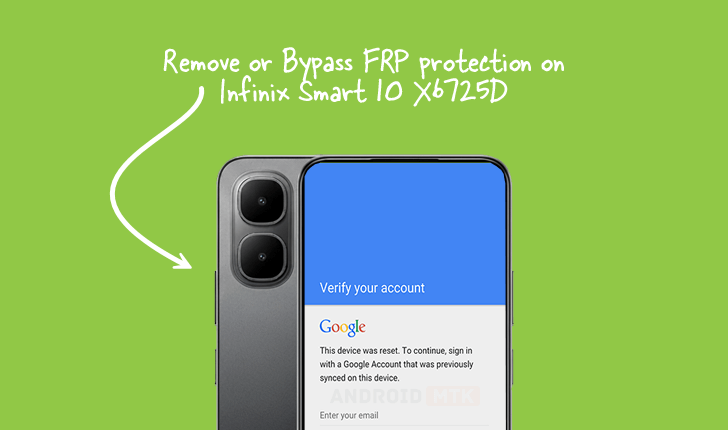
Executing the bypass procedure for the Infinix Smart 10 X6725D requires a specific toolkit tailored for the device’s underlying chipset architecture, which in this case necessitates tools compatible with Spreadtrum (SPD) processors. Before initiating any modifications, users must ensure the following prerequisites are meticulously met to mitigate potential complications:
- FRP Reset File Acquisition: A dedicated FRP removal file specifically compiled for the Infinix Smart 10 X6725D firmware environment must be downloaded and secured. This file contains the necessary instructions or patches to override the standard Google verification sequence post-reset.
- SPD Research Tool: The primary utility for this operation is the SPD Research Tool. This proprietary or specialized software interacts directly with the device’s bootloader or service mode, allowing for low-level flashing and command execution. The latest stable version is recommended to ensure compatibility with Android 15 security patches.
- Computer System: A stable personal computer running a compatible operating system (typically Windows) is required to host the SPD Research Tool.
- USB Drivers: Accurate and up-to-date SPD USB drivers must be installed on the host computer. Without these drivers, the computer will fail to recognize the phone when it is connected in the required service mode, halting the entire process.
- Device Battery Level: The Infinix Smart 10 X6725D should possess a minimum battery charge of 50% to prevent unexpected power loss during the flashing or tool operation, which could result in catastrophic software failure (bricking).
A Note of Caution: The following procedure involves interacting with core system partitions. While the SPD Research Tool is designed for service operations, any deviation from the prescribed steps carries inherent risk. Users proceed entirely at their own discretion, as the source of this guide assumes no liability for any adverse outcomes, including data loss or device malfunction, resulting from the application of these instructions.
Step-by-Step Protocol for FRP Deactivation
The process hinges on utilizing the SPD Research Tool to communicate with the device while it is in a specific diagnostic state, often referred to as Download Mode or Service Mode, specific to Spreadtrum chipsets.
Phase 1: Tool Setup and Configuration
- Launch the SPD Research Tool: Execute the downloaded SPD Research Tool executable file on the host computer. The graphical interface of the tool will appear, presenting various operational tabs.
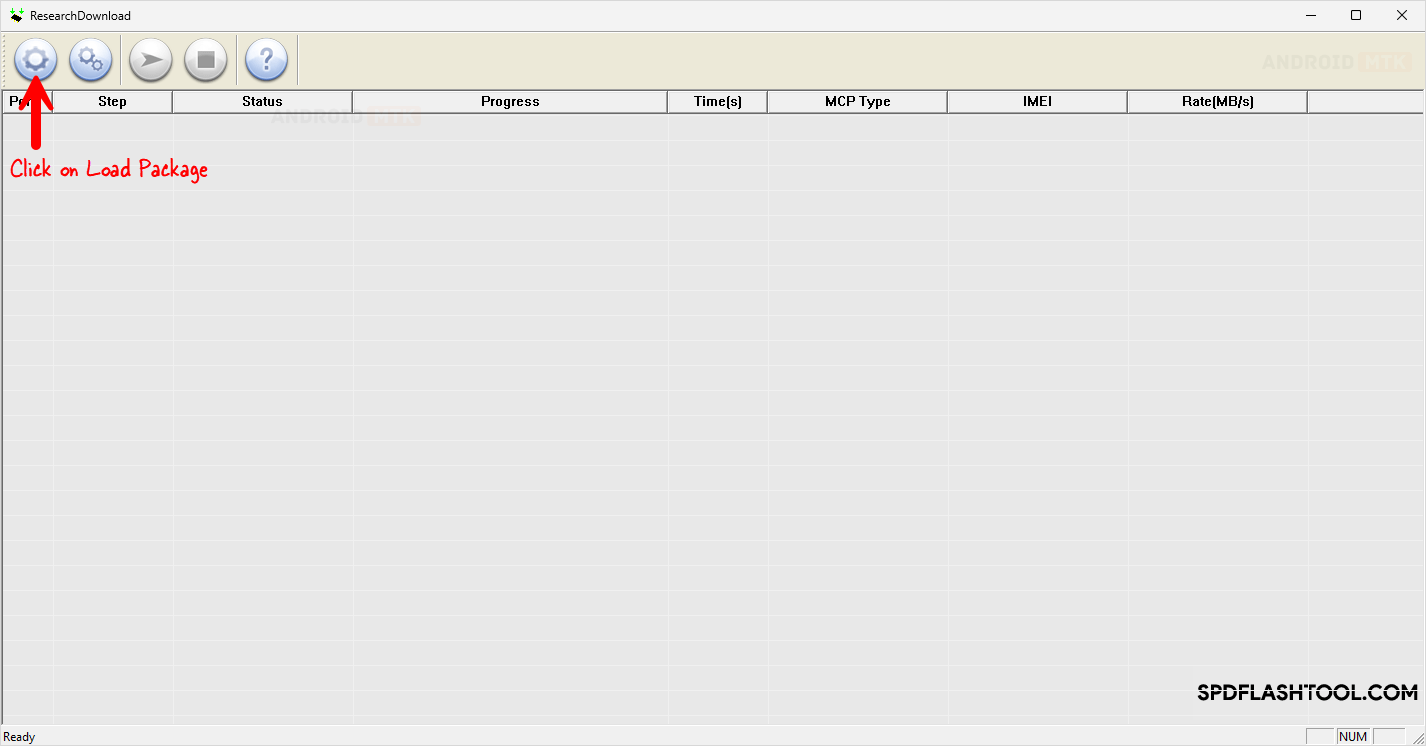
- Loading the Package: Within the tool’s interface, locate the option designated for loading the necessary files. Users must navigate to and select the previously acquired FRP reset file corresponding to the Infinix Smart 10 X6725D. This action loads the specific commands required for the FRP patch. The visual representation within the software interface typically shows the package loading status.
Phase 2: Preparing the Infinix Device for Connection
For the SPD Research Tool to gain the necessary privileged access, the Infinix Smart 10 X6725D must be transitioned into a specialized connection mode that bypasses standard operating system checks.
- Power Down: Ensure the Infinix Smart 10 X6725D is completely powered off.
- Entering Download/Service Mode: This critical step requires a specific key combination while connecting the USB cable:
- Simultaneously press and hold both the Volume Up button and the Volume Down button on the smartphone.
- While maintaining pressure on both volume keys, carefully connect the device to the computer using a functional USB cable.
- The device should not boot into the standard Android interface. Instead, the computer should register a new connected device, and the SPD Research Tool should recognize the connection, often indicated by a status change in the tool’s interface. If successful, the device is now ready for the FRP command injection.
Phase 3: Executing the FRP Removal Command
With the device correctly connected in the service mode and the reset file loaded:
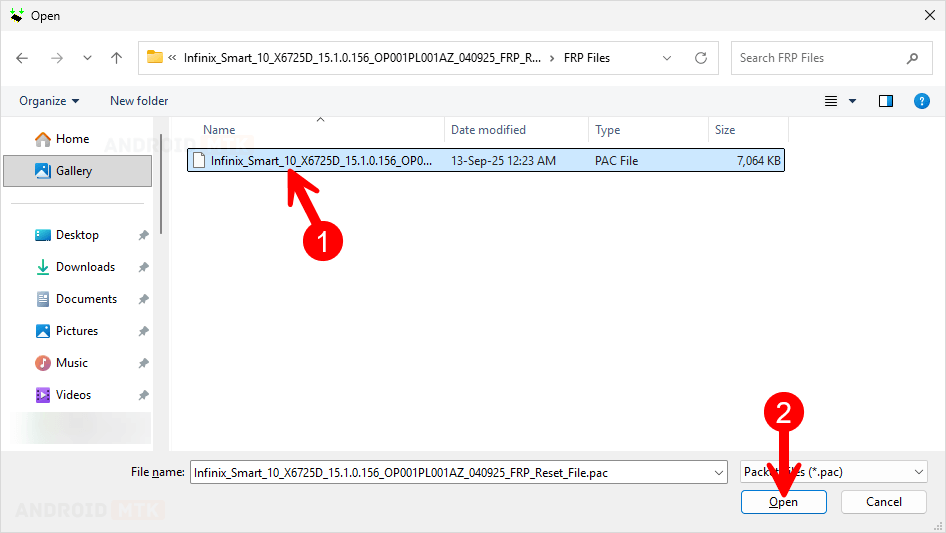
- Selecting the FRP Operation: Within the SPD Research Tool interface, navigate to the section dedicated to security operations. Users must explicitly select the option pertaining to FRP reset or removal, often labeled as "FRP" or "Remove FRP."
- Initiating the Process: Click the ‘Start’ or ‘Start Processing’ button within the tool. The software will then begin transmitting the specialized commands and the FRP reset file data to the connected Infinix Smart 10 X6725D.
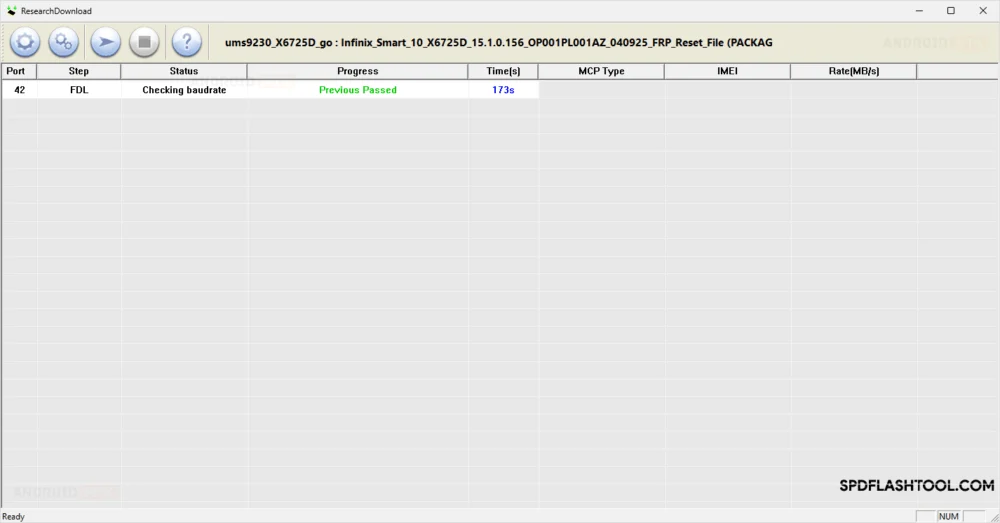
- Monitoring Progress: Observe the status log within the SPD Research Tool. The process is highly automated at this stage. The tool will communicate with the device’s firmware, locate the protected partition related to the Google account verification, and execute the necessary modification or clearing operation. This phase requires patience, as the data transfer rate can vary.
Phase 4: Verification and Finalization
The successful conclusion of the software operation is signified by a clear success message displayed within the SPD Research Tool’s output window.
- Confirmation of Success: A definitive notification, such as "FRP Done," "Operation Successful," or a green status indicator, confirms that the security lock has been electronically disengaged from the device’s memory.
- Disconnection and Reboot: Once the success confirmation is received, safely close the SPD Research Tool application on the computer. Disconnect the USB cable from the Infinix Smart 10 X6725D.
- First Boot Cycle: Power on the smartphone normally by pressing and holding the power button. The initial boot sequence following an FRP removal can sometimes take slightly longer than usual as the system reinitializes without the security check constraint.
- Post-Removal Check: Upon reaching the initial setup screen, the user should find that the device no longer prompts for the previously synced Google account credentials. The device is now fully unlocked and ready to be set up with a new Google account or used without immediate sign-in.
Concluding Considerations for System Integrity

The completion of this procedure effectively removes the Google Factory Reset Protection layer on the Infinix Smart 10 X6725D running Android 15. While this grants full access, users are reminded that FRP is a security measure. Re-enabling security features, such as setting a strong screen lock PIN or password, is highly recommended to protect personal data on the device moving forward. Furthermore, future system updates installed through official Over-The-Air (OTA) channels should generally preserve the unlocked state, though modifications to highly sensitive partitions warrant careful monitoring during subsequent software maintenance.
