

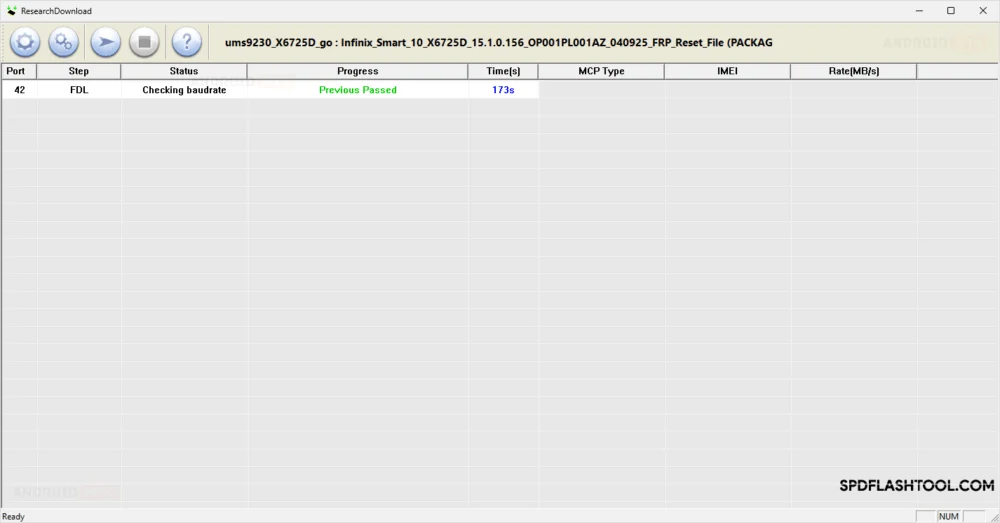
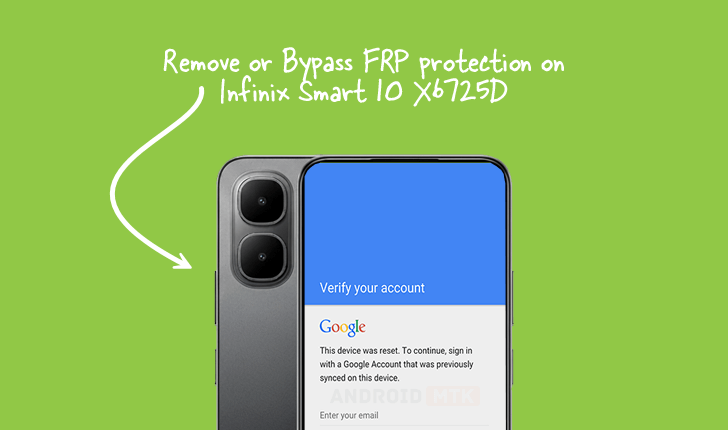
Updated on September 13, 2025, this detailed procedural analysis outlines the necessary steps for circumventing the Factory Reset Protection (FRP) mechanism implemented on the Infinix Smart 10 model, specifically identified by the hardware designation X6725D, which operates on the Android 15 platform.
Understanding the Significance of Factory Reset Protection (FRP)
Factory Reset Protection, abbreviated as FRP, represents a critical, hardware-level security feature integrated into the Android operating system, commencing with the release of Android 5.1 (Lollipop). The fundamental objective of FRP is to act as a formidable deterrent against unauthorized access to a device following a hard reset performed outside of the owner’s authorized credentials. In essence, if the smartphone is physically lost or stolen and subsequently subjected to a factory data reset via the recovery menu, FRP mandates that the user must input the credentials (Google account details) previously synchronized with the device before it can be configured and utilized again. This security layer significantly diminishes the resale value and practical utility of stolen devices, thereby enhancing personal data security and discouraging theft. For legitimate owners who may have forgotten their login details post-reset, or for technicians servicing devices, this protection can become an impediment, necessitating specialized bypass procedures.

Prerequisites for FRP Removal on the Infinix Smart 10 X6725D
The successful execution of the FRP removal process for the Infinix Smart 10 X6725D requires specific resources and adherence to stringent preliminary checks. Attempting this procedure without the requisite components or without ensuring device compatibility can lead to software corruption or a non-functional device state (bricking).
Essential Toolkit Components:
- Dedicated FRP Reset File: A specially prepared firmware file tailored for the Infinix Smart 10 X6725D chipset, designed to overwrite or neutralize the FRP partition during the flashing process.
- SPD Research Tool: This is a specialized diagnostic and flashing utility designed to interact with devices utilizing Spreadtrum (SPD) chipsets, which power the Infinix Smart 10 series. This tool facilitates direct communication with the device’s underlying processor for low-level operations.
Mandatory Pre-Operation Checks:
Prior to initiating any flashing sequence, users must confirm that the appropriate SPD USB drivers are correctly installed on the host computer. Unstable or absent drivers are a primary cause of communication failure between the computer and the phone in specialized flashing modes. Furthermore, it is strongly recommended that the device battery level be above 50% to prevent unexpected power loss during the critical flashing interval.
Note on Responsibility: The dissemination of this technical guide is strictly for educational and informational purposes concerning device recovery for legitimate owners. AndroidMTK assumes no liability for any adverse outcomes, including but not limited to data loss, device malfunction, or warranty invalidation, that may result from the execution of these procedures. Users proceed entirely at their own risk.
Step-by-Step Protocol for FRP Deactivation
The following sequence leverages the capabilities of the SPD Research Tool to selectively remove the FRP lock from the specified Infinix model.
Phase 1: Tool Preparation and Configuration
- Launch the SPD Research Tool: Initiate the SPD Research Tool application on the host computer. This utility functions as the interface between the PC and the phone’s firmware system.
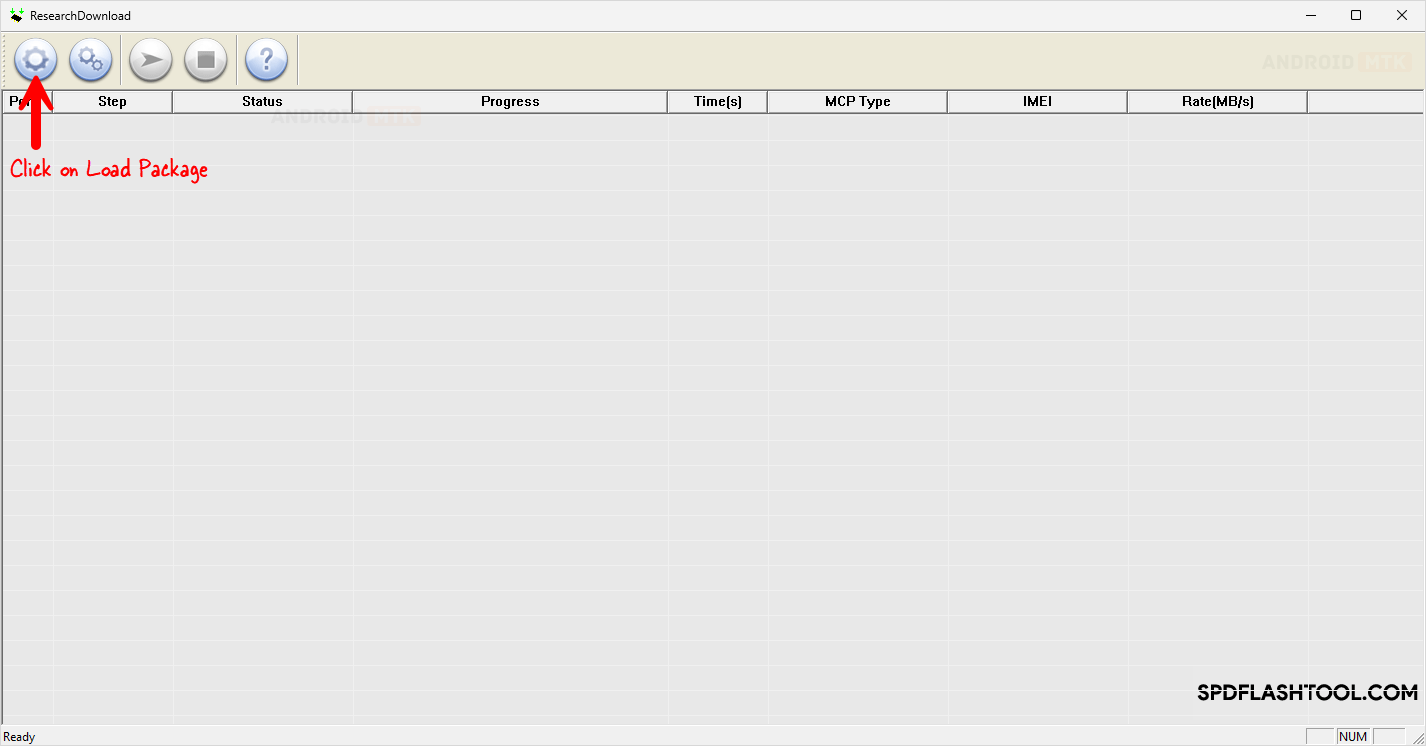
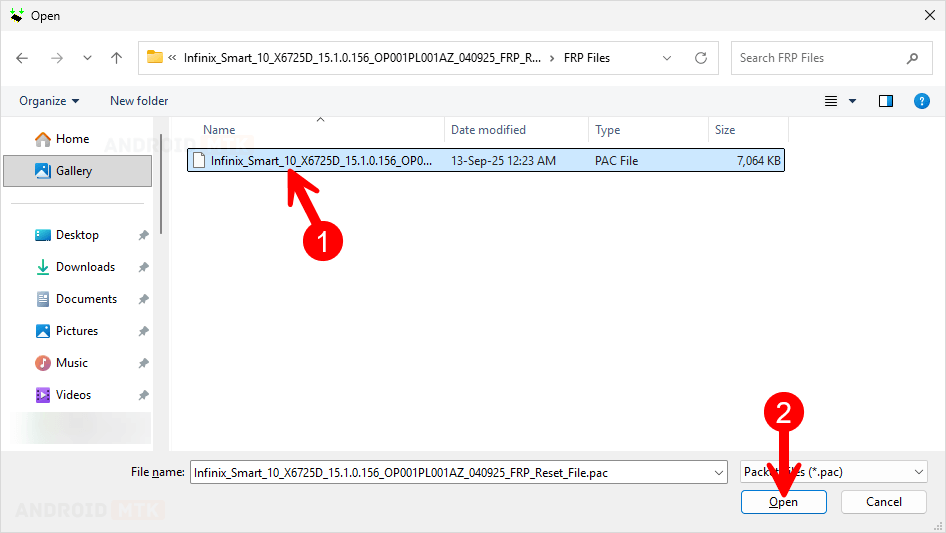
- Load the Package: Navigate within the Research Tool interface to the function designated for loading necessary files. The user must select and load the pre-acquired, specific FRP reset file designated for the Infinix Smart 10 X6725D. This action primes the tool with the necessary instructions to address the security lock.
- Select FRP Operation Mode: Crucially, within the tool’s settings or menus, the user must precisely select the function corresponding to "FRP Removal" or "Remove FRP." Incorrect selection may result in unintended data erasure or flashing of the wrong partition.
Phase 2: Establishing Connection in Download Mode
The device must be transitioned into a specific state that allows the SPD Research Tool to gain privileged access to the memory chips. This state is commonly referred to as Download Mode or Factory Mode for SPD devices.
- Power Down the Device: Ensure the Infinix Smart 10 X6725D is completely powered off.
- Initiate Download Mode Entry: Simultaneously depress and maintain continuous pressure on both the Volume Up and Volume Down buttons on the smartphone.
- Connect to PC: While holding both volume keys, insert the USB data cable, connecting the phone securely to a functioning USB port on the computer. The simultaneous button press signals the device’s firmware to bypass the standard boot sequence and enter the low-level Download Mode, allowing the Research Tool to recognize the connected hardware.
Phase 3: Execution of the FRP Bypass
Once the device is successfully recognized by the SPD Research Tool in Download Mode, the flashing process can commence.
- Verification of Connection: Observe the status within the SPD Research Tool. Successful connection is usually indicated by a status message confirming the detection of the connected Spreadtrum device, often accompanied by the appearance of driver-related communication logs.
- Commence Flashing: Activate the "Start" or "Play" button within the SPD Research Tool interface. This initiates the transfer and execution of the FRP removal instructions contained within the loaded package onto the phone’s memory. During this critical phase, user interaction with the phone or the cable must be strictly avoided to maintain data integrity.
- Monitoring for Success Confirmation: The process duration is typically brief, ranging from seconds to a minute. The SPD Research Tool will display a definitive visual confirmation upon successful completion. This confirmation message explicitly states that the FRP operation has been executed successfully, often accompanied by a visual indicator within the tool’s log window.
Phase 4: Post-Operation Finalization
Upon receiving the success notification from the software:
- Disconnection: Safely disconnect the USB cable linking the Infinix Smart 10 X6725D to the computer.
- Device Reboot: Manually power cycle the smartphone. This is typically achieved by long-pressing the Power button until the device restarts. The initial boot sequence after an FRP removal may take slightly longer than usual as the system recalibrates the security status.
- Verification: Once the device boots to the initial setup screen, the absence of the Google account verification prompt confirms the successful deactivation of Factory Reset Protection. The device can now be configured with new credentials or set up as new.
Technical Considerations and Best Practices
While the SPD Research Tool offers a direct method, users should be aware of the underlying system interactions. The tool essentially writes a bypass signature or modifies specific flags within the User Data Partition (or equivalent security sector) corresponding to the FRP status, effectively telling the Android setup wizard that the device has already been authenticated.
Importance of Chipset Alignment: The efficacy of this method is entirely dependent on the Infinix Smart 10 X6725D utilizing a Spreadtrum (SPD) chipset. Devices employing MediaTek (MTK) or Qualcomm Snapdragon processors require entirely different toolsets and flashing methodologies. Misapplication of an SPD tool to a non-SPD device will invariably result in communication errors or severe system instability.

Data Integrity Post-Bypass: Although the primary objective is FRP removal, the use of flashing tools inherently carries a risk of data alteration. While the specific FRP file aims for surgical removal of the lock flag, users must be prepared for the possibility that other data partitions might be affected, reinforcing the necessity of backing up any accessible data before undertaking this procedure. The use of the correct, verified FRP file mitigates this generalized risk significantly.
The successful execution of this detailed sequence ensures that the security mechanisms of the Infinix Smart 10 X6725D, running the latest Android 15 build, are correctly bypassed, restoring full access to the device for its rightful owner or authorized technician.
