

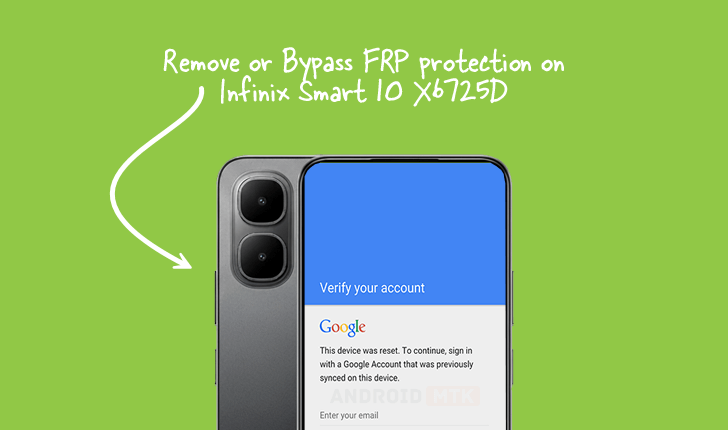
Updated on September 13, 2025, this detailed technical briefing outlines the precise methodology required to circumvent the Factory Reset Protection (FRP) lock mechanism on the Infinix Smart 10 model X6725D, particularly devices operating on the Android 15 operating system. This procedure is critical for users who have legally acquired a device but are unable to access it due to forgotten credentials or after performing an unauthorized or unexpected factory reset.

Factory Reset Protection (FRP), a crucial security protocol first integrated into the Android framework beginning with version 5.1 (Lollipop), serves as a formidable deterrent against the unauthorized use of lost or stolen mobile hardware. The core function of FRP is to mandate that the user authenticate with the credentials (Google account) previously synchronized with the device before the factory reset was initiated. This security measure significantly reduces the secondary market appeal of pilfered electronics by rendering them unusable to anyone lacking the original login details, thereby protecting the owner’s sensitive personal data and digital identity. While beneficial for security, this feature can inadvertently lock out legitimate owners under circumstances such as forgotten passwords or transitioning ownership without proper account removal.
The established method for eradicating FRP lockouts on the Infinix Smart 10 X6725D necessitates specialized software utilities and a specific firmware component designed for the device’s underlying chipset architecture, which in this case involves Spreadtrum (SPD) processors. Successful execution requires the acquisition of the dedicated FRP reset file tailored for the X6725D and the utilization of the SPD Research Tool. Users must meticulously ensure all prerequisite conditions are satisfied before commencing the technical intervention, as deviations can lead to device instability or data corruption.
Prerequisites for FRP Removal Procedure
Before initiating the process, several foundational elements must be in place to ensure compatibility and system integrity:
- Device Preparation: The Infinix Smart 10 X6725D must be powered completely off.
- Software Acquisition: Both the specific FRP reset file (.paf or similar format, depending on the tool version) compatible with the X6725D’s firmware build and the latest stable version of the SPD Research Tool must be downloaded and extracted to a readily accessible location on the host computer.
- Driver Installation: Essential Spreadtrum USB drivers must be correctly installed on the Windows operating system hosting the Research Tool. Failure to install these proprietary drivers will prevent the computer from recognizing the device during the flashing or unlocking phase.
- System Environment: The procedure should ideally be conducted on a stable computer system running a standard Windows environment (e.g., Windows 10 or 11), with administrative privileges granted to the SPD Research Tool executable.
Step-by-Step Technical Execution via SPD Research Tool
The following sequence details the manipulation of the SPD Research Tool to target and clear the FRP partition on the Infinix Smart 10 X6725D:
- Launching the Research Tool: Execute the SPD Research Tool application with elevated administrative permissions. The graphical user interface (GUI) will present several configuration tabs.
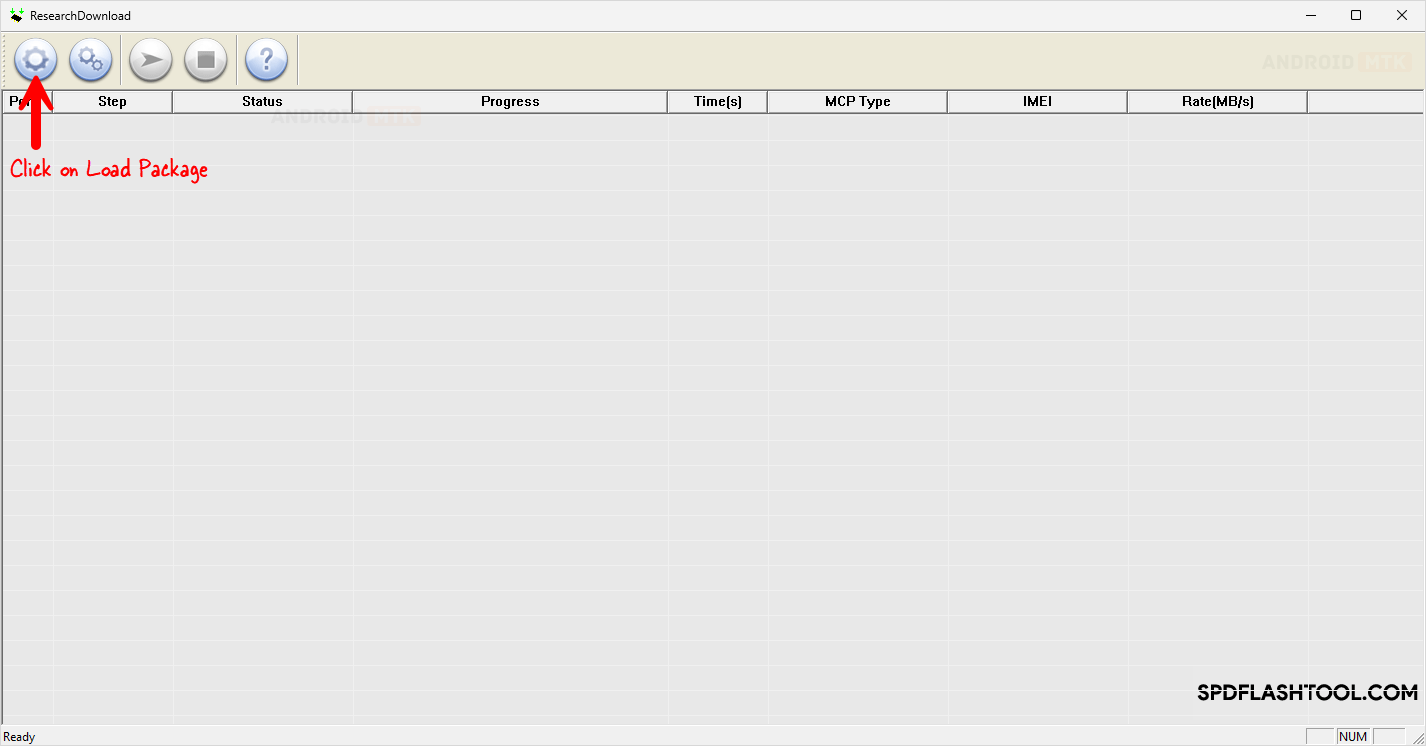
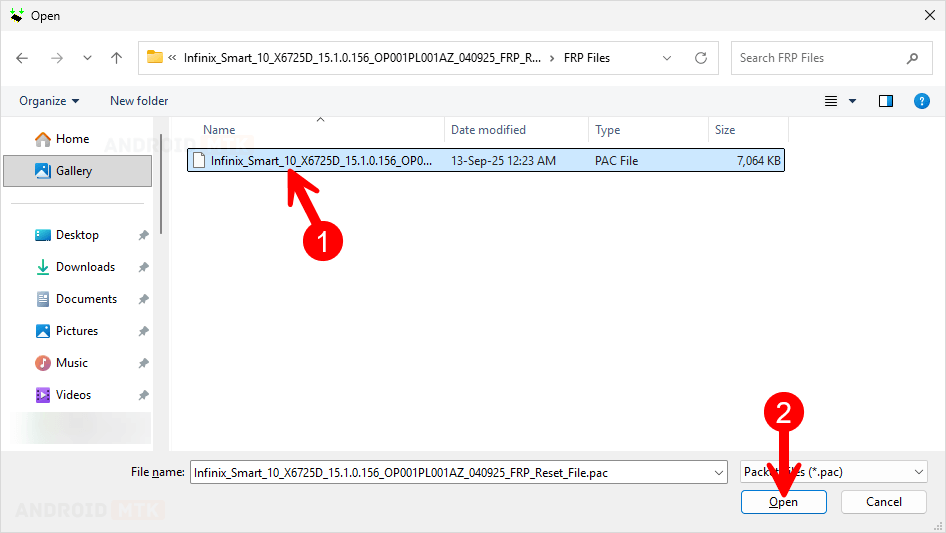
- Loading the Firmware Package: Navigate to the appropriate section within the tool, typically labeled "Load Packet" or similar, and select the previously downloaded FRP reset file specific to the Infinix Smart 10 X6725D. This action loads the necessary instructions and parameters into the tool for communication with the device’s firmware structure.
- Selecting the FRP Operation Mode: Within the tool’s configuration panel, locate the options pertaining to security features or partition management. Explicitly select the command designated for FRP removal or "Remove FRP." This directs the tool to focus its operation solely on the security verification flag rather than attempting a full system reflash.
- Initiating Device Connection (Download Mode Entry): This step requires precise timing to place the SPD chipset into its low-level diagnostic or "Download Mode" (also sometimes referred to as SPD BootROM Mode).
- Ensure the Infinix Smart 10 X6725D is entirely powered down.
- Simultaneously depress and hold both the Volume Up (+) and Volume Down (-) physical buttons located on the side chassis of the smartphone.
- While maintaining pressure on both volume keys, connect the device to the host computer via a reliable, high-quality USB cable.
- The SPD Research Tool should register the connection, often indicated by a status message within the tool, confirming that the device has been recognized in the correct low-level mode. If the tool fails to recognize the device, verify driver installation and attempt the connection sequence again, perhaps using a different USB port.
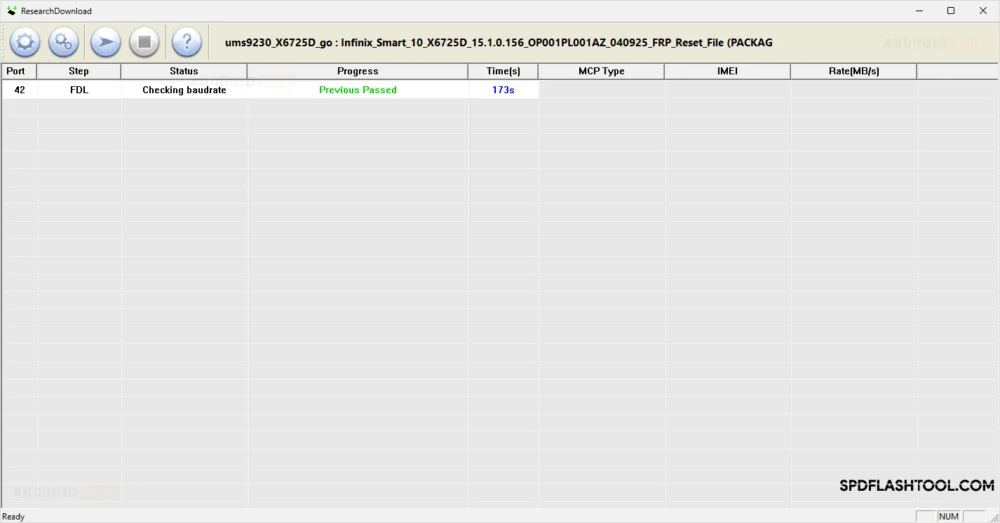
- Executing the FRP Removal Command: Once the device is successfully detected in Download Mode and the FRP option is selected within the tool, click the primary "Start" or "Run" button within the Research Tool interface. The tool will then commence the process of communicating with the device’s eMMC or UFS storage chip to rewrite or erase the specific memory block that stores the FRP lock status. This operation is generally rapid, often completing within seconds.
- Verification of Success: The SPD Research Tool interface will display a clear confirmation message, typically rendered in green text or a dedicated status box, explicitly stating "FRP Done," "Operation Successful," or similar affirmative feedback. This visual confirmation is essential to validate the process completion.
Post-Operation Procedures
Upon receiving the success notification from the SPD Research Tool, the final stages involve safely disengaging the hardware connection and rebooting the device to confirm the bypass:
- Tool Closure: Terminate the SPD Research Tool application to release system resources and close the communication ports.
- Disconnection: Carefully unplug the USB cable connecting the Infinix Smart 10 X6725D to the computer.
- System Reboot: Power on the smartphone normally by pressing and holding the power button. The initial boot sequence may take slightly longer than usual as the system verifies its state and initializes the newly cleared security settings.
If the procedure was executed correctly, the device will bypass the previous Google account verification screen entirely and proceed directly to the initial Android setup wizard, allowing the legitimate owner to configure the device as new, associating it with their current Google credentials.
Critical Considerations and Caveats

While this method is highly effective for SPD-based devices like the Infinix Smart 10 X6725D, users must exercise extreme diligence:
- Warranty Implications: Utilizing third-party tools to manipulate core security partitions, such as FRP, almost invariably voids any remaining manufacturer warranty associated with the hardware.
- Data Integrity: This specific technique targets the FRP partition; it is not a full factory data reset. However, any incorrect parameter selection within the Research Tool—such as attempting to flash an incorrect firmware file or selecting an unintended partition erase function—carries a substantial risk of rendering the device permanently inoperable (bricking).
- Android Version Specificity: The provided FRP file and method are tailored for devices running Android 15. Newer or older firmware iterations may utilize different security implementations or partition layouts, rendering this specific file ineffective or potentially harmful. Users must always confirm file compatibility with their exact device model number (X6725D) and current OS version.
This advanced procedure provides a technical solution for legitimate owners facing FRP lockouts on the specified Infinix model, requiring careful adherence to the specialized software and hardware connection protocols.
