

Updated on September 13, 2025.
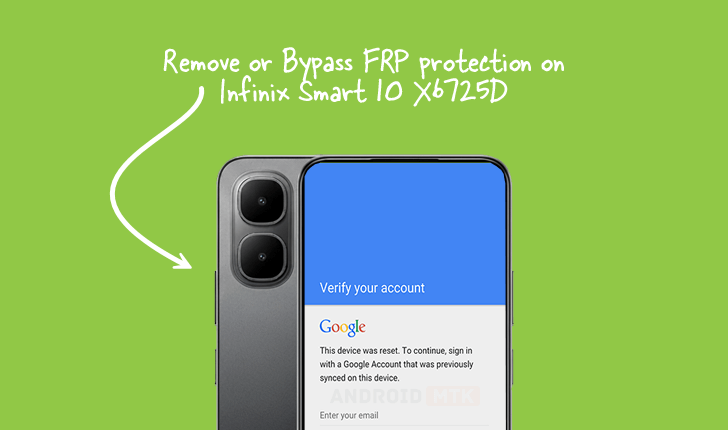
The increasing sophistication of mobile security necessitates robust procedures for device ownership verification, particularly following unexpected factory resets. This technical guide details the precise methodology for liberating the Infinix Smart 10 model X6725D from Factory Reset Protection (FRP), a critical security layer integrated into the Android 15 operating system.

Understanding the Imperative of FRP Security
Factory Reset Protection, commonly abbreviated as FRP, represents a cornerstone of modern Android security architecture, first implemented with the release of Android 5.1 (Lollipop). Its fundamental objective is the deterrence of unauthorized device use subsequent to a hard reset initiated via the recovery menu rather than through the standard settings pathway by the legitimate owner. This feature acts as a potent anti-theft mechanism. Should a device be lost or stolen, even a complete factory wipe will not grant access to a new user. Instead, the device prompts the user to authenticate with the credentials (Google account) previously synchronized with the device before the reset. This linkage ensures that stolen hardware remains functionally locked, thereby significantly diminishing the resale value and attractiveness of such devices to illicit actors. For legitimate users who have forgotten their credentials or acquired a device second-hand without proper account removal, bypassing this lock becomes a necessary technical maneuver.
Prerequisites for FRP Removal on the Infinix Smart 10 X6725D
Successfully navigating the FRP lock on this specific MediaTek-powered device requires specialized tools and files designed to interface directly with the chipset’s service modes. Users must ensure they possess the following essential components before commencing the procedure:
- The Dedicated FRP Reset File: This file is specifically tailored for the Infinix Smart 10 X6725D and contains the necessary data structure to overwrite or nullify the existing FRP flag within the device’s secure partition.
- The SPD Research Tool: Given that the Infinix Smart 10 series frequently utilizes Spreadtrum (SPD) chipsets, the SPD Research Tool (often referred to as the SPD Flash Tool or specialized variants thereof) is the mandated software interface. This utility communicates with the device at a low level, enabling firmware and partition manipulation.
- A Compatible Personal Computer: A stable Windows-based operating system is typically required for running the Research Tool, along with reliable USB drivers installed for proper device recognition.
- A High-Quality USB Cable: A data-transfer-capable cable is essential to maintain a stable connection during the flashing process, minimizing the risk of connection dropouts that could lead to device bricking.
Procedural Outline: Executing the FRP Bypass
The process leverages the SPD Research Tool to execute a specific command sequence targeting the FRP partition. This sequence, facilitated by the dedicated reset file, effectively clears the security requirement.
Phase 1: Preparation and Tool Initialization
The initial steps involve preparing the software environment on the host computer.
- Tool Launch: The SPD Research Tool application must be launched on the computer. Upon initiation, the interface presents various operational modes.
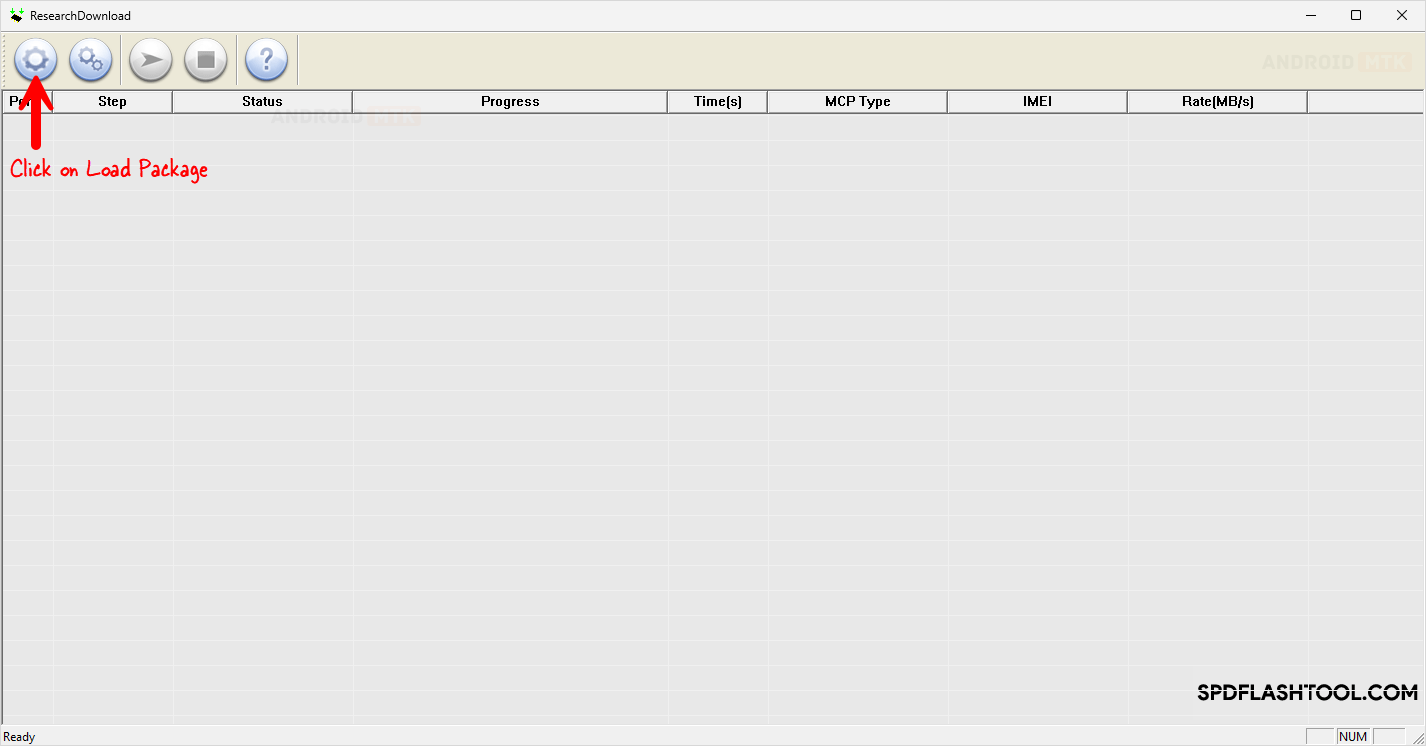
- Package Loading: Within the Research Tool interface, the critical step is to navigate to the function designated for loading the necessary package file. Users must locate and select the pre-acquired FRP reset file specific to the Infinix Smart 10 X6725D. This action configures the tool with the required operational parameters for the subsequent connection.
Phase 2: Device Configuration and Connection Protocol
Entering the correct service mode is paramount for the Research Tool to establish the necessary low-level communication channel with the device’s chipset. This mode, often synonymous with Download Mode or a specialized boot mode for SPD devices, bypasses the standard Android bootloader.
- Device Power Down: Ensure the Infinix Smart 10 X6725D is completely powered off.
- Entering Download Mode (Crucial Step): The specific combination for entering this service mode on many SPD devices requires a precise sequence:
- Simultaneously depress and hold both the Volume Up and Volume Down buttons on the handset.
- While maintaining pressure on both volume keys, connect the USB cable to the powered-off phone and the computer.
- The system should register a new device connection, often accompanied by a distinct sound notification on the PC, indicating successful entry into the low-level flashing or diagnostic mode. The device screen may remain black during this phase.
Phase 3: FRP Removal Execution
With the device connected in the appropriate mode and the tool configured, the final command sequence is initiated.
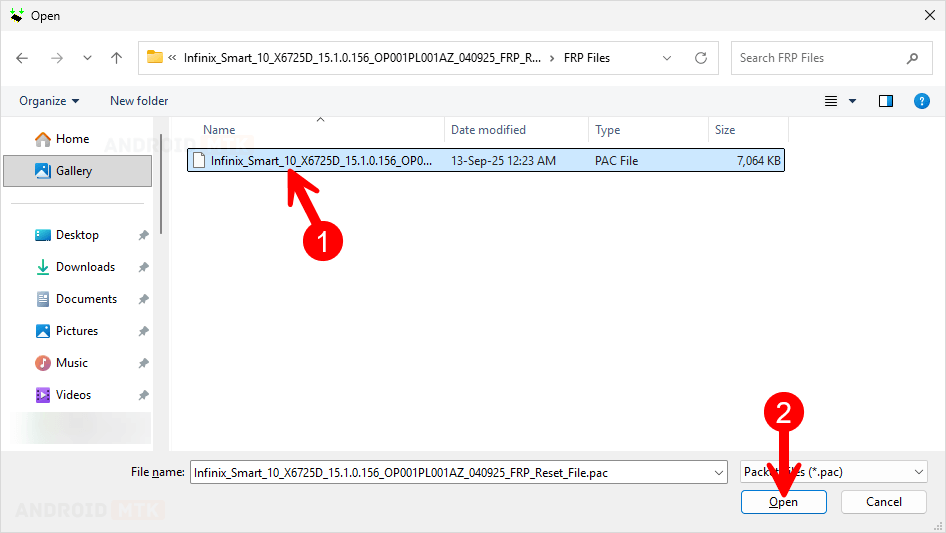
- FRP Selection: Within the loaded SPD Research Tool interface, the user must precisely select the option explicitly labeled for FRP removal or reset. This isolates the operation to only affect the necessary security flags, avoiding unintended modifications to user data partitions or the main operating system.
- Initiating the Process: Once the FRP option is selected, the user executes the "Start" or "Run" command within the Research Tool. The tool will then transmit the specialized instructions and data via the USB connection to the device.
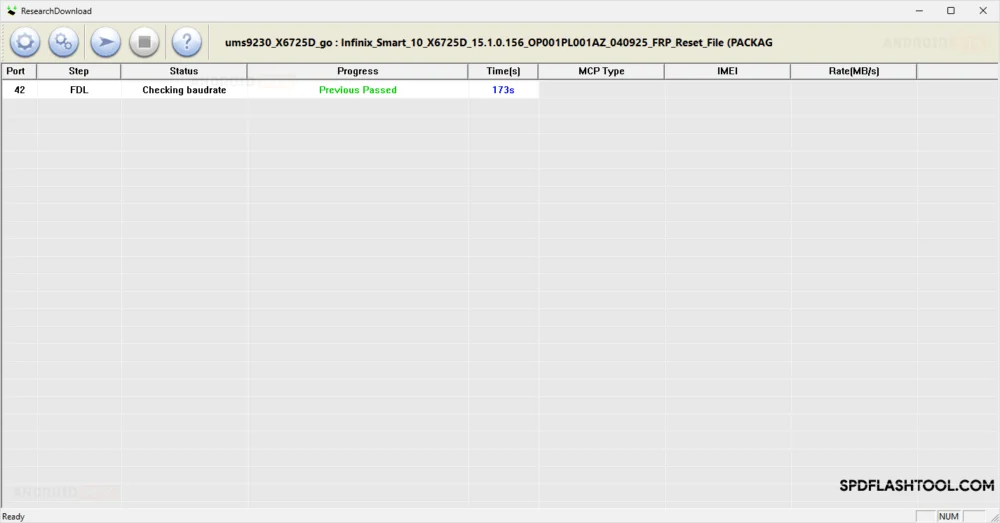
- Monitoring the Progress: During this stage, the Research Tool will display a progress bar or status log detailing the communication handshake and the operation execution. It is vital that the USB connection remains uninterrupted throughout this brief but critical period.
Phase 4: Confirmation and Post-Operation Procedures
Successful completion is indicated by a definitive message displayed within the SPD Research Tool interface.
- Success Confirmation: A notification, typically a green status message, will confirm that the FRP operation has been completed successfully on the Infinix Smart 10 X6725D.
- Disconnection and Restart: Once confirmation is received, the user should close the SPD Research Tool application. Subsequently, safely disconnect the USB cable from the smartphone.
- First Boot: Power on the Infinix Smart 10 X6725D. The initial boot sequence following an FRP removal may take slightly longer than usual as the system reinitializes its security configuration. Upon reaching the setup screen, the device should proceed directly to the standard welcome screen, bypassing the requirement for prior Google account authentication.
Concluding Remarks on Device Re-establishment

The successful execution of this procedure reinstates full access to the device. The user is now free to set up the Infinix Smart 10 X6725D with a new Google account or configure it as a brand-new device. It is incumbent upon the new owner to ensure that they establish secure access credentials to prevent future security lockouts. The inherent risks associated with manipulating low-level device partitions necessitate adherence to these specific steps for the X6725D model running Android 15 to ensure operational integrity post-bypass.
