

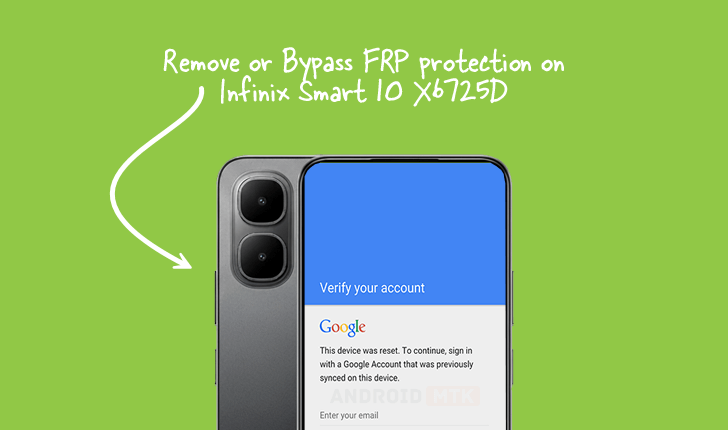
Updated on September 13, 2025, this detailed technical analysis outlines the precise methodology required to deactivate or circumvent the Factory Reset Protection (FRP) security measure implemented on the Infinix Smart 10 smartphone, specifically model X6725D, operating on the Android 15 platform. This process is essential for users who have legitimately acquired the device but are unable to proceed past the Google account verification screen following an unauthorized or accidental factory reset, or for technicians performing necessary servicing.

Understanding the Security Framework: Factory Reset Protection (FRP)
Factory Reset Protection, commonly abbreviated as FRP, represents a cornerstone security protocol integrated into the Android operating system, first appearing in Android 5.1 (Lollipop) and continually refined through subsequent iterations, including the current Android 15 deployment on the Infinix Smart 10 X6725D. The fundamental objective of FRP is to serve as a robust deterrent against unauthorized device usage following a hard reset performed via the recovery menu. When a device is reset without proper authorization—meaning the Google account credentials previously synced to the device are not entered post-reset—FRP locks the system, rendering the hardware unusable for external parties. This mechanism significantly diminishes the incentive for theft, as a stolen device becomes effectively worthless without the original owner’s login details. For legitimate owners, however, forgotten passwords or changes in ownership necessitate specialized procedures to regain full access to their hardware.
Prerequisites for FRP Removal on Infinix Smart 10 X6725D
The successful removal of FRP on this specific MediaTek-powered device necessitates the utilization of specialized software tools and a corresponding firmware component. Users must ensure the following prerequisites are met before commencing the technical procedure:
- FRP Reset File Acquisition: A dedicated FRP bypass file, tailored for the specific chipset or firmware configuration of the Infinix Smart 10 X6725D, must be secured. This file contains the necessary instructions or patches to neutralize the Google verification lock during the flashing process.
- SPD Research Tool: The primary utility required for interacting with the device’s internal memory and executing the bypass is the SPD Research Tool (Spreadtrum Research Tool). This software is designed to communicate with devices utilizing Spreadtrum (SPD) chipsets, which power the Infinix Smart 10 series.
- Stable Computer Environment: A reliable Windows-based computer is mandatory, equipped with adequate processing power and stable USB ports to maintain connection integrity throughout the critical data transfer phase.
- Device Preparation: The Infinix Smart 10 X6725D must be completely powered down before initiating the connection sequence.
Crucial Adherence Notice: While this guide provides detailed instructions for legitimate access restoration, the developers of this technical information assume no liability for any adverse effects, including data corruption or hardware malfunction, resulting from the execution of these procedures. Users proceed entirely at their own discretion, acknowledging the inherent risks associated with low-level device manipulation.
Step-by-Step Protocol for FRP Deactivation
The process relies heavily on leveraging the SPD Research Tool to flash the necessary parameters onto the device’s memory sectors responsible for managing the FRP lock state.
Phase 1: Preparing the Research Tool Environment
- Launch the SPD Research Tool: Execute the SPD Research Tool application on the host computer. This application interface facilitates the connection and data transmission to the SPD chipset.
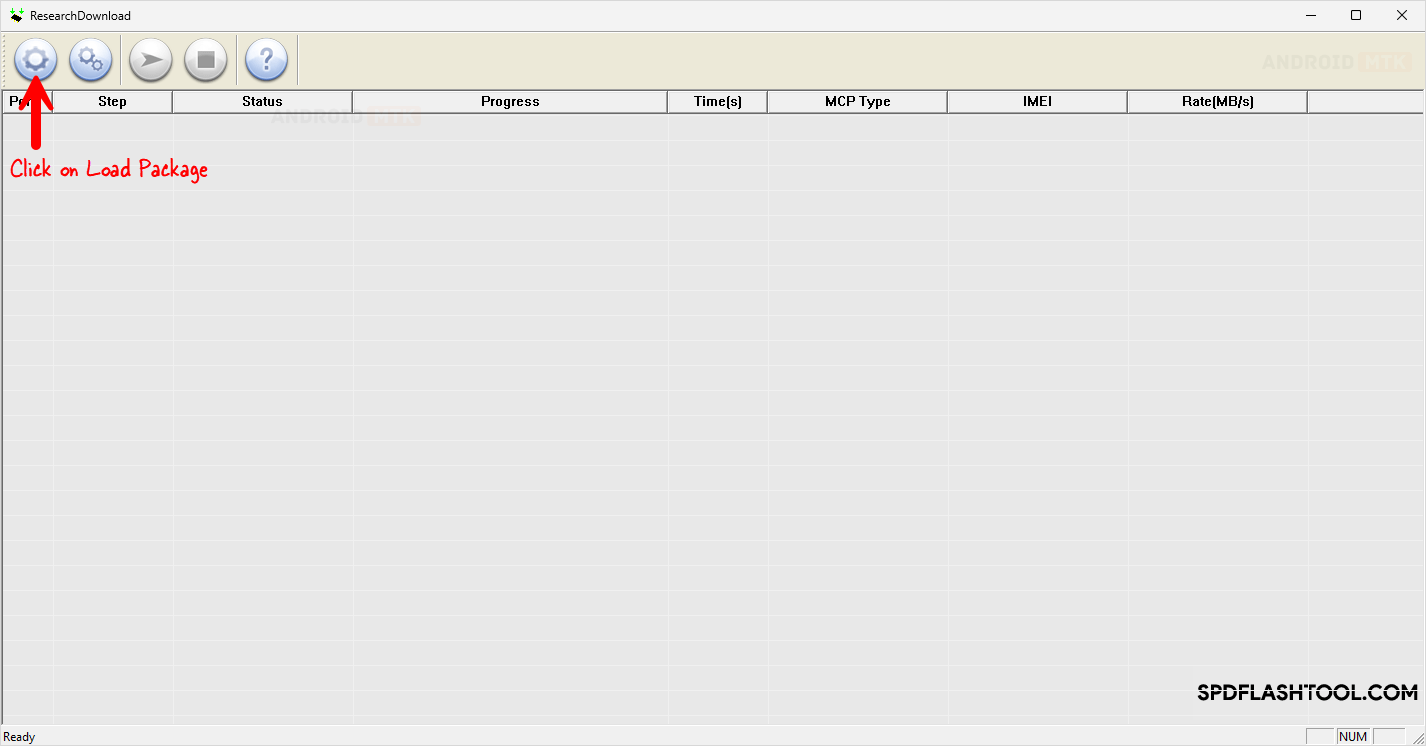
- Loading the Package: Navigate within the Research Tool interface to locate the option designated for loading the necessary firmware or package files. Select and load the previously downloaded FRP reset file specific to the device model. This action configures the tool for the intended operation.
- Configuration Selection: Upon successful loading, the interface will present various operational modes. Specifically, the user must meticulously select the option corresponding to FRP removal or FRP Reset. Precision in this selection is paramount, as choosing an incorrect operation (such as a full firmware flash) could lead to device bricking.
Phase 2: Entering Download Mode (Preloader Connection)
For the SPD Research Tool to recognize and communicate with the locked device, the Infinix Smart 10 X6725D must be placed into a specialized low-level communication state, often referred to as Download Mode or Preloader Mode, which bypasses the standard Android boot sequence.
- Power Down Confirmation: Verify that the Infinix Smart 10 X6725D is completely powered off.
- Key Combination Activation: Simultaneously press and maintain continuous pressure on both the Volume Up and Volume Down physical buttons located on the side of the smartphone.
- Establishing Connection: While holding these two volume keys depressed, carefully connect the smartphone to the computer using a high-quality USB cable. The device should remain connected via this combination until the host computer successfully recognizes the presence of the SPD chipset driver and the Research Tool registers a successful connection. This stage confirms the device is ready to receive the bypass command.
Phase 3: Executing the FRP Bypass Command
With the tool configured and the device correctly connected in Download Mode, the final execution phase can commence.
- Initiating the Process: In the SPD Research Tool interface, locate and click the Start button (or the equivalent command prompt for initiating the selected operation, which, in this context, is the FRP removal command).
- Data Transfer and Processing: The Research Tool will now transmit the necessary instructions embedded within the FRP reset file to the device’s internal memory. The progress bar within the tool will indicate the status of this operation. It is imperative that the USB connection remains uninterrupted during this critical data transfer period. Any disconnection risks halting the process midway, potentially leaving the device in an unstable state.
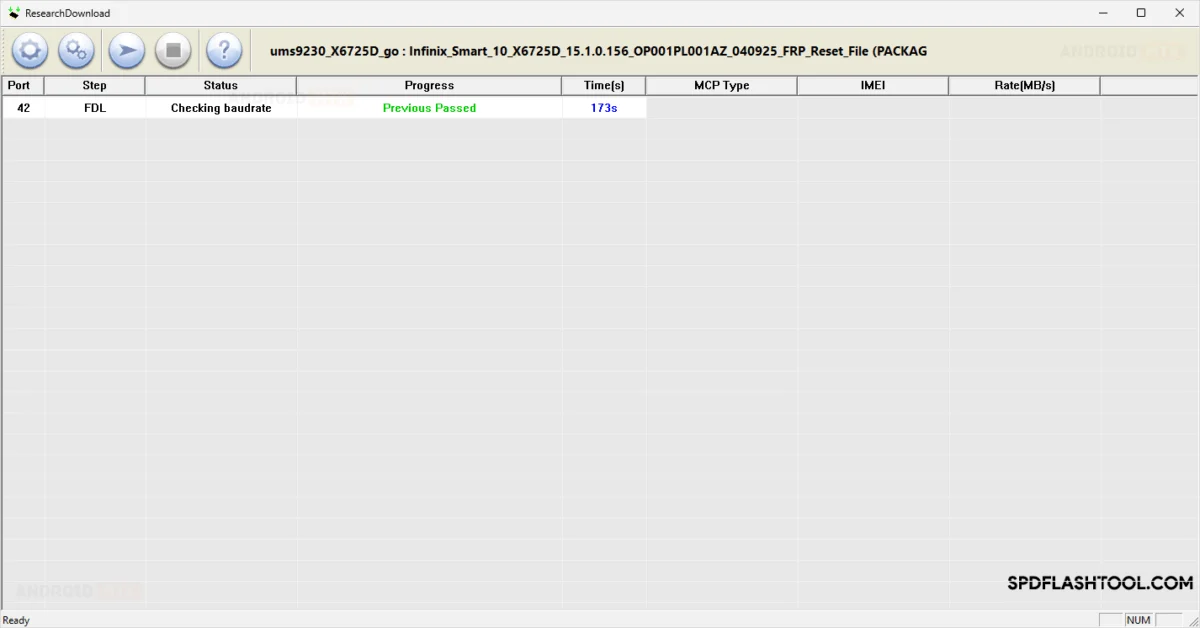
- Confirmation of Success: Once the operation is complete, the SPD Research Tool will display a clear confirmation message, typically indicated by a green status bar or a textual alert confirming "FRP Done" or "Operation Successful." An example visualization confirms this successful outcome after the tool completes its task.
Phase 4: Post-Operation Procedures
- Tool Closure: Safely close the SPD Research Tool application on the computer to release system resources and connection locks.
- Disconnection: Gently disconnect the USB cable linking the Infinix Smart 10 X6725D to the computer.
- Device Restart: Power on the Infinix Smart 10 X6725D using the power button.
Upon reboot, the device should bypass the typical Google account verification screen entirely. The system will proceed directly to the initial setup wizard, allowing the user to configure a new Google account or proceed without one, signifying the complete and successful neutralization of the Factory Reset Protection lock.
Concluding Notes on Security and Maintenance
The successful execution of this specialized procedure restores full usability to the Infinix Smart 10 X6725D. It is important for users to recognize that while this method effectively removes the security layer, it does so by modifying low-level system flags. Users who encounter subsequent issues related to connectivity or system instability after performing this bypass may need to consider a full, official firmware reflash using appropriate service tools, ensuring the device returns to its factory-default, verified software state. The effectiveness of this method is dependent on the underlying chipset architecture and the specific build version of Android 15 implemented by Infinix for the X6725D model, highlighting the evolving nature of mobile device security protocols.
