

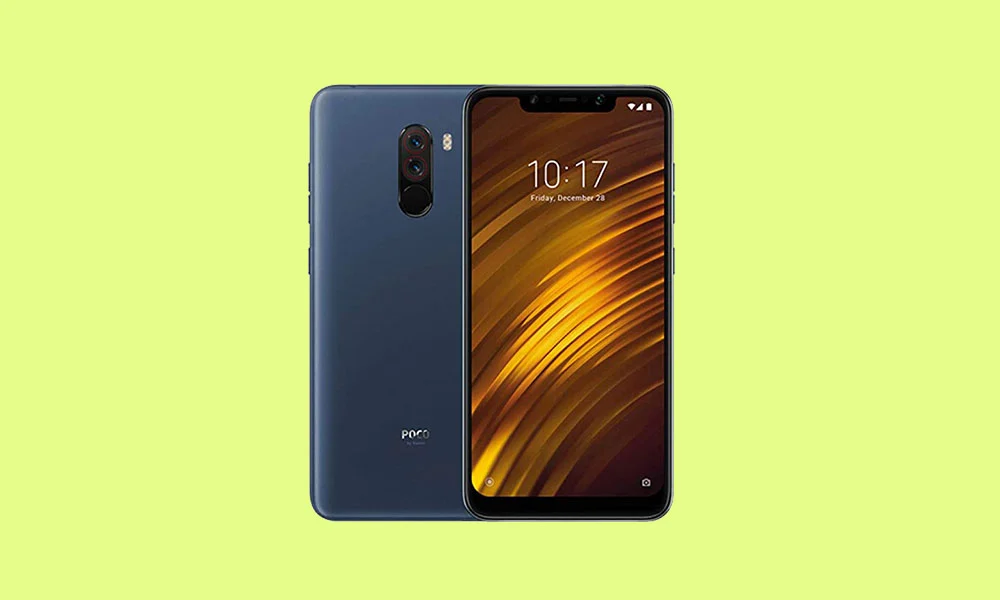
The Xiaomi Poco F1, affectionately known in tech circles by its codename "beryllium," remains one of the most significant landmarks in the history of the smartphone industry. Launched in 2018 under the sub-brand Poco, it disrupted the market by offering flagship-grade internals at a fraction of the cost of its competitors. While official software support from Xiaomi ended years ago with Android 10, the device’s legacy continues to thrive within the enthusiast community. Today, the Poco F1 is making headlines once again as developers have successfully ported unofficial builds of Android 16, Google’s latest operating system, to this aging powerhouse. This development offers a remarkable opportunity for users to bypass planned obsolescence and experience modern software on a device that refuses to quit.
The Poco F1 was built on a foundation of raw power. It featured the Qualcomm Snapdragon 845 chipset, which at the time was the pinnacle of mobile processing. Complemented by the Adreno 630 GPU and up to 8GB of LPDDR4X RAM, the device was engineered for high-performance gaming and multitasking. Its 6.18-inch Full HD+ IPS LCD panel, though interrupted by a substantial notch housing an infrared face unlock system, provided vibrant visuals for its era. Despite a polycarbonate build that some critics labeled as "uninspired," the phone’s durability and internal LiquidCool technology made it a favorite for power users. With a 4,000 mAh battery and dual rear cameras (12MP + 5MP), the Poco F1 was a balanced workhorse. However, the hardware is only half the story; the true longevity of this device lies in its unlocked bootloader and the dedicated community of developers who continue to optimize new versions of Android for its hardware.
![How to Install Android 16 on Xiaomi Poco F1 [Download Link]](https://www.getdroidtips.com/wp-content/uploads/2020/05/Download-and-Install-MIUI-12-ROM-for-Xiaomi-Poco-F1.jpg)
Android 16 represents a significant evolutionary step for the Android ecosystem, moving away from the foundational shifts of Android 12 and 13 toward a more polished and "expressive" user experience. The centerpiece of this update is the Material 3 Expressive design language. While previous iterations focused on color extraction through "Monet," Android 16 refines the interface with smoother, physics-based animations, larger and more accessible touch targets, and a bolder approach to typography. This design philosophy is intended to make the OS feel more alive and responsive, even on older hardware. Beyond the visual flair, Android 16 introduces deep system optimizations designed to improve battery efficiency and background process management. For a device like the Poco F1, these under-the-hood changes are vital, as they allow the Snapdragon 845 to handle modern app demands without the thermal throttling often seen in older versions of MIUI.
The transition to an Android 16-based custom ROM—specifically an Android Open Source Project (AOSP) build—transforms the Poco F1 experience. Official MIUI updates were often criticized for being heavy and cluttered with "bloatware." In contrast, an AOSP-based ROM provides a "Pixel-like" experience, free from unnecessary background services. This results in faster boot times, more available RAM, and a significantly snappier interface. Furthermore, Android 16 brings the latest security patches to a device that has been vulnerable to modern exploits for years. By installing this update, users are not just getting new icons; they are securing their personal data with the latest privacy protections Google has to offer, including enhanced microphone and camera toggles and more granular permission controls.
Before embarking on the installation of Android 16, users must recognize the technical nature of the process. Installing a custom ROM is an invasive procedure that replaces the device’s original operating system. The first and most critical step is data preservation. Flashing a new ROM requires a complete wipe of the internal storage, meaning all photos, messages, and applications will be lost. Users are advised to utilize cloud services or external physical storage to secure their data. Additionally, the device must have at least 50% battery capacity to ensure it does not power down during the sensitive flashing phase, which could lead to a "bricked" or unusable state.
![How to Install Android 16 on Xiaomi Poco F1 [Download Link]](https://www.getdroidtips.com/wp-content/uploads/2020/05/Download-and-Install-MIUI-12-ROM-for-Xiaomi-Poco-F1-300x180.jpg)
The technical prerequisites involve setting up a communication bridge between a computer and the smartphone. This is achieved through ADB (Android Debug Bridge) and Fastboot binaries. These command-line tools allow the computer to send instructions to the phone’s bootloader and recovery partitions. Alongside these tools, the latest Xiaomi USB drivers must be installed on a Windows or Linux machine to ensure the hardware is recognized correctly. The most significant hurdle for many is the bootloader. Xiaomi requires users to use their official "Mi Unlock Tool," a process that often involves a waiting period of several days. Once the bootloader is unlocked, the gateway to custom software is officially open.
The installation of a custom recovery, such as TWRP (Team Win Recovery Project), is the next vital phase. TWRP acts as an alternative interface that allows users to "flash" or install ZIP files containing the operating system. Once TWRP is successfully installed on the Poco F1, the user must download the Android 16 ROM file and the corresponding GApps (Google Apps) package. Because AOSP is open-source, it does not legally include Google’s proprietary services like the Play Store, Gmail, or Maps. Therefore, a separate GApps package—specifically tailored for Android 16—must be flashed immediately after the ROM to ensure the device remains functional for everyday use.
The step-by-step installation process begins with booting the Poco F1 into recovery mode. Within TWRP, the user must navigate to the "Wipe" section and perform a "Factory Reset," followed by an "Advanced Wipe" where the System, Data, Cache, and Dalvik partitions are cleared. This creates a clean slate for Android 16. After the wipe, the user selects the "Install" option, locates the Android 16 ROM ZIP file, and initiates the flash. Without rebooting, the user must then flash the GApps package. Once both files are successfully installed, the "Format Data" option (which requires typing ‘yes’) is often necessary to remove encryption conflicts. Only then can the device be rebooted into the new system.
![How to Install Android 16 on Xiaomi Poco F1 [Download Link]](https://www.getdroidtips.com/wp-content/uploads/2020/06/cmd-platform-tools.jpg)
The initial boot of Android 16 on the Poco F1 may take several minutes as the system builds its cache and initializes the new architecture. Once the "Welcome" screen appears, users will find a device that feels remarkably modern. Early reports from the developer community suggest that these initial AOSP builds are surprisingly stable, with core functions like Wi-Fi, Bluetooth, cellular data, and the infrared face unlock working as intended. However, as with any unofficial port, minor bugs may persist. These could include occasional graphical glitches or specific app incompatibilities. Users are encouraged to participate in community forums, reporting any issues with logcat files to help developers refine the software.
The ability to run Android 16 on a device from 2018 is a testament to the power of open-source software and the ingenuity of the global developer community. It challenges the notion that hardware must be replaced every two years. For the Poco F1 owner, this update is more than just a software refresh; it is a renewal of the device’s identity. It proves that the Snapdragon 845 still has the muscle to compete in a modern software environment when freed from the constraints of legacy skins. As Google continues to iterate on Android 16, the Poco F1 will likely see even more optimized builds, ensuring that this legendary "flagship killer" remains relevant well into the mid-2020s. For those willing to navigate the technical steps, the reward is a cutting-edge smartphone experience on one of the most iconic pieces of hardware ever produced.
