

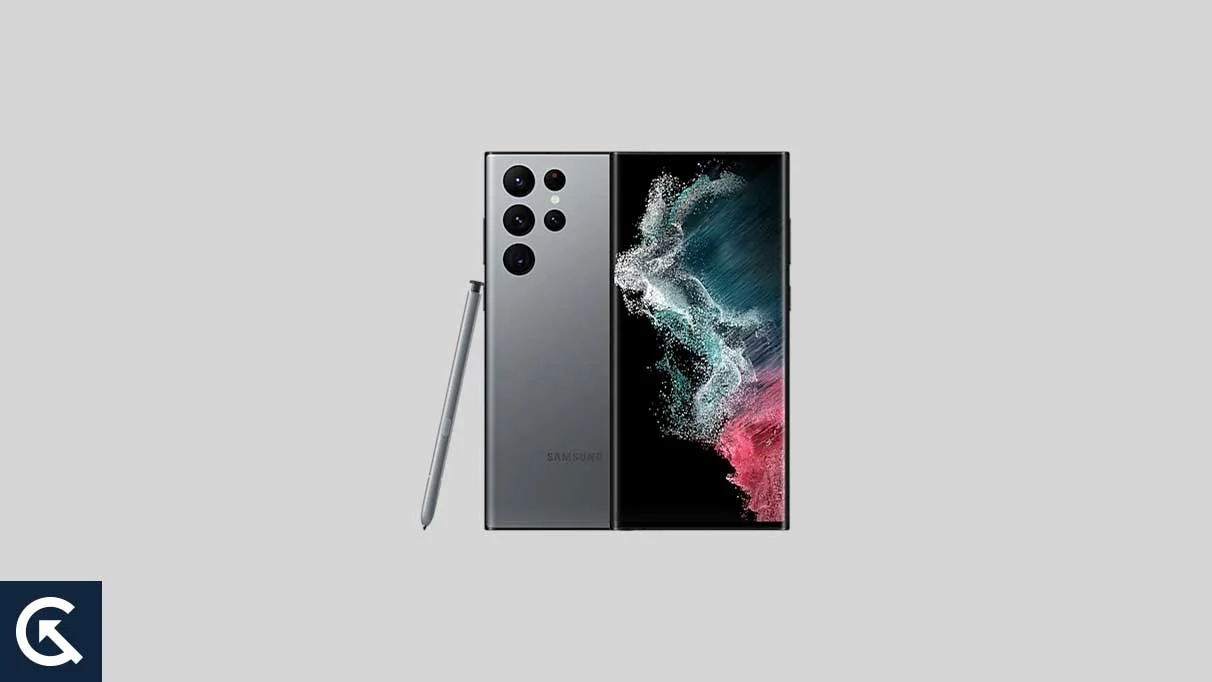
The Samsung Galaxy S22 Ultra remains a titan in the world of mobile technology, representing a pivotal moment where the elegance of the S-series converged with the productivity-focused DNA of the Galaxy Note line. Despite its age, the hardware remains formidable, featuring a 108-megapixel camera system and the iconic integrated S Pen. However, as official manufacturer support cycles eventually wind down, enthusiasts often look toward the developer community to maintain the cutting edge of software innovation. With the recent release of the Android 16 source code to the Android Open Source Project (AOSP), the Galaxy S22 Ultra has entered a new chapter. Developers have successfully ported early, unofficial builds of Android 16 to this flagship, allowing power users to experience Google’s latest operating system advancements long before official channels might even consider a rollout.
To understand the significance of this transition, one must first appreciate the hardware that makes the Galaxy S22 Ultra a prime candidate for long-term software experimentation. At its core, the device features a stunning 6.8-inch Dynamic AMOLED 2X display, capable of a QHD+ resolution and an adaptive 120Hz refresh rate. Whether powered by the Snapdragon 8 Gen 1 or the Exynos 2200, the device possesses the computational overhead required to handle the increased demands of modern software. By installing an Android 16-based custom ROM, users are essentially bypassing the heavy "One UI" skin in favor of a leaner, more performant experience that prioritizes the core features of the Android ecosystem.
![How to Install Android 16 on Samsung Galaxy S22 Ultra [Download Link]](https://www.getdroidtips.com/wp-content/uploads/2023/02/Samsung-Galaxy-S22-Ultra.webp)
Android 16, internally referred to by some as "Baklava," introduces a sophisticated evolution of Google’s design philosophy, known as Material 3 Expressive. This is not merely a cosmetic update but a fundamental refinement of how the user interacts with the interface. Material 3 Expressive builds upon the foundation of Android 13’s Material You, introducing more fluid animations, bolder typography, and larger touch targets designed to reduce friction during navigation. For the S22 Ultra, which boasts a massive screen, these UI enhancements translate to a more immersive and accessible experience. The update also brings significant system-level optimizations aimed at improving energy efficiency and background task management, potentially extending the daily battery life of a device that has already seen several years of use.
The transition to a custom Android 16 ROM offers more than just visual flair. It provides users with a granular level of control over their privacy and security. Android 16 includes updated privacy dashboards and more restrictive permission sets for background applications, ensuring that the S22 Ultra remains a secure fortress for personal data. Furthermore, by utilizing an AOSP-based build, users can often strip away "bloatware"—the pre-installed applications that frequently occupy storage and consume system resources on stock Samsung firmware. This results in a "clean" Android experience, reminiscent of the Google Pixel line but hosted on Samsung’s superior hardware.
However, the path to installing Android 16 on the Galaxy S22 Ultra is one reserved for those who are comfortable with technical procedures and understand the inherent risks. Before beginning, it is vital to acknowledge that modifying a device’s firmware can lead to the loss of features like Samsung Pay or Secure Folder due to the tripping of the Knox security counter. Additionally, because these are early unofficial builds, users must approach the installation with the mindset of a beta tester. While current reports suggest that basic functions such as Wi-Fi, Bluetooth, and cellular connectivity are operational, minor bugs or instabilities are to be expected in the initial stages of community development.
![How to Install Android 16 on Samsung Galaxy S22 Ultra [Download Link]](https://www.getdroidtips.com/wp-content/uploads/2023/02/Samsung-Galaxy-S22-Ultra-300x169.webp)
The preparation phase is the most critical component of the installation process. A comprehensive backup of all personal data is non-negotiable, as the process of unlocking the bootloader and flashing a new ROM will entirely wipe the device’s internal storage. Users should utilize cloud services or external physical storage to secure their photos, documents, and contacts. Furthermore, ensuring the device has at least a 50% battery charge is essential to prevent a sudden shutdown during the flashing process, which could lead to a software "brick"—a state where the device becomes unresponsive.
Technical requirements include the installation of the latest Samsung USB drivers on a Windows-based PC, along with the Android Debug Bridge (ADB) and Fastboot binaries. These tools act as the communication bridge between the computer and the smartphone’s low-level bootloader. The most significant hurdle for many will be unlocking the bootloader. Samsung devices, particularly those with Snapdragon processors in certain regions, may have locked bootloaders that require specific steps to bypass. Once the bootloader is unlocked, the installation of a custom recovery environment, such as TWRP (Team Win Recovery Project), is necessary. TWRP serves as a secondary operating system that allows users to wipe partitions and "flash" the compressed Android 16 ROM files.
The installation of Android 16 itself involves a series of coordinated steps within the TWRP recovery environment. First, the user must perform a "Clean Flash," which involves wiping the Data, Cache, and System partitions to ensure there are no conflicting files from the previous version of One UI. Once the environment is pristine, the Android 16 ROM file—usually a large ZIP archive—is transferred to the device and installed via the TWRP interface. Because many AOSP builds do not include proprietary Google services due to licensing restrictions, users must also flash a separate "GApps" package. This package restores the Google Play Store, YouTube, Maps, and other essential services that most users consider integral to the Android experience. It is crucial to flash the GApps package immediately after the ROM and before the first reboot to ensure proper system integration.
![How to Install Android 16 on Samsung Galaxy S22 Ultra [Download Link]](https://www.getdroidtips.com/wp-content/uploads/2020/06/cmd-platform-tools.jpg)
The initial boot after a successful flash is often a tense moment for enthusiasts. It is normal for the first boot sequence to take several minutes as the new operating system initializes its file structure and compiles applications. Once the device reaches the setup screen, the user is greeted by the fresh, minimalist aesthetic of Android 16. The S22 Ultra, now unburdened by the weight of heavy manufacturer overlays, typically exhibits a level of snappiness and responsiveness that can rival contemporary flagship devices.
Post-installation life on Android 16 requires a proactive approach to maintenance. Users should keep an eye on community forums such as XDA Developers to stay informed about incremental updates and bug fixes provided by the ROM maintainers. Reporting issues with detailed logs is a vital contribution to the ecosystem, helping developers refine the code for the entire community. Over time, these builds often reach "Stable" status, where they become reliable enough for daily use, effectively doubling the functional lifespan of the Galaxy S22 Ultra.
In conclusion, while Samsung provides a robust update schedule, the community-driven port of Android 16 represents the ultimate expression of device ownership. It allows the Galaxy S22 Ultra to transcend its original software limitations and embrace the future of the Android platform. By following the rigorous steps of backing up data, unlocking the bootloader, and carefully flashing the AOSP firmware, users can transform their aging flagship into a modern powerhouse. This journey is a testament to the enduring quality of the S22 Ultra’s hardware and the vibrant, tireless innovation of the global Android developer community. For those willing to take the leap, Android 16 offers a refined, expressive, and exhilarating new way to experience one of Samsung’s most iconic smartphones.
