

Updated on April 21, 2026
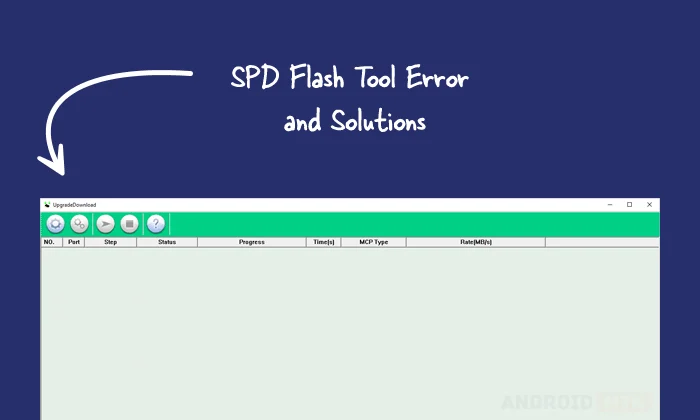
The widespread adoption of Spreadtrum and Unisoc chipsets across budget and mid-range mobile devices has made the SPD Flash Tool an essential utility for technicians and enthusiasts alike. Whether the objective is to unbrick a device trapped in a boot loop, remove persistent Factory Reset Protection (FRP) locks, or perform a manual system software update, the process is generally straightforward. However, the complexity of low-level firmware flashing often leads to unforeseen hurdles. Encountering an error code during the flashing process can be intimidating, but most of these interruptions are caused by solvable software, driver, or hardware compatibility issues. This guide provides an in-depth analysis of common SPD Flash Tool errors and outlines systematic, professional-grade solutions to ensure successful device restoration.
Understanding the Environment
Before addressing specific error codes, it is critical to ensure the host environment is correctly configured. The SPD Flash Tool relies on precise communication between the Windows OS, the USB driver stack, and the device’s BootROM mode. Most errors that occur mid-flash are symptomatic of either a corrupted firmware package (the .pac file), an unstable physical connection, or an outdated driver suite. By adhering to a methodical troubleshooting workflow—starting with driver verification and ending with partition-specific adjustments—users can mitigate the majority of flashing failures.
Troubleshooting Common Error Codes and Operational Failures
Battery and Connection-Related Failures
Many users report errors immediately upon hitting the "Start" button, often caused by inadequate power or improper boot-key signaling. A device with a critically low battery may drop its connection to the PC as soon as the flashing process initiates, as the phone draws power to initialize its storage controllers. Always ensure the device is charged to at least 50% capacity. If the battery is removable, pulling it out and re-inserting it can often clear static charge and reset the controller. Furthermore, the timing of the "Volume Down" or "Volume Up + Down" key press is crucial. The connection must be established precisely when the tool begins scanning for the port.
Driver Incompatibility and System Environment
If the tool fails to detect the device entirely, the root cause is almost certainly a driver issue. Spreadtrum/Unisoc devices require specific drivers to communicate via the proprietary Spreadtrum protocol. If these are missing or corrupted, the PC will fail to assign a COM port. Users should perform a clean sweep of existing drivers and install the latest Spreadtrum/Unisoc USB driver package. Additionally, running the SPD Flash Tool as an Administrator is non-negotiable; this provides the software with the necessary permissions to access low-level USB interfaces and write directly to the device’s flash memory.
Application-Level Crashes
Errors originating from the tool’s interface, such as "Application Error" or sudden closures, are often related to missing system dependencies. The SPD Flash Tool relies heavily on Microsoft Visual C++ runtime libraries. If a user encounters these errors, downloading and installing the 2010 version (or newer) of the Microsoft Visual C++ Redistributable package typically resolves the conflict. In scenarios where the tool remains unresponsive or crashes during firmware loading, it is recommended to restart the application, clear the temporary cache, and ensure the .pac file is stored in a directory with a simple, non-special-character path name.

Managing NV (Non-Volatile) Data and Calibration Errors
A significant category of errors involves the flashing of NV (Non-Volatile) partitions. These partitions contain critical calibration data, including IMEI information, baseband configurations, and radio frequency tuning parameters. If the tool reports an error during the writing of these sections, it often indicates a mismatch between the firmware version and the device’s hardware revision. In such instances, navigating to the "Calibration" settings within the Research Download Tool and unchecking the NV/Calibration options can bypass the conflict. While this allows the system software to flash successfully, users must be aware that skipping NV partitions may require subsequent manual calibration of radios or restoration of network settings.
Firmware Integrity and Partition Management
Corruption of the firmware package is a frequent cause of "Error 0x…" codes. If a download is interrupted or the file is extracted incorrectly, the checksums will not align, causing the tool to abort. Always acquire firmware from reputable sources and verify the file size. If an error persists, try using the Research Download Tool instead of the Upgrade Tool. For advanced users, flashing the FDL1 (First Download Loader) and FDL2 (Second Download Loader) files independently, followed by selective partition flashing, can help isolate which specific part of the firmware is triggering the rejection.
USB Stability and Hardware Limitations
The physical interface between the PC and the phone is the most overlooked variable. USB 3.0 ports, while faster for data transfers, often cause synchronization issues with older Spreadtrum bootloaders. Using a high-quality USB 2.0 cable connected to a dedicated USB 2.0 port on the rear of a desktop motherboard (or via a powered hub) significantly increases the probability of a stable connection. If the flashing process consistently stops at the same percentage, the data transfer is likely being interrupted by a power drop or signal noise. Replacing the cable and switching to a different USB port is the standard professional response to this recurring frustration.
Advancing Beyond Initial Failures
If the tool repeatedly returns errors related to "Baud Rate" or "Timeout," consider adjusting the baud rate settings within the tool’s configuration menu. Reducing the baud rate can improve communication stability on older hardware, even if it results in a longer flashing time. For those dealing with "Repartition" errors, use the repartition feature with extreme caution. This should only be attempted if the firmware package explicitly includes the necessary partition table information, as incorrect repartitioning can permanently brick the device’s storage controller.
Best Practices for Future Success
To ensure the longevity and success of your flashing endeavors, maintain a "clean" workstation. Keep your SPD Flash Tool updated to the latest version, as newer releases often contain bug fixes for updated Unisoc chipsets. Before initiating a flash, always backup existing data, as the process typically wipes the user partition. Finally, treat every error code as a diagnostic clue rather than a dead end. By systematically checking the integrity of the firmware, the stability of the physical connection, and the validity of the driver installation, most users can effectively bypass the complexities of the flashing process and restore their devices to full functionality. Professionalism in these tasks is defined by patience and a methodical approach to each individual layer of the system.
