

The release of a new Android operating system version typically triggers a wave of excitement throughout the technology community, as early adopters and developers scramble to explore the latest innovations baked into Google’s software ecosystem. With the arrival of Android 17, colloquially known within development circles by its dessert-themed codename "Cinnamon Bun," the cycle of experimentation has begun anew. For many, the allure of cutting-edge features—ranging from revamped notification architectures to enhanced privacy controls—is too strong to resist. However, the transition from a stable environment to a beta or early-release build is rarely without its complications. While the "bleeding edge" offers a glimpse into the future of mobile computing, it frequently introduces a suite of instabilities that can render a primary device difficult to use for daily tasks.
For enthusiasts utilizing hardware such as the Google Pixel 6A—a device that recently benefited from Google’s decision to extend its official update lifecycle—the opportunity to test Android 17 is a welcome privilege. Yet, the reality of beta testing often involves navigating a landscape of application crashes, graphical user interface glitches, and inconsistent battery performance. When these issues begin to outweigh the benefits of early access, the need to return to the polished reliability of Android 16 becomes paramount. This process, known as a "rollback" or "downgrade," is a sophisticated technical procedure that requires a clear understanding of the risks involved, most notably the mandatory requirement of a full factory reset.
The fundamental challenge of downgrading an Android operating system lies in the architectural changes that occur during an upgrade. When a device moves from Android 16 to Android 17, internal database schemas, security protocols, and system-level configurations are modified to support the newer version. Because older software versions are generally incapable of interpreting the data structures created by their successors, a clean slate is required. Consequently, any user attempting to revert to Android 16 must accept that all local data, including photos, messages, and application settings, will be erased. This necessity underscores the importance of a robust backup strategy—utilizing cloud services or local physical storage—before initiating any rollback protocol.
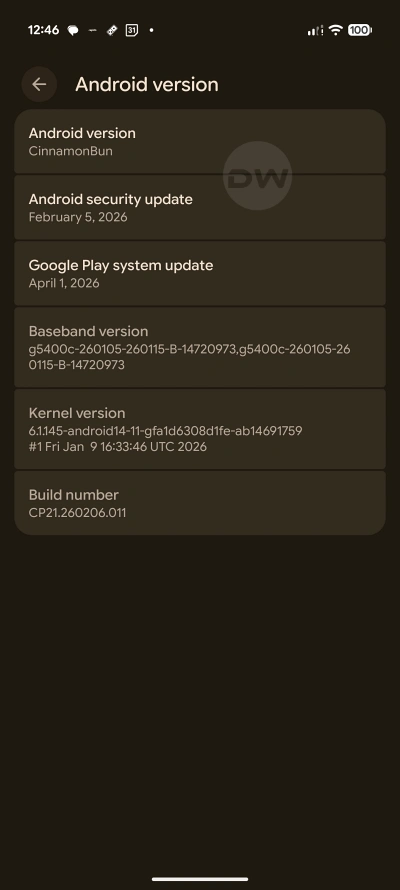
For owners of Google Pixel hardware, three primary avenues exist for returning to Android 16. Each method offers a different balance of convenience, speed, and technical control, allowing users to choose the path that best aligns with their technical proficiency and available resources.
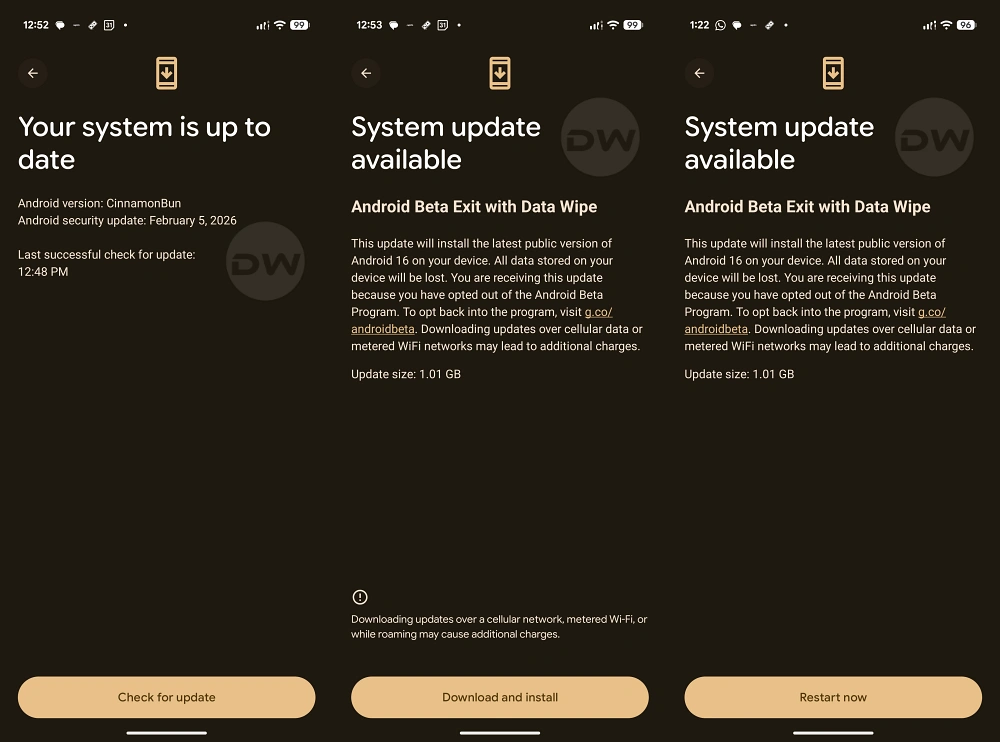
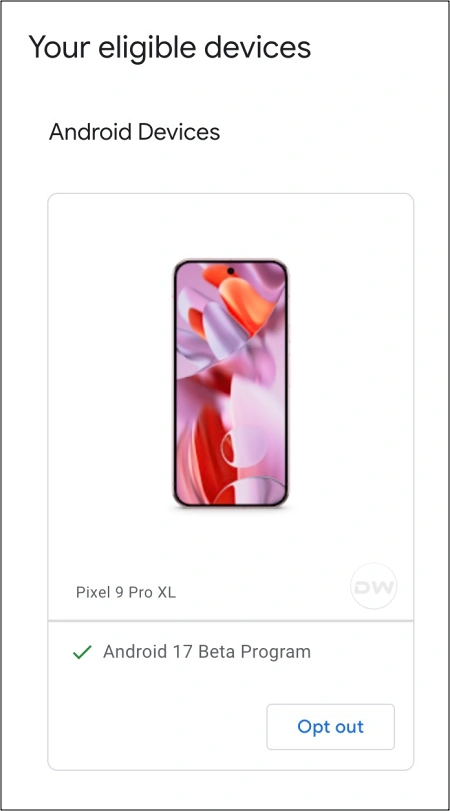
The first and most accessible method is the official "Opt-Out" procedure through the Android Beta Program. This approach is designed for the average user who may not have access to a desktop computer or who prefers a streamlined, automated experience. By visiting the official Android Beta portal and selecting the option to leave the program, a signal is sent to Google’s servers. Within a short period, the device receives an Over-The-Air (OTA) update notification. Unlike a standard update, this specific OTA package carries the instructions to wipe the device and reinstall the latest stable version of Android 16.
The primary advantage of the Opt-Out method is its simplicity; it does not require an unlocked bootloader or the use of specialized software on a PC. It is the only viable path for users who wish to maintain the strict security integrity of a locked bootloader throughout the process. However, this convenience comes at the cost of time. OTA installations are notoriously slow, as the device must verify the entire package and perform a thorough system rewrite while operating in a restricted mode. Furthermore, this method is strictly limited to users currently running a beta build who wish to return to the public stable release.
For those seeking a more rapid transition, the Android Flash Tool represents a significant advancement in device maintenance. This web-based utility, developed by Google, leverages the WebUSB API to allow users to flash system images directly from a browser such as Chrome or Edge. The Android Flash Tool simplifies what was once a complex command-line ordeal into a guided, graphical experience. After connecting the Pixel device to a computer and enabling the necessary developer options—specifically USB Debugging and OEM Unlocking—the tool automatically detects the hardware and offers a list of compatible firmware versions.

The speed of the Android Flash Tool is its greatest asset. Because it writes the system images directly to the device partitions via a wired connection, it bypasses the lengthy optimization phases associated with OTA updates. However, this method introduces a higher technical barrier. It requires the device’s bootloader to be unlocked, a state that temporarily weakens the device’s physical security and may trigger certain safety checks in banking or high-security applications until the bootloader is relocked. Despite these requirements, it remains the preferred choice for many due to its reliability and the visual feedback provided during the flashing process.
The third and most granular method involves the manual flashing of a Factory Image using Fastboot commands. This approach is the gold standard for power users and developers who require absolute control over the installation process. It involves downloading the full factory image package for Android 16 from Google’s official repository, which contains the bootloader, radio, and various system partition images. Using the Android Platform Tools on a PC, the user executes a series of commands—or runs a provided "flash-all" script—to manually overwrite the Android 17 environment.

Flashing a factory image is the most robust way to ensure a clean installation, as it replaces every component of the operating system. It is particularly useful in scenarios where a device might be "soft-bricked" or experiencing deep system-level corruption that an OTA update cannot fix. Like the Flash Tool, this method requires an unlocked bootloader and a functional data cable. While it may seem daunting to the uninitiated, the manual method provides the transparency and flexibility needed to troubleshoot specific errors that might occur during the more automated processes.
Regardless of the chosen method, the transition back to Android 16 serves as a reminder of the cyclical nature of software development. While the allure of Android 17’s "Cinnamon Bun" features is undeniable, the stability of a mature operating system like Android 16 is often more practical for the rigors of daily use. For Pixel users, the ability to move between these versions is a testament to the openness of the platform, provided one is willing to navigate the logistical hurdles of data management and technical configuration.

As the Android 17 development cycle continues to evolve, many users will find themselves repeating this process—leaping forward to test new builds and retreating to stable ground when the bugs become too intrusive. This "technical retreat" is not a failure of the software, but rather a vital part of the ecosystem that allows for rigorous real-world testing. By understanding the nuances of the Opt-Out program, the efficiency of the Android Flash Tool, and the precision of Fastboot commands, Pixel owners can navigate the frontier of mobile technology with the confidence that a path back to stability is always available.
Ultimately, the decision to downgrade is a personal one, balanced by the need for a functional device and the desire to witness the future of Android firsthand. As long as users prioritize data backups and follow the established technical protocols, the journey between Android versions remains a powerful tool in the arsenal of the modern smartphone enthusiast. Whether on a veteran device like the Pixel 6A or the latest flagship, the flexibility to choose one’s operating system environment remains a hallmark of the Google Pixel experience.
