

Updated on September 8, 2025
The Rockchip Create Upgrade Disk Tool, a dedicated Windows application, serves as a crucial utility for developers, technicians, and advanced users engaged with Rockchip-powered hardware, including single-board computers (SBCs) and various embedded systems. Its primary function revolves around the precise manipulation and provisioning of external storage media, specifically SD cards, enabling the installation of essential Rockchip boot firmware. This capability is foundational for initial system setup, firmware recovery operations, and complex testing procedures. The utility transcends simple data transfer by offering sophisticated control over the underlying storage structure, facilitating the creation and management of both physical and logical partitions. This granular control ensures that bootloaders and operational images are written to the exact required sectors, a necessity for reliable system initialization on Rockchip platforms.
The utility’s importance stems from the ubiquity of Rockchip SoCs across the consumer electronics and industrial IoT sectors. These processors require specific, often proprietary, boot sequences loaded from external media like SD cards during initial boot or recovery scenarios. Without a dedicated tool providing direct, low-level access to the writing process, achieving reliable firmware flashing onto these removable media becomes significantly more challenging, often relying on less predictable or slower methods. The Create Upgrade Disk Tool standardizes this critical step, offering a robust, Windows-native environment for these sensitive operations.
Deep Dive into the Core Functionalities of the Rockchip Create Upgrade Disk Tool
The Rockchip Create Upgrade Disk utility is architected around a suite of specialized features, each engineered to streamline the process of preparing bootable or operational SD cards for Rockchip devices. These functions collectively empower the user to move beyond simple file copying to true disk imaging and management.
Precision Firmware Flashing Capabilities
At the heart of the tool lies its direct firmware writing capability. This feature is designed to interface seamlessly with the specific requirements of Rockchip bootloaders. Unlike generic disk imaging tools that might only handle the file system layer, this utility interacts at a deeper level, ensuring that the critical boot sectors and necessary initialization code are correctly inscribed onto the SD card. It supports a broad spectrum of firmware formats commonly associated with Rockchip systems, guaranteeing compatibility whether one is provisioning a standard Android-based tablet or a highly customized embedded Linux development board. Proper bootloader installation via this mechanism is paramount, as an improperly written bootloader can render the target hardware completely unresponsive or lead to unpredictable boot failures. The tool abstracts the complexity of sector addressing, presenting a user-friendly interface for selecting the correct image file and destination media.
Advanced Partition Mapping and Control
One of the most distinguishing and powerful features of the Create Upgrade Disk Tool is its comprehensive partition management suite. Users are granted the ability to define and manipulate both physical and logical partitions on the target SD card. Physical partitions are directly mapped to the underlying storage structure, akin to traditional partitioning schemes. Logical partitions, conversely, often rely on container files or specific sector ranges designated for particular purposes within the overall firmware image structure. This dual capability is invaluable for complex deployments. For instance, developers might allocate a small, fixed-size physical partition exclusively for the bootloader and recovery kernel, reserving a larger, dynamically managed logical partition for the main operating system files or persistent user data storage. This systematic organization ensures that critical system components remain isolated and accessible, even if the main data partition is corrupted or needs frequent reformatting. Efficient storage allocation, driven by precise control over partition boundaries, directly contributes to system stability and deployment flexibility.
Versatile Operational Modes for Diverse Scenarios
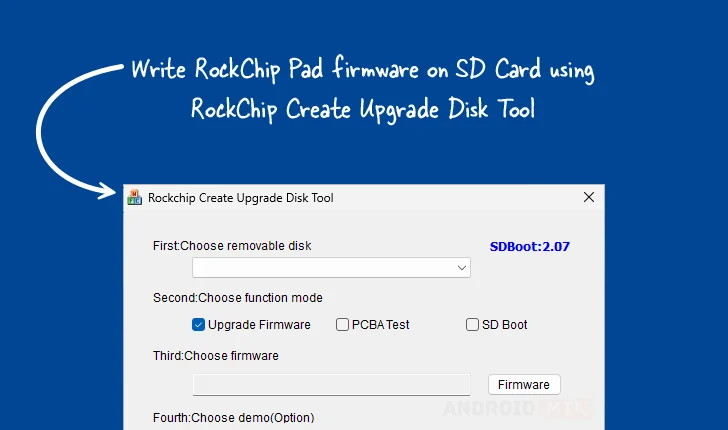
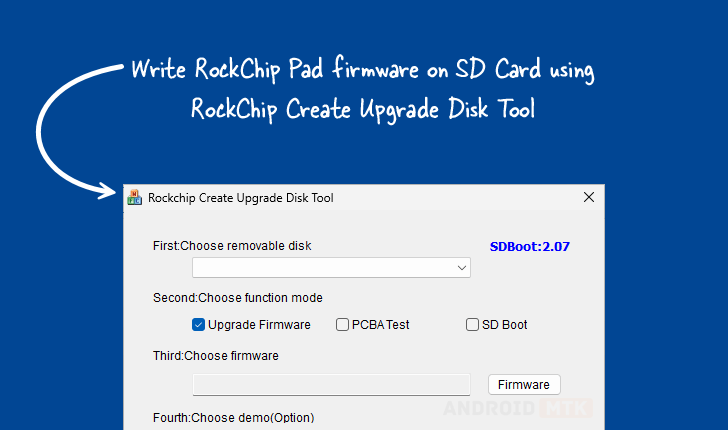
The utility recognizes that Rockchip hardware is utilized across a wide spectrum of applications, necessitating adaptable operational protocols. Consequently, it incorporates multiple operational modes tailored to specific workflows. The standard Firmware Upgrade Mode is utilized for routine system updates or initial provisioning. Beyond this, the tool supports specialized modes such as PCBA Testing, which implies direct interaction with hardware during the manufacturing or quality assurance phase, often involving low-level diagnostics or pre-flashing validation routines. Furthermore, the SD Boot Option facilitates scenarios where the SD card is intended solely as a temporary boot medium to load a kernel or diagnostic environment before mounting internal storage or initiating network booting protocols. This multi-mode architecture transforms the tool from a simple writer into a comprehensive provisioning platform adaptable to development, manufacturing, and end-user recovery requirements.

Granular and Selective Data Placement
The capacity for Selective Data Writing elevates the tool’s utility beyond monolithic image flashing. This feature empowers users to target specific sectors or predefined partition boundaries for the injection of individual data blobs, configuration files, or specific image segments. Instead of rewriting an entire multi-gigabyte image when only a small configuration file needs updating, a technician can select that specific partition or sector range and write only the necessary bytes. This offers significant time savings, especially when dealing with large firmware packages or during iterative development cycles where minor adjustments are frequent. Precise control over data placement is crucial for systems employing security features like verified boot, where the placement and integrity of cryptographic keys or signature blocks must adhere strictly to established memory maps.
Real-Time Operational Visibility
To maintain user confidence and facilitate troubleshooting during potentially lengthy writing processes, the Rockchip Create Upgrade Disk Tool integrates robust Progress Monitoring. A visually intuitive progress bar provides continuous, real-time feedback on the operation’s advancement. This feedback is critical, as low-level disk operations can sometimes appear unresponsive on standard operating system interfaces. By displaying the percentage complete, estimated time remaining (in more advanced iterations), and often logging discrete milestones (e.g., "Writing Bootloader," "Formatting Partition 2"), the tool ensures transparency. This visibility is essential for diagnosing hangs or failures, allowing the user to distinguish between a slow operation and a stalled process, thereby minimizing unnecessary interruptions.
Integrated Testing and Verification Support
The inclusion of optional Demo Support functionality provides a valuable layer for validation. While not intended for final production deployment, this mode allows users to execute a simulated or controlled test run of the write process and partition setup. This is particularly useful in training environments or when validating a newly created script or configuration file against the tool’s interface before committing the changes to valuable hardware or production media. It acts as a pre-flight check, confirming that the selected configuration will behave as expected upon physical hardware interaction.
Essential Data Resilience and Recovery Mechanisms
Recognizing that data operations inherently carry risk, the tool incorporates a Restore Capability. This feature is a crucial safety net, designed to revert the SD card to a previously known good state or to recover from a failed write operation that may have left the card in an unreadable condition. In complex scenarios involving multiple partitioning steps or experimental firmware loads, the ability to quickly roll back to a stable configuration significantly mitigates the risk associated with experimentation. This recovery pathway ensures data integrity and maximizes the uptime of development resources by providing a reliable escape route from problematic installations.
Accessing and Deploying the Utility
For professionals requiring this specialized functionality, the Rockchip Create Upgrade Disk Tool is made available for the Windows operating system, supporting both 32-bit and 64-bit architectures to accommodate a wide range of host machines. The availability of different versions reflects ongoing development, bug fixes, and compatibility updates targeting newer Rockchip silicon revisions or evolving firmware standards. Users are advised to select the version most appropriate for their target hardware, although newer versions often maintain backward compatibility.
The following table delineates the publicly accessible download links for verified versions of the software:
| Version | Download Link |
|---|---|
| 1.4 | Link |
| 1.53 | Link |
| 1.7 | Link |
Notes on Implementation:
When utilizing any low-level disk utility, adherence to best practices is essential to prevent data loss on the host machine. Users should ensure that the target SD card is correctly selected, as mistakenly pointing the tool to an internal hard drive or a primary USB stick could result in catastrophic data erasure. Furthermore, operations involving firmware flashing should ideally be conducted using a reliable power source, as sudden power loss during the write cycle is the most common cause of corrupted boot sectors and necessitates the use of the recovery features detailed above. The documentation accompanying the specific firmware image being loaded should always be consulted for any Rockchip-specific prerequisites or version dependencies related to the Create Upgrade Disk Tool.
