

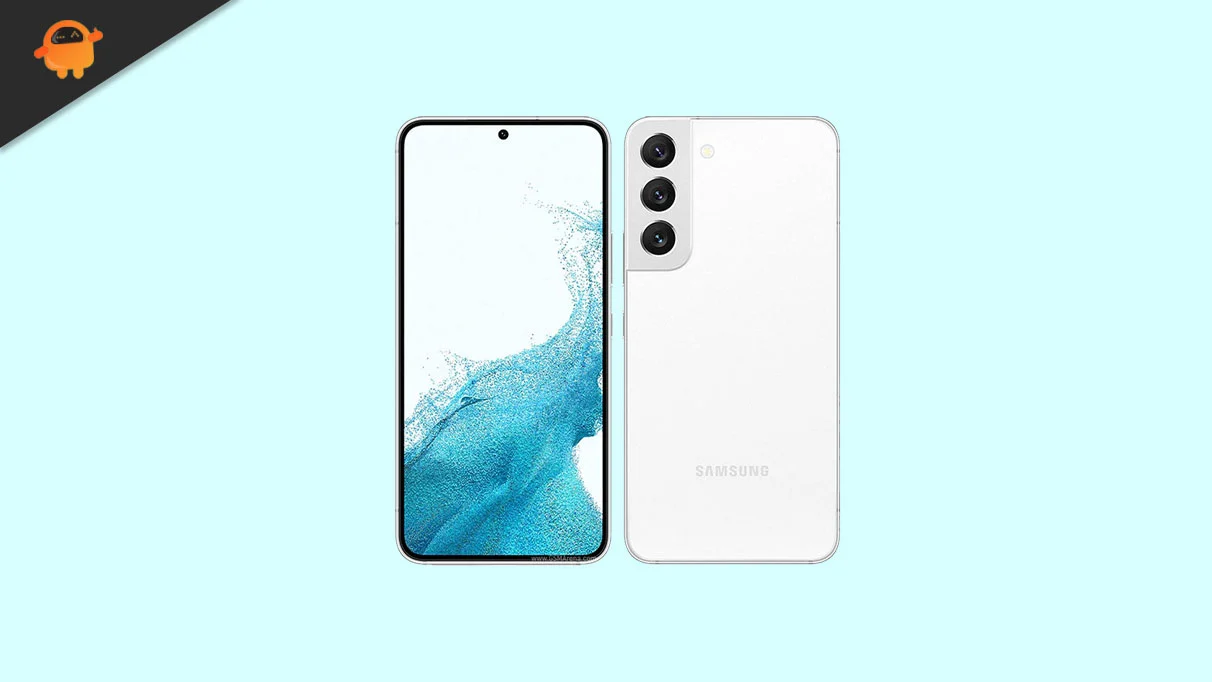
The rapid evolution of the Android ecosystem often leaves even flagship-tier hardware behind in the wake of Google’s relentless annual update cycle. While the Samsung Galaxy S22 and S22 Plus remain formidable devices in terms of raw processing power and display technology, official manufacturer support for the latest operating systems eventually tapers off. However, the Android enthusiast community has long bridged this gap through the Android Open Source Project (AOSP). With the recent release of Android 16 for Google’s Pixel lineup, independent developers have successfully ported unofficial AOSP builds to the Galaxy S22 family. This initiative allows users to bypass official release schedules and breathe new life into their 2022 flagships by installing the latest iteration of the world’s most popular mobile operating system.
The Samsung Galaxy S22 series represents a pivotal moment in the company’s hardware history. Released with a focus on refined aesthetics and high-performance silicon, the standard S22 features a 6.1-inch Dynamic AMOLED 2X display, while the S22 Plus offers a larger canvas for media consumption. Both panels support a 120Hz adaptive refresh rate and boast a peak brightness of 1,300 nits, ensuring visibility even under direct sunlight. Protection is handled by Corning’s Gorilla Glass Victus+, a testament to the build quality that remains competitive years after its debut. Under the hood, the series utilizes a dual-chipset strategy: the Qualcomm Snapdragon 8 Gen 1 powers devices in most global markets, while the Exynos 2200, featuring an AMD RDNA 2-based GPU, serves the European region. Both chips are built on a 4nm process, providing the necessary overhead to handle the increased demands of Android 16’s modernized architecture.
![How to Install Android 16 on Samsung Galaxy S22 and S22 Plus [Download Link]](https://www.getdroidtips.com/wp-content/uploads/2022/04/Samsung-Galaxy-S22.webp)
Android 16 arrives with a significant visual and functional evolution known as "Material 3 Expressive." This design philosophy is not a radical departure from the Material You aesthetic introduced in earlier versions but rather a sophisticated refinement. It introduces smoother, more dynamic animations that respond to user intent with greater fluidness, larger touch targets for improved accessibility, and bolder typography that enhances readability across various screen sizes. For the Galaxy S22, this update refreshes the user interface, making the device feel contemporary. Beyond aesthetics, Android 16 focuses heavily on system-level optimizations, targeting better memory management and reduced background latency. These under-the-hood improvements are particularly beneficial for devices like the S22, which may begin to show their age under the weight of modern, resource-heavy applications.
The transition to a custom ROM environment is a process reserved for users who prioritize software freedom and longevity over the standard "out-of-the-box" experience. Because these Android 16 builds are unofficial AOSP ports, they lack the Samsung One UI skin. This results in a "cleaner" experience that is closer to what Google intended for its Pixel devices. However, this also means users must be prepared for a technical installation process. Before embarking on this journey, several prerequisites must be met to ensure the safety and functionality of the device.
Foremost among these requirements is the unlocking of the device’s bootloader. Samsung’s security architecture is notoriously robust, and unlocking the bootloader is a prerequisite for flashing any software not signed by the manufacturer. It is important to note that this action typically trips Samsung’s Knox security counter, which may permanently disable features like Samsung Pay and Secure Folder. Furthermore, a comprehensive data backup is mandatory. The installation process requires a "clean flash," which involves wiping the internal storage entirely. Users should utilize cloud services or external hardware to secure their photos, contacts, and personal documents before proceeding.
![How to Install Android 16 on Samsung Galaxy S22 and S22 Plus [Download Link]](https://www.getdroidtips.com/wp-content/uploads/2022/04/Samsung-Galaxy-S22-300x169.webp)
Technical stability during the installation is equally critical. The device must maintain a battery charge of at least 50% to prevent an unexpected shutdown during the flashing of the system partition, which could lead to a "brick" state where the phone becomes unresponsive. On the software side, the user must have a computer equipped with the latest ADB (Android Debug Bridge) and Fastboot binaries. These tools facilitate communication between the PC and the smartphone when the latter is in its bootloader or recovery mode. Additionally, the latest Samsung USB drivers must be installed on the computer to ensure a stable data link via the USB-C cable.
The installation of a custom recovery, such as Team Win Recovery Project (TWRP), is the next essential step. TWRP acts as a secondary operating system designed specifically for maintenance tasks, allowing users to flash ZIP files, create "Nandroid" backups, and manage partitions. Once TWRP is successfully installed on the Galaxy S22 or S22 Plus, the user can then download the Android 16 custom ROM and the corresponding Google Apps (GApps) package. Since AOSP is fundamentally open-source, it does not include proprietary Google services like the Play Store, Gmail, or Maps by default. Flashing a GApps package immediately after the ROM ensures that these essential services are integrated into the system upon the first boot.
The installation procedure itself follows a logical sequence. After booting the Galaxy S22 into TWRP recovery, the user must navigate to the "Wipe" section and perform a factory reset. For a truly clean installation, an "Advanced Wipe" targeting the System, Data, and Cache partitions is recommended. Once the device is prepared, the user navigates to the "Install" menu, selects the Android 16 ROM file, and initiates the flash. Without rebooting, the user must then flash the GApps package. This "double-flash" technique is vital for the stability of Google Play Services.
![How to Install Android 16 on Samsung Galaxy S22 and S22 Plus [Download Link]](https://www.getdroidtips.com/wp-content/uploads/2020/06/cmd-platform-tools.jpg)
Upon the first boot of Android 16, users may notice a longer-than-average startup time. This is normal, as the system is configuring the new ART (Android Runtime) cache and setting up the encrypted data partition. Once the setup wizard appears, the Galaxy S22 will function as a new device, running a version of Android that is technically years ahead of its official support lifecycle.
Early reports from the developer community suggest that these initial Android 16 ports for the S22 series are remarkably stable. Core functionalities—including Wi-Fi, Bluetooth, cellular data, and the triple-camera array—are generally operational. The 50MP primary sensor and the telephoto lenses remain fully functional, though users may need to utilize third-party camera apps like Google Camera (GCam) ports to achieve image processing parity with Samsung’s original software. Despite this stability, as with any unofficial software, minor bugs may persist. These often include glitches in specific sensor calibrations or minor UI inconsistencies. Users are encouraged to participate in developer forums to report these issues, providing logs that help the community refine the software further.
The decision to install Android 16 on a Samsung Galaxy S22 or S22 Plus is a statement of intent. It is a choice to prioritize the latest software innovations and a minimalist user interface over the feature-rich but often heavier One UI experience. By leveraging the power of the Snapdragon 8 Gen 1 or Exynos 2200, users can effectively extend the relevant lifespan of their hardware by several years. As the Android 16 source code matures and more developers contribute to the S22’s device trees, the experience will only become more polished. For the tech-savvy enthusiast, this guide serves as a gateway to modernizing a classic piece of Samsung engineering, ensuring that the Galaxy S22 remains a cutting-edge tool in an ever-shifting digital landscape.
