

The Samsung Galaxy S22 Ultra remains a landmark achievement in the world of mobile technology, serving as the definitive bridge between the high-performance S-series and the productivity-focused legacy of the Galaxy Note. While Samsung’s official software support remains industry-leading, tech enthusiasts and power users often seek to push their hardware beyond the constraints of official manufacturer timelines. With Google’s recent release of Android 16 for its Pixel lineup, the independent developer community has moved with unprecedented speed to port unofficial Android Open Source Project (AOSP) builds to the Galaxy S22 Ultra. This guide provides a comprehensive look at the hardware’s enduring relevance, the innovations found within Android 16, and a meticulous walkthrough for installing this cutting-edge operating system on your device.
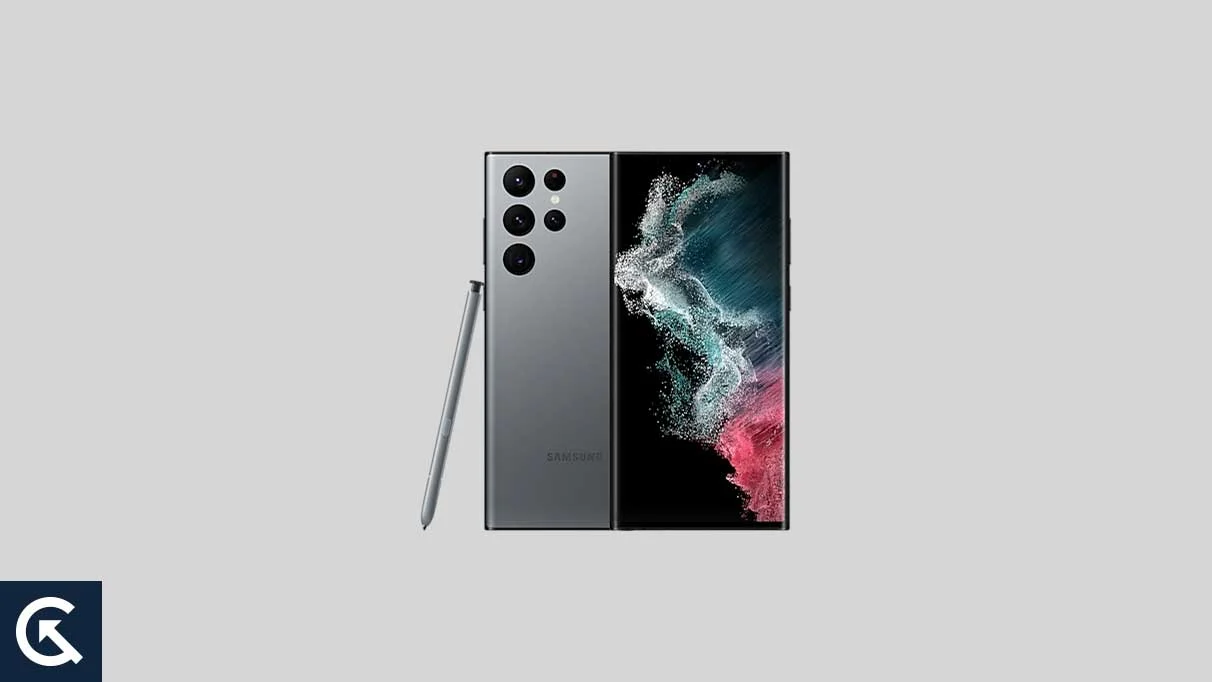
The Samsung Galaxy S22 Ultra is a device that refuses to show its age. Launched as a powerhouse designed to satisfy the most demanding users, it features a 6.8-inch Dynamic AMOLED 2X display that continues to set a high bar for visual fidelity. With a QHD+ resolution and a peak brightness of 1,750 nits, the screen offers an immersive experience further enhanced by an adaptive 120Hz refresh rate. Under the hood, the device is powered by either the Qualcomm Snapdragon 8 Gen 1 or the Samsung Exynos 2200, depending on the geographic region. Both chipsets were designed to handle intensive multitasking, high-end gaming, and complex computational photography.
![How to Install Android 16 on Samsung Galaxy S22 Ultra [Download Link]](https://www.getdroidtips.com/wp-content/uploads/2023/02/Samsung-Galaxy-S22-Ultra.webp)
The inclusion of the integrated S Pen, featuring a remarkably low latency of 2.8 milliseconds, transformed the S22 Ultra into a portable workstation. Its quad-camera system, headlined by a 108-megapixel primary sensor and dual telephoto lenses offering up to 100x Space Zoom, remains competitive even against newer flagship iterations. Despite the passage of time, the S22 Ultra’s 5,000 mAh battery and premium build quality—utilizing Gorilla Glass Victus+ and an Armor Aluminum frame—ensure it remains a viable candidate for software experimentation. By installing an Android 16-based custom ROM, users can strip away the heavy layers of Samsung’s One UI in favor of a lean, lightning-fast experience that prioritizes the latest Google-led innovations.
Android 16 introduces a paradigm shift in user interface design through the "Material 3 Expressive" philosophy. This evolution of Google’s design language does not seek to reinvent the wheel but rather to polish every interaction to a mirror shine. Material 3 Expressive focuses on fluid dynamics, larger and more intuitive touch targets, and a bold approach to typography that improves legibility across various lighting conditions. While Material Design 3, introduced with Android 13, provided a solid foundation, it eventually began to feel static. Android 16 breathes new life into the ecosystem with smoother transition animations that make the OS feel more responsive to user input.
Beyond the visual refinements, Android 16 brings significant under-the-hood optimizations. These include enhanced privacy controls that give users more granular authority over how apps access sensitive data, as well as system-level performance tweaks designed to maximize battery efficiency and reduce background process latency. For the Galaxy S22 Ultra, which possesses ample hardware resources, these optimizations translate into a device that feels faster and more "snappy" than it did on day one. By opting for an AOSP-based ROM, users can experience Android as Google intended—clean, efficient, and free from the bloatware that often accompanies carrier-branded or manufacturer-specific software.
![How to Install Android 16 on Samsung Galaxy S22 Ultra [Download Link]](https://www.getdroidtips.com/wp-content/uploads/2023/02/Samsung-Galaxy-S22-Ultra-300x169.webp)
Before embarking on the installation of a custom ROM, it is imperative to understand that this process involves modifying the core software of your device. This path is reserved for those who are comfortable with technical troubleshooting. The first and most critical step is the creation of a comprehensive data backup. Flashing a custom ROM requires a factory reset, which will erase all internal storage, including photos, contacts, and messages. Utilizing cloud services or local backups to a personal computer is highly recommended to ensure no vital information is lost during the transition.
Furthermore, the hardware must be prepared for the procedure. Ensure your Galaxy S22 Ultra has at least 50% battery life to prevent an unexpected shutdown during the flashing process, which could result in a "bricked" or unusable device. You will also need a stable USB connection to a computer equipped with the necessary Samsung USB drivers and ADB (Android Debug Bridge) and Fastboot binaries. These tools act as the communication bridge between your PC and the phone’s bootloader.
The most significant hurdle for many users is unlocking the bootloader. Samsung devices, particularly those with Knox security, require a specific set of steps to unlock this gateway. Unlocking the bootloader is a prerequisite for installing a custom recovery like TWRP (Team Win Recovery Project). TWRP is an essential tool in the enthusiast’s arsenal, providing a touch-based interface for wiping partitions, flashing image files, and creating "Nandroid" backups of the entire system. Once TWRP is successfully installed on your S22 Ultra, you gain the ability to move beyond Samsung’s official firmware.
![How to Install Android 16 on Samsung Galaxy S22 Ultra [Download Link]](https://www.getdroidtips.com/wp-content/uploads/2020/06/cmd-platform-tools.jpg)
To begin the installation of Android 16, you must download the appropriate ROM file specifically built for the Galaxy S22 Ultra. Because most AOSP builds are "vanilla," they do not include Google Play Services or the Google Play Store by default. Therefore, you must also download an Android 16-compatible GApps (Google Apps) package. It is vital to flash the GApps package immediately after the ROM and before the first reboot to ensure that Google services are integrated correctly into the system permissions.
The step-by-step installation process begins by transferring the downloaded ROM and GApps files to your device’s internal storage or an external USB-OTG drive. Boot your Galaxy S22 Ultra into TWRP recovery mode by using the specific button combination or via an ADB command from your computer. Once in TWRP, navigate to the "Wipe" menu and perform a "Factory Reset." For a cleaner installation, some developers recommend a "Format Data" command, which requires typing "yes" to confirm the removal of encryption.
After the device is wiped, return to the main menu and select "Install." Locate the Android 16 ROM file and swipe to confirm the flash. Once the ROM is installed, repeat the process for the GApps package. After both files have been successfully flashed, it is often recommended to wipe the Cache and Dalvik partitions one last time. Finally, select "Reboot System." The initial boot process for a new custom ROM is significantly longer than a standard reboot, as the system must build its initial cache and configure the new OS environment.
![How to Install Android 16 on Samsung Galaxy S22 Ultra [Download Link]](https://www.getdroidtips.com/wp-content/uploads/2020/08/twrp-custom-rom.jpg)
Upon reaching the Android 16 setup screen, users will immediately notice the "Expressive" design changes. The interface is clean, the animations are buttery smooth, and the absence of pre-installed bloatware leaves a significant amount of RAM available for user applications. While these early AOSP builds are remarkably stable, users should remain aware that they are unofficial software. Features like Samsung Pay or certain high-level DRM for streaming services may function differently due to the tripped Knox security flag. However, for those who prioritize the latest software features and a decluttered interface, the trade-off is often well worth it.
In conclusion, the Samsung Galaxy S22 Ultra continues to be a formidable piece of hardware that can easily keep pace with the demands of 2024 and beyond. By installing an Android 16 custom ROM, you are not merely updating an operating system; you are revitalizing the device’s core identity. This process grants you access to the cutting edge of Google’s software engineering, providing a refined, modern, and highly customizable user experience. As the developer community continues to refine these builds, the S22 Ultra will likely remain a favorite for those who believe that the life of a great phone should be determined by its hardware potential, not just its official support window. Stay engaged with developer forums, report any bugs you encounter with logs, and enjoy the premier experience of Android 16 on one of Samsung’s greatest flagship achievements.
