

The strategic partnership between Samsung Electronics and Microsoft has long been a cornerstone of the Android productivity experience, offering users a seamless bridge between their mobile devices and Windows workstations. However, this synergy has recently encountered a significant hurdle as a growing number of users report persistent performance failures within the Microsoft Edge browser on Samsung hardware. While initial reports concentrated on the flagship Samsung Galaxy S26 Ultra running the cutting-edge One UI 8.5, subsequent data suggests a much broader systemic issue. Troubleshooting logs and community forums indicate that the instability extends to older devices operating on One UI 6 and One UI 7, suggesting that the conflict may lie at the intersection of Chromium-based rendering and Samsung’s proprietary software overlays.

When a core application like a web browser fails to launch or crashes during operation, the impact on the user’s workflow is immediate and severe. Microsoft Edge is not merely a portal to the internet; for many Galaxy users, it is a hub for synced passwords, enterprise-grade security features, and "Continue on PC" functionality. The current wave of malfunctions ranges from immediate force-closes upon startup to unresponsive touch inputs and "white-screen" freezes. In response to these challenges, a comprehensive suite of diagnostic and remedial measures has been identified to restore browser functionality.
The first and most fundamental step in addressing application instability involves a hard reset of the software’s active memory. In the Android environment, simply swiping an app away from the "Recents" menu does not always terminate its background services or persistent processes. If a specific thread within Microsoft Edge has entered a "zombie state"—where it is neither fully active nor fully closed—it can prevent the app from re-initializing correctly. By navigating to the system settings and utilizing the "Force Stop" command, users can ensure that every process associated with the browser is purged from the RAM. This allows for a clean execution of the application’s code upon the next launch, often bypassing temporary glitches caused by memory leaks or interrupted script executions.

If a process restart fails to yield results, the investigation must turn toward the application’s temporary data storage. Microsoft Edge, like all modern browsers, utilizes a cache to store elements of frequently visited websites, such as images, stylesheets, and scripts. This is intended to accelerate loading speeds; however, over time, the cache can become a liability. Accumulated data may become corrupted or may conflict with new updates to the browser’s engine. Deleting the cache is a non-destructive way to resolve these conflicts. Unlike clearing the entire data partition, clearing the cache does not log the user out or delete browsing history. It simply forces the browser to re-download fresh, uncorrupted versions of web assets, which frequently resolves rendering issues and "hangs" during page loads.
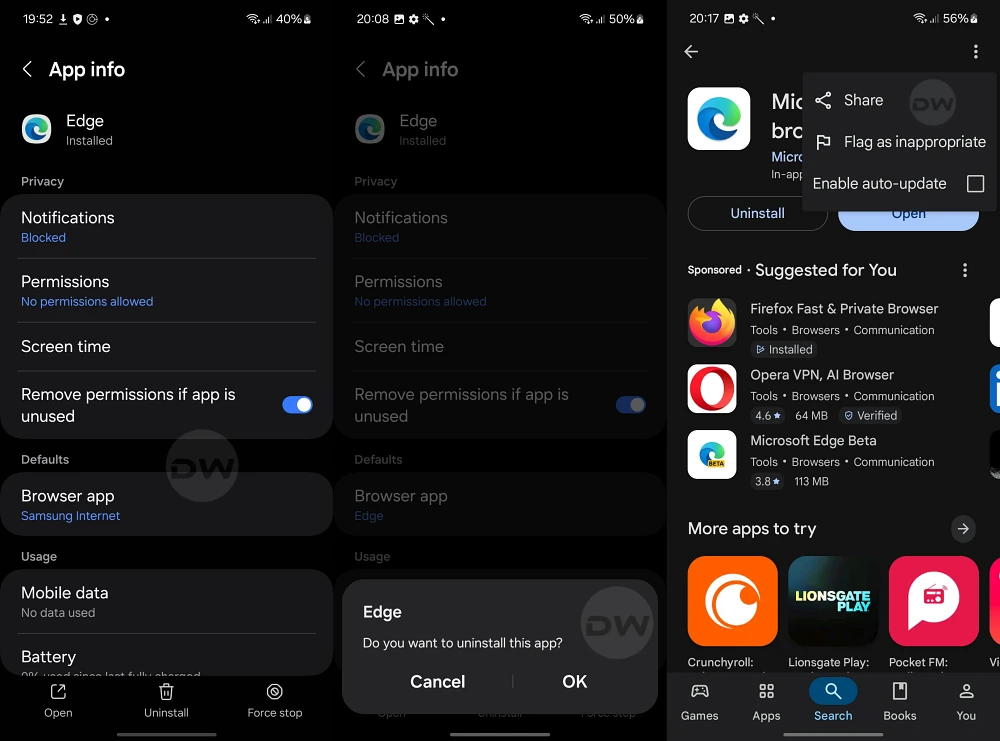
A more nuanced cause of failure involves Android’s evolved privacy and power-management features. In recent versions of One UI, the operating system includes a feature designed to "pause app activity" if a tool has not been utilized for an extended period. While this is an excellent security measure—revoking permissions and freezing background tasks to save power—it can occasionally trigger a false positive. If the system mistakenly flags Microsoft Edge as dormant, it may revoke essential permissions required for the browser to access the internet or the device’s file system. Users are encouraged to inspect the "App Info" settings for Edge to ensure that the "Remove permissions and free up space" toggle is disabled. Reinstating these permissions ensures that the browser is not operating in a restricted environment that prevents it from communicating with external servers.

In the complex hierarchy of mobile operating systems, the "Default Browser" status carries more weight than simple user preference. When an application is set as the system default, the OS prioritizes its resource allocation and ensures that "intents"—the signals sent when a user clicks a link in an email or a messaging app—are routed correctly. There are documented instances where third-party browsers like Microsoft Edge struggle to maintain a stable connection with the OS if they are competing with a different default, such as Google Chrome or Samsung Internet. By explicitly setting Edge as the default browser within the "Default Apps" submenu of the Samsung settings, users can often stabilize the app’s behavior, as the system grants it a more permanent and prioritized place in the software stack.
Power management is another area where Samsung’s One UI is particularly aggressive. To extend battery life, the system often places apps into "Optimized" or "Restricted" modes, which can throttle CPU usage or limit background synchronization. For a resource-heavy application like Microsoft Edge, these restrictions can be catastrophic, leading to sluggish performance or crashes during heavy multitasking. Transitioning the app to "Unrestricted" battery usage allows it to draw the necessary power to handle complex web scripts and high-definition media without interference from the system’s power-saving algorithms. While this may result in a marginal increase in battery drain, it is often a necessary trade-off for professional users who require absolute stability.

Connectivity remains the lifeblood of the Microsoft Edge experience, particularly for those who rely on its synchronization features. If the "Background Data" toggle is disabled, the browser may fail to sync tabs, passwords, and security certificates in the background. This can lead to a mismatch between the local app state and the cloud server, causing the app to stall or crash when it finally attempts to reconcile the data. Ensuring that the app has unrestricted access to background data—even when "Data Saver" mode is active—guarantees a constant, stable stream of information, preventing the synchronization bottlenecks that frequently cause UI freezes.
When all non-invasive measures have been exhausted, users may need to resort to clearing the application’s storage entirely. This "nuclear option" deletes all local data, including cookies, local settings, and offline files. It effectively reverts the browser to its factory-installed state. While this requires the user to log back into their Microsoft account and re-configure their preferences, it is the most effective way to eliminate deep-seated data corruption that survives a simple cache wipe. Before proceeding with this step, it is vital to ensure that all bookmarks and passwords have been synced to the Microsoft Cloud, as any un-synced data residing solely on the device will be permanently lost.

Finally, if the instability persists even after a total data reset, the problem likely resides within the specific version of the Microsoft Edge build in relation to the Samsung firmware. Software development is an iterative process, and occasionally, a new update may introduce a regression or a compatibility bug that was not caught during beta testing. In such scenarios, downgrading to a previous, stable version of the browser can serve as an effective stopgap until an official patch is released. This process typically involves uninstalling the current version and manually installing an older APK (Android Package) file from a reputable source. Users should exercise caution and ensure they are downloading legitimate, signed binaries to maintain the security of their device.
The challenges facing Microsoft Edge users on Samsung devices highlight the inherent complexities of the modern mobile software landscape. As operating systems like One UI continue to evolve with more aggressive power management and privacy controls, the burden on third-party developers to maintain perfect compatibility grows. By systematically applying these fixes—from basic process management to advanced data resets—users can navigate these technical hurdles and restore the high-performance browsing experience they expect from the Samsung and Microsoft partnership. Both companies are likely monitoring these reports, and while a permanent fix via a software update is the ultimate goal, these manual interventions provide a necessary lifeline for the global user base.
