

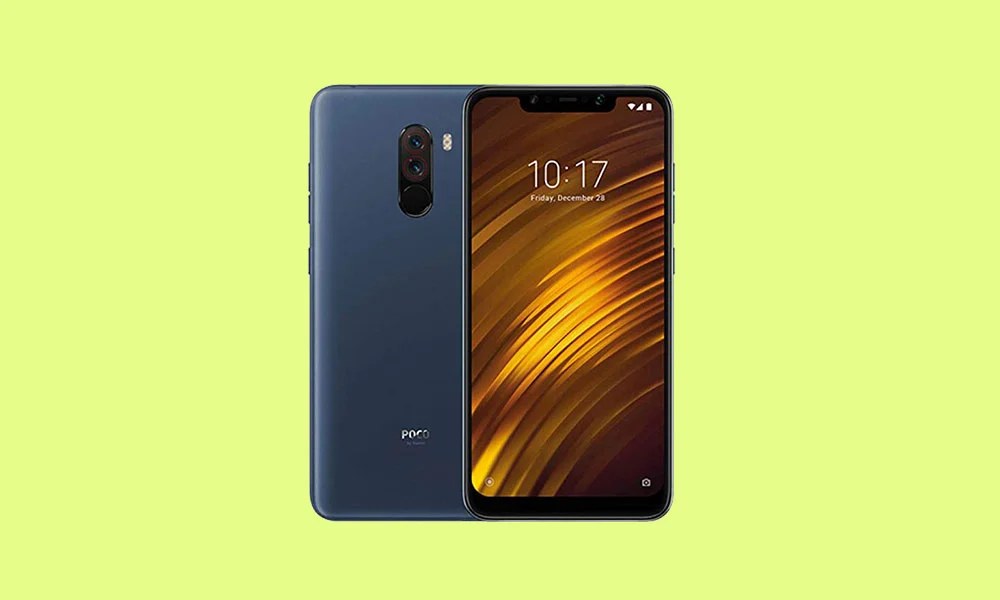
The Xiaomi Poco F1 remains one of the most significant landmarks in smartphone history, a device that fundamentally shifted consumer expectations regarding the relationship between price and performance. Launched in 2018 under the sub-brand Pocophone, the "F1" earned its reputation as a "flagship killer" by offering the top-tier Qualcomm Snapdragon 845 processor at a fraction of the cost of its competitors. While official software support from Xiaomi has long since concluded, the device’s vibrant developer community has refused to let it fade into obsolescence. In a remarkable feat of software engineering, developers have successfully ported unofficial builds of Android 16 to the Poco F1, allowing this six-year-old hardware to run Google’s most advanced operating system to date.
The arrival of Android 16 on the Poco F1 is not merely a novelty; it represents a significant leap forward in user interface design and system efficiency. The centerpiece of this update is the introduction of "Material 3 Expressive." Since the debut of Material Design 3 with Android 13, the visual language of the ecosystem has remained relatively stable. However, Android 16’s Expressive evolution seeks to breathe new life into the interface. Rather than a total departure from established norms, it refines the existing foundation by introducing more dynamic animations, bolder typography, and larger, more intuitive touch targets. For a device like the Poco F1, which features a 6.18-inch Full HD display, these UI enhancements provide a modern aesthetic that makes the aging hardware feel contemporary once again.
![How to Install Android 16 on Xiaomi Poco F1 [Download Link]](https://www.getdroidtips.com/wp-content/uploads/2020/05/Download-and-Install-MIUI-12-ROM-for-Xiaomi-Poco-F1.jpg)
The hardware underlying the Poco F1 remains surprisingly capable of handling modern software demands. The Snapdragon 845, paired with the Adreno 630 GPU and up to 8GB of RAM, provides enough raw power to navigate the fluid animations of Android 16. While modern mid-range chips may offer better power efficiency, the raw performance of the 845 ensures that system-level tasks remain snappy. Furthermore, the Poco F1’s substantial 4,000 mAh battery and its LiquidCool technology provide a stable environment for running a modern, feature-rich OS. By moving to an Android 16-based custom ROM, users can bypass the heavy MIUI skin that originally shipped with the device, opting instead for a clean, lean Android Open Source Project (AOSP) experience that maximizes the available hardware resources.
Beyond the visual overhaul, Android 16 brings a suite of under-the-hood optimizations designed to improve the user experience across various form factors. While the Poco F1 is a traditional smartphone, it benefits from the improved system-level handling of background processes and memory management that Google has baked into this version. The update focuses on "polish and fluidity," ensuring that transitions between apps and system menus are smoother than ever. For long-time Poco F1 users, the move to Android 16 is perhaps the best way to extend the device’s lifecycle, providing access to the latest security protocols and application compatibility that older versions of Android simply cannot offer.
However, the transition to a cutting-edge operating system on legacy hardware requires a meticulous approach to installation. Because this is an unofficial AOSP build, it is not delivered via a standard over-the-air update. Instead, users must engage with the custom ROM ecosystem, a process that begins with comprehensive data preparation. Before any technical steps are taken, a full backup of all personal data is mandatory. The installation process involves wiping the device’s internal storage, meaning all photos, messages, and documents must be secured externally. Additionally, the device’s battery should be charged to at least 50% to prevent an unexpected shutdown, which could lead to a software "brick," rendering the phone unusable.
![How to Install Android 16 on Xiaomi Poco F1 [Download Link]](https://www.getdroidtips.com/wp-content/uploads/2020/05/Download-and-Install-MIUI-12-ROM-for-Xiaomi-Poco-F1-300x180.jpg)
The technical foundation of this installation relies on three primary pillars: an unlocked bootloader, a custom recovery environment, and the appropriate drivers. Unlocking the bootloader is the first hurdle, as Xiaomi requires users to utilize their official unlock tool, a process that often involves a waiting period and a complete factory reset. Once the bootloader is open, the installation of TWRP (Team Win Recovery Project) is necessary. TWRP acts as a secondary mini-operating system that allows users to flash custom firmware files directly onto the device’s partitions. Without this specialized recovery environment, installing an unofficial build of Android 16 would be impossible.
Furthermore, the connection between the Poco F1 and a computer must be established using ADB (Android Debug Bridge) and Fastboot binaries. These command-line tools are the primary means of communication during the early stages of the flashing process. They allow the user to send instructions to the phone while it is in its bootloader mode. Accompanied by the latest Xiaomi USB drivers, these tools ensure that the transfer of the Android 16 ROM file is stable and error-free.
The software package itself consists of two main components: the Android 16 ROM and Google Apps (GApps). Because AOSP is a "de-Googled" version of Android, it does not natively include the Play Store, Gmail, or Maps. To regain these services, users must download a compatible Android 16 GApps package. A critical technical note for installers is the sequence of operations: the ROM and GApps must be flashed consecutively within the same recovery session. Rebooting the device between these two steps often leads to a "bootloop" or system instability, as the OS needs to initialize the Google service framework during its very first boot cycle.
![How to Install Android 16 on Xiaomi Poco F1 [Download Link]](https://www.getdroidtips.com/wp-content/uploads/2020/06/cmd-platform-tools.jpg)
The actual installation within TWRP follows a logical progression. After entering the recovery mode, the user must perform a "Factory Reset" and wipe the System, Data, and Cache partitions. This creates a "clean slate," ensuring that no remnants of the old MIUI or previous ROMs interfere with the Android 16 installation. Once the partitions are cleared, the user navigates to the "Install" menu, selects the Android 16 ROM file, and initiates the flash. Following the successful installation of the OS, the GApps package is flashed in the same manner. Only after both files are successfully written to the device should the user select the "Reboot System" option.
The initial boot after such a significant upgrade is notoriously slow. The system must build new cache files and initialize the modern Android environment on the older Snapdragon architecture. Once the device reaches the setup screen, users will be greeted by the Material 3 Expressive interface. While early reports indicate that these unofficial builds are surprisingly stable—with core functions like Wi-Fi, Bluetooth, and cellular data working as expected—users should remain vigilant. As with any community-developed software, minor bugs may persist. It is standard practice in the developer community to report these issues with "logcats" (system logs), which allow the developers to identify and patch errors in future releases.
Ultimately, installing Android 16 on the Xiaomi Poco F1 is a testament to the longevity of well-built hardware when supported by a passionate community. It transforms a device that many would consider "e-waste" into a modern, functional smartphone capable of running the latest software features. By following the rigorous installation steps and understanding the underlying mechanics of custom ROMs, Poco F1 owners can continue to enjoy their legendary device for years to come. This process not only provides a fresh user experience but also serves as an act of digital sustainability, proving that the latest innovations in mobile software do not always require the purchase of the latest hardware.
