

In the modern digital landscape, the Universal Serial Bus (USB) port serves as the primary gateway for hardware interaction, facilitating everything from data transfers and input commands to power delivery. However, even within the sophisticated architecture of Windows 11 and its predecessors, users frequently encounter a frustrating phenomenon: the sudden and unexplained failure of USB ports. This issue, while often appearing as a catastrophic hardware failure, frequently stems from a complex interplay between physical environmental factors and underlying software configurations. Understanding the multifaceted nature of these connectivity errors is essential for any user looking to restore their system’s full functionality without resorting to costly hardware replacements.

The genesis of USB failure often begins at the physical layer. For many laptop users, the distribution of port usage is uneven. A single port may be occupied perpetually by a wireless mouse dongle or a charging cable, effectively sealing the internal pins from the environment. Conversely, unoccupied ports act as open conduits for dust, lint, and microscopic debris. Over time, these contaminants accumulate, forming an insulating layer or a physical barrier that prevents the precise electrical contact required for the handshake between the computer and the peripheral. Initial troubleshooting must, therefore, prioritize the integrity of the physical connection. Utilizing compressed air to dislodge particulates or employing a non-conductive, fine-bristled brush can often resolve what appears to be a terminal hardware fault. If a port that has been dormant for months suddenly fails to recognize a high-speed drive, the culprit is frequently environmental rather than digital.
When physical cleaning fails to yield results, the focus must shift to the operating system’s state. The adage of "turning it off and on again" remains a cornerstone of professional IT troubleshooting for a reason. A standard Windows session involves thousands of tiny processes and drivers interacting in a delicate balance. Over time, memory leaks or minor kernel errors can cause the USB hub controller to enter a non-responsive state. A full system restart flushes the temporary caches and reinitializes the hardware abstraction layer. Furthermore, the modern Windows Update cycle often includes critical firmware and driver patches that address known bugs in USB 3.0 and USB-C protocols. Ensuring that the system is not merely rebooted, but also updated to the latest build, provides a clean slate for further software-level interventions.

If the issue persists beyond a reboot, the primary suspect becomes the device driver. Drivers act as the linguistic bridge between the Windows operating system and the physical USB controller hardware. Through prolonged use, system crashes, or improper shutdowns, these driver files can become corrupted or outdated. To address this, users must navigate to the Device Manager, the central nervous system for hardware management in Windows. By expanding the "Universal Serial Bus controllers" section, one can identify the specific Host Controllers and Root Hubs governing the ports. A common and effective remedy involves uninstalling these controllers entirely. Upon a subsequent restart, the Windows Plug and Play (PnP) service automatically detects the "new" hardware and fetches a fresh, clean copy of the driver from the system’s driver store, effectively purging any localized corruption.
In some instances, the operating system may simply "lose track" of the hardware configuration, a state where the physical port is powered but the software logic ignores its existence. This is where the "Scan for Hardware Changes" command becomes invaluable. Located within the Action menu of the Device Manager, this command forces the system to perform a comprehensive audit of all physical connections. It re-polls the motherboard’s buses to see if any device—ranging from a simple thumb drive to a complex USB hub—is attempting to communicate. This manual trigger is often the necessary catalyst for Windows to re-engage with a port that has fallen into a "ghost" state due to a previous improper device removal or a power surge.

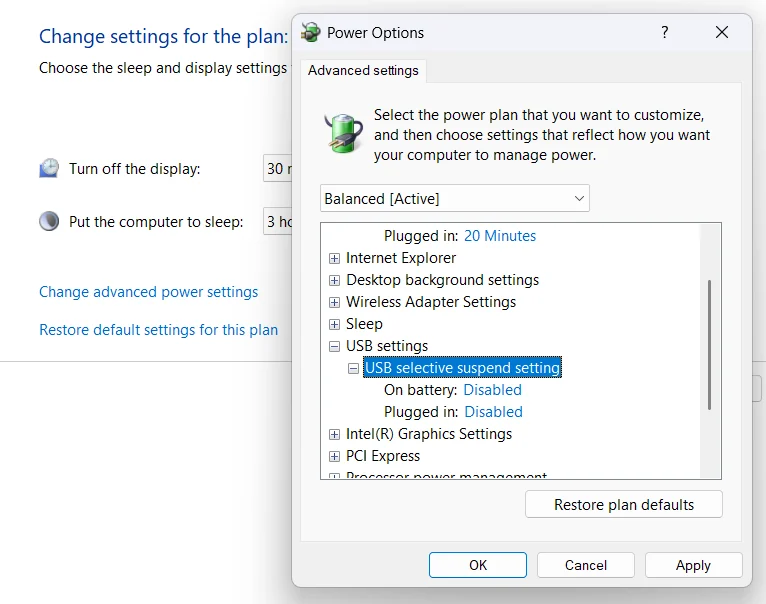
Beyond driver integrity, Windows employs aggressive power management strategies that can inadvertently disable USB ports. The "USB Selective Suspend" feature is a sophisticated power-saving mechanism designed to cut power to individual USB ports when they are not actively transmitting data. While beneficial for extending battery life on laptops, this feature can malfunction, leaving a port in a permanent state of "suspension" even when a device is plugged in. To rectify this, users must delve into the advanced power settings of their current power plan. By navigating through the Control Panel to the Power Options, one can locate the specific toggle for Selective Suspend. Disabling this setting ensures that the USB hub remains fully powered at all times, removing the risk of the OS prematurely cutting the connection to save a negligible amount of milliwatts.
However, the complexities of modern Windows versions sometimes mean that the Selective Suspend toggle is hidden or missing from the standard graphical user interface, often due to manufacturer-specific power schemas or the implementation of Modern Standby. In such cases, a more surgical approach via the Registry Editor is required. The Windows Registry is a hierarchical database that stores low-level settings for the operating system and applications. By navigating to the specific registry keys associated with USB power management—specifically within the HKEY_LOCAL_MACHINESYSTEMCurrentControlSetServicesUSB path—users can manually override the system’s power behavior. Modifying or creating specific DWORD values, such as "DisableSelectiveSuspend," allows a user to force the system to keep the USB architecture active regardless of the power plan’s instructions. Given the sensitivity of the Registry, this step is considered an advanced fix, necessitating a full backup of the registry hive before any changes are committed.

It is also worth noting that USB failures can occasionally be traced back to the BIOS or UEFI level. If the ports are disabled at the firmware level, no amount of Windows-based troubleshooting will restore them. Users experiencing total port failure across the entire machine should investigate the "Integrated Peripherals" or "Onboard Devices" section of their BIOS to ensure that the USB controllers are set to "Enabled." Additionally, checking for BIOS updates from the motherboard or laptop manufacturer can resolve deep-seated compatibility issues between the hardware and the latest Windows 11 updates.
In conclusion, the failure of USB ports on a Windows machine is rarely a sign of a dead motherboard. Instead, it is usually a symptom of a bridge that has been broken—either by physical debris, a confused driver, or an overzealous power-saving algorithm. By systematically moving through physical cleaning, driver reinstallation, hardware re-scanning, and power management adjustments, users can almost always identify the bottleneck. These steps not only restore the immediate utility of the machine but also provide the user with a deeper understanding of how Windows manages its hardware resources. Should these comprehensive software and maintenance steps fail, only then is it advisable to consult a hardware technician, as the issue may then reside in a blown capacitor or a fractured solder joint on the USB header itself. For the vast majority, however, the path to recovery lies within the settings and tools already provided by the Windows operating system.
