

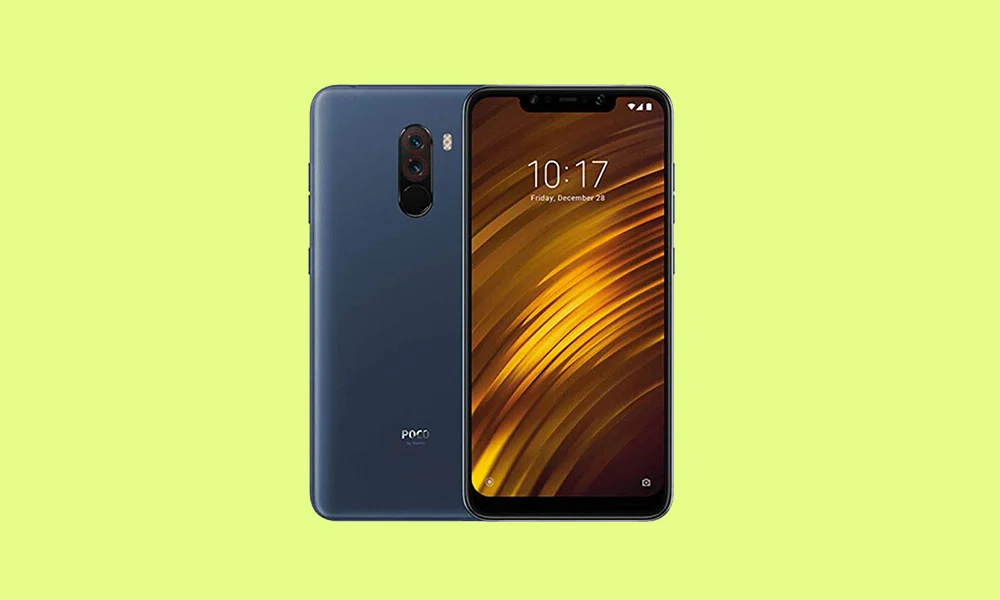
The Xiaomi Poco F1 remains one of the most significant landmarks in the history of the smartphone industry. Released in 2018 under the sub-brand "Pocophone," it shattered the status quo by offering flagship-grade internal specifications at a price point previously reserved for mid-range handsets. While Xiaomi officially ceased software support for this device years ago—leaving it stranded on older iterations of MIUI—the enthusiast developer community has refused to let this hardware icon fade into obscurity. With Google’s recent unveiling of Android 16, developers have successfully ported unofficial Android Open Source Project (AOSP) builds to the Poco F1, also known by its codename "beryllium." This guide provides an exhaustive look at the features of Android 16 and a technical walkthrough for breathing new life into this classic device.
The Xiaomi Poco F1 was built around the philosophy of raw performance. At its heart lies the Qualcomm Snapdragon 845, a 10nm octa-core chipset that, even by modern standards, remains surprisingly capable for daily tasks and moderate gaming. This is complemented by the Adreno 630 GPU and up to 8GB of LPDDR4X RAM. The device features a 6.18-inch IPS LCD display with a resolution of 1080 x 2246 pixels. While the plastic "polycarbonate" build was a cost-cutting measure, it offered a level of durability that glass-sandwich phones often lack. The inclusion of LiquidCool technology ensured that the SD845 could maintain high clock speeds without thermal throttling, a feature that makes it an ideal candidate for running the latest, most resource-intensive versions of Android.
![How to Install Android 16 on Xiaomi Poco F1 [Download Link]](https://www.getdroidtips.com/wp-content/uploads/2020/05/Download-and-Install-MIUI-12-ROM-for-Xiaomi-Poco-F1.jpg)
Android 16 represents a refined chapter in the evolution of Google’s mobile operating system. The most prominent change is the introduction of "Material 3 Expressive." This design philosophy is not a total departure from the Material You aesthetics introduced in Android 12, but rather a sophisticated polish. It focuses on enhancing the tactile feel of the interface through more fluid animations, bolder typography, and optimized touch targets that make the OS feel more responsive. For a device like the Poco F1, which lacks a high-refresh-rate screen, these optimized animations are crucial in providing a perceived sense of speed and modernity. Beyond aesthetics, Android 16 introduces deep system optimizations, including improved background process management and updated ART (Android Runtime) modules that promise faster app startup times and better memory efficiency.
Before embarking on the journey of installing a custom ROM, users must understand the technical prerequisites. Modifying a device’s firmware is an inherently risky process that can lead to a "bricked" state if not followed precisely. The first and most vital step is a comprehensive data backup. Installing a new operating system requires a complete wipe of the device’s internal storage, meaning all photos, messages, and application data will be lost. Users are encouraged to use cloud services or external physical storage to secure their personal information before proceeding.
Furthermore, the hardware must be prepared. The Poco F1 should be charged to at least 50% to prevent an unexpected shutdown during the flashing process, which can be fatal to the device’s logic board. On the software side, a computer equipped with ADB (Android Debug Bridge) and Fastboot binaries is required. These tools allow the computer to communicate with the phone’s bootloader and recovery partitions. Additionally, the latest Xiaomi USB drivers must be installed on the PC to ensure a stable data connection via the USB-C port.
![How to Install Android 16 on Xiaomi Poco F1 [Download Link]](https://www.getdroidtips.com/wp-content/uploads/2020/05/Download-and-Install-MIUI-12-ROM-for-Xiaomi-Poco-F1-300x180.jpg)
The gateway to any custom software installation is the unlocking of the bootloader. Xiaomi employs a specific security protocol for this, often requiring users to bind their Mi Account to the device and wait for a designated period—sometimes up to 168 hours—before the official Mi Unlock Tool permits the procedure. Unlocking the bootloader is a mandatory step, as it disables the signature verification that prevents unauthorized firmware from being loaded. Once the bootloader is unlocked, the stock MIUI recovery must be replaced with a custom recovery environment, such as TWRP (Team Win Recovery Project). TWRP provides a touch-based interface for partitioning the drive, wiping data, and flashing the compressed .zip files that contain the Android 16 ROM.
The Android 16 experience on the Poco F1 is currently delivered via AOSP-based builds. These "Vanilla" builds are stripped of the heavy bloatware and telemetry often found in manufacturer skins like MIUI. However, because they are pure open-source versions of Android, they do not include Google Mobile Services (GMS) by default. To access the Google Play Store, Gmail, and YouTube, users must download and flash a compatible GApps (Google Apps) package specifically designed for Android 16. It is critical to flash the ROM and the GApps package in the same session before the initial reboot to ensure that the Google services are properly integrated into the system partition.
The installation process follows a logical sequence. Once the device is booted into TWRP recovery, the user must navigate to the "Wipe" section. A "Factory Reset" is usually sufficient, but for those moving from a vastly different version of Android, a "Format Data" (which requires typing ‘yes’) is recommended to remove encryption conflicts. After the wipe is complete, the Android 16 ROM file and the GApps package are transferred to the device’s storage. Using the "Install" menu in TWRP, the user first selects the ROM file. Once the flashing of the system image is complete, the GApps file is queued and flashed.
![How to Install Android 16 on Xiaomi Poco F1 [Download Link]](https://www.getdroidtips.com/wp-content/uploads/2020/06/cmd-platform-tools.jpg)
Upon the first boot, which can take several minutes as the system builds its initial cache, the user is greeted by the Android 16 setup screen. The immediate impression is one of cleanliness. The "Material 3 Expressive" elements are visible in the lock screen clock, the redesigned quick settings toggles, and the system menus. For Poco F1 users, the most striking difference is the absence of MIUI’s aggressive RAM management. With a clean AOSP build, the Snapdragon 845 feels unburdened, handling multitasking with a level of grace that belies the hardware’s age.
Current reports from the developer community suggest that these early builds of Android 16 for the Poco F1 are surprisingly stable. Core functionalities, including Wi-Fi, Bluetooth, cellular data, and the infrared face unlock—a unique hardware feature of the F1—are generally operational. However, as with any unofficial port, "known issues" may exist. These can range from minor graphical glitches to specific bugs in the camera app or battery calibration. Users are encouraged to maintain a line of communication with the developers on platforms like XDA Developers, providing logcats (system logs) when they encounter errors. This collaborative effort is what allows custom ROMs to eventually reach "stable" status.
In conclusion, installing Android 16 on the Xiaomi Poco F1 is more than just a software update; it is a testament to the longevity of well-engineered hardware and the passion of the Android community. By bypassing the artificial limitations of official support cycles, users can enjoy the latest security patches, privacy controls, and UI innovations on a device that remains a powerhouse in the secondary market. While the process requires technical diligence and a willingness to troubleshoot, the reward is a "flagship killer" that continues to defy its age, proving that the Poco F1’s legacy is far from over. As Android 16 continues to mature, the Poco F1 will undoubtedly remain a primary canvas for mobile innovation.
