

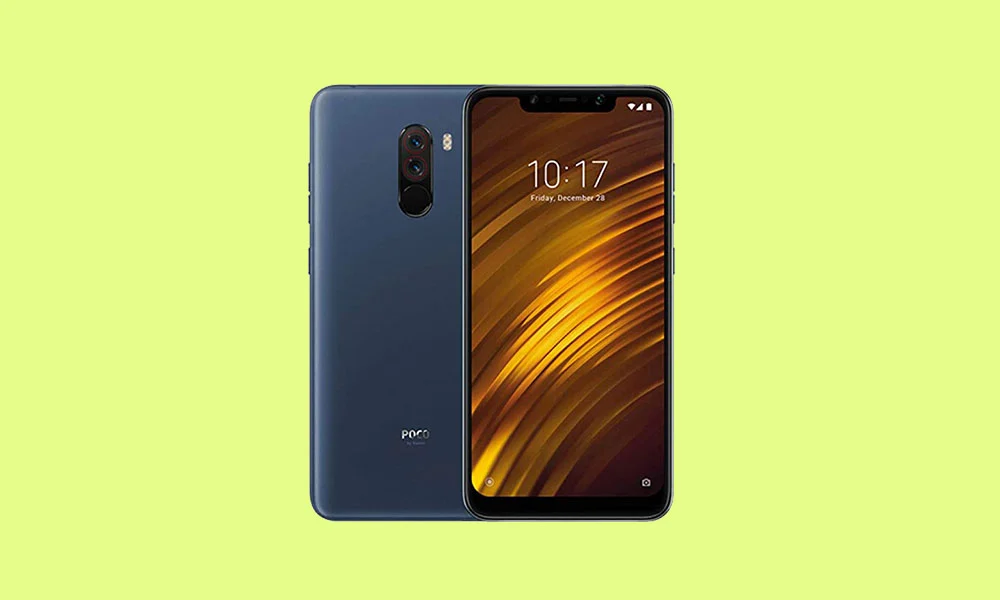
When Xiaomi launched the Poco F1 in late 2018, it sent shockwaves through the smartphone industry. Dubbed the "Master of Speed," it offered the flagship Qualcomm Snapdragon 845 processor at a price point that was previously reserved for mid-range handsets with significantly weaker internals. Fast forward to the present day, and while the official software support from Xiaomi has long since concluded, the device’s legacy continues to thrive within the enthusiast community. In a remarkable display of developer ingenuity, the Poco F1 has now received an unofficial port of Android 16, allowing this aging titan to run Google’s latest operating system well before many modern flagships have even received the update.
The transition to Android 16 marks a significant milestone for the Poco F1, codenamed "beryllium" in the developer circles. While Google recently debuted the early builds of Android 16 for its Pixel lineup, the open-source nature of the Android Open Source Project (AOSP) has allowed independent developers to bridge the gap for legacy hardware. This latest update is not merely a cosmetic change; it brings the "Material 3 Expressive" design language and a host of under-the-hood optimizations to a phone that is technically over half a decade old.
![How to Install Android 16 on Xiaomi Poco F1 [Download Link]](https://www.getdroidtips.com/wp-content/uploads/2020/05/Download-and-Install-MIUI-12-ROM-for-Xiaomi-Poco-F1.jpg)
To understand the significance of this update, one must look at the hardware that made the Poco F1 a cult classic. At its heart lies the Snapdragon 845, a 10nm octa-core chip that, even by today’s standards, provides enough raw power for smooth daily navigation and moderate gaming. Accompanied by the Adreno 630 GPU and up to 8GB of LPDDR4X RAM, the device remains a capable performer. Its 6.18-inch IPS LCD, while lacking the high refresh rates of modern AMOLED panels, provides a reliable Full HD+ experience. The camera system, featuring a 12MP primary sensor and a 5MP depth sensor, was never its strongest suit, but the software processing improvements found in newer Android versions—and specifically through Google Camera ports—often breathe new life into the optics.
The headline feature of Android 16 is undoubtedly the "Material 3 Expressive" interface. Since the introduction of Material You in Android 12, Google has been refining its design philosophy to be more personal and fluid. Material 3 Expressive represents the next logical step in this evolution. It focuses on bolder typography, more dynamic color extraction from wallpapers, and an overhaul of system animations that feel more tactile and responsive. For a device like the Poco F1, which originally shipped with MIUI’s heavy skin, the move to a clean, AOSP-based Android 16 interface makes the phone feel significantly faster and more modern. The touch targets are larger, the menus are more intuitive, and the overall aesthetic is one of minimalist sophistication.
Beyond the visual flair, Android 16 introduces several system-level enhancements. These include improved power management through more aggressive "Doze" modes, which are crucial for an aging 4000 mAh battery that may have lost some of its original capacity over the years. Additionally, the new OS offers refined privacy controls, such as more granular permissions for media access and a more transparent privacy dashboard. For Poco F1 users, this means the device is not just newer in terms of features, but also more secure than it was on its last official firmware.
![How to Install Android 16 on Xiaomi Poco F1 [Download Link]](https://www.getdroidtips.com/wp-content/uploads/2020/05/Download-and-Install-MIUI-12-ROM-for-Xiaomi-Poco-F1-300x180.jpg)
However, bringing such a modern operating system to legacy hardware is not without its complexities. The installation process is a journey that requires technical diligence and a clear understanding of the risks involved. Before embarking on this software migration, users must ensure they have met several prerequisites. The most critical step is the backing up of all personal data. Flashing a custom ROM requires a complete wipe of the device’s internal storage, meaning photos, messages, and application data must be secured externally or in the cloud.
The technical foundation of this installation rests on three pillars: an unlocked bootloader, a custom recovery environment, and the appropriate drivers. Xiaomi’s bootloader unlocking process is notoriously specific, often requiring the use of the Mi Unlock Tool and a waiting period that can last up to a week. Once the bootloader is unlocked, the gateway is open for the installation of TWRP (Team Win Recovery Project). TWRP acts as a secondary operating system that allows users to modify the system partitions, flash zip files, and perform full system backups known as Nandroid backups.
Equally important is the preparation of the host computer. Users must install the latest Xiaomi USB drivers and ADB (Android Debug Bridge) and Fastboot binaries. These tools facilitate the communication between the PC and the Poco F1 when the device is in its bootloader or recovery states. Without these, the computer will fail to recognize the handset during the most critical phases of the flashing process.
![How to Install Android 16 on Xiaomi Poco F1 [Download Link]](https://www.getdroidtips.com/wp-content/uploads/2020/06/cmd-platform-tools.jpg)
The actual installation of Android 16 on the Poco F1 follows a structured sequence. Once inside the TWRP recovery, the user must perform a "Clean Flash." This involves wiping the Data, Cache, and System partitions to ensure that no remnants of the old MIUI or previous custom ROMs interfere with the new Android 16 files. After the wipe, the Android 16 ROM zip file is transferred to the device and flashed. Because many AOSP-based ROMs aim for a "de-Googled" or lightweight experience, they often do not include Google Play Services or the Play Store by default. Therefore, a separate package known as GApps (Google Apps) must be flashed immediately following the ROM installation to ensure access to the Google ecosystem.
Post-installation, the first boot is often the most nerve-wracking moment for any enthusiast. The initial boot process for Android 16 on the Poco F1 can take several minutes as the system optimizes its databases and sets up the Dalvik cache. Once the setup screen appears, users are greeted with the familiar Android welcome sequence, now updated with the sleek aesthetics of the 2025-bound software.
Current reports from the developer community suggest that these early builds of Android 16 for the Poco F1 are surprisingly stable. Core functions such as Wi-Fi, Bluetooth, cellular data, and GPS are generally reported as working. However, as with any unofficial port, "known issues" are a part of the territory. Users might encounter minor graphical glitches, specific app incompatibilities, or issues with the infrared face unlock hardware, which requires specialized drivers that are difficult to port. The beauty of the custom ROM community, however, lies in its iterative nature; developers frequently release "nightly" or "weekly" builds that squash bugs reported by the user base.
![How to Install Android 16 on Xiaomi Poco F1 [Download Link]](https://www.getdroidtips.com/wp-content/uploads/2020/08/twrp-custom-rom.jpg)
The decision to install Android 16 on a Poco F1 is about more than just having the latest version number in the "About Phone" section. It is a statement against planned obsolescence. It proves that hardware, when decoupled from the restrictive update cycles of manufacturers, can remain functional and relevant for much longer than the industry suggests. By leveraging the power of the Snapdragon 845 and the flexibility of Android’s open-source roots, Poco F1 owners are essentially getting a "new" phone for the cost of a few hours of technical work.
As Android 16 continues to mature and eventually reaches its stable release for the general public, the Poco F1 builds will likely become even more refined. For now, this unofficial port serves as a testament to the enduring popularity of the device and the passion of the developers who refuse to let it fade into obscurity. For those willing to navigate the complexities of custom recoveries and fastboot commands, the reward is a piece of mobile history running the absolute cutting edge of Google’s software vision. The "Master of Speed" may be an old dog, but with Android 16, it has certainly learned some impressive new tricks.
